> ## Documentation Index
> Fetch the complete documentation index at: https://docs.practicemate.com.au/llms.txt
> Use this file to discover all available pages before exploring further.
# Create your first Automation
> Build a Birthday Card Email Automation using a Recipe, an Email Template, and the Automation editor.
In this guide, you will build a simple Automation for:
**Sending a birthday Email to patients whose birthday is today.**
This is a friendly first example because it uses the three main pieces of PracticeMate Communications work:
* a Recipe to find the Patient Cohort
* an Email Template to hold the wording
* an Automation to bring them together
## Before you start
You need:
* a Recipe named **Patients whose birthday is today**
* an Email Template named **Birthday email**
If your practice uses different names, choose the matching Recipe and Template from your own list.
Do not use **Run Now** until your team is ready for the Automation to contact
patients. Build, save, and review the Automation first.
## Open a new Automation
Open **Automations**, then select **Create Automation**.
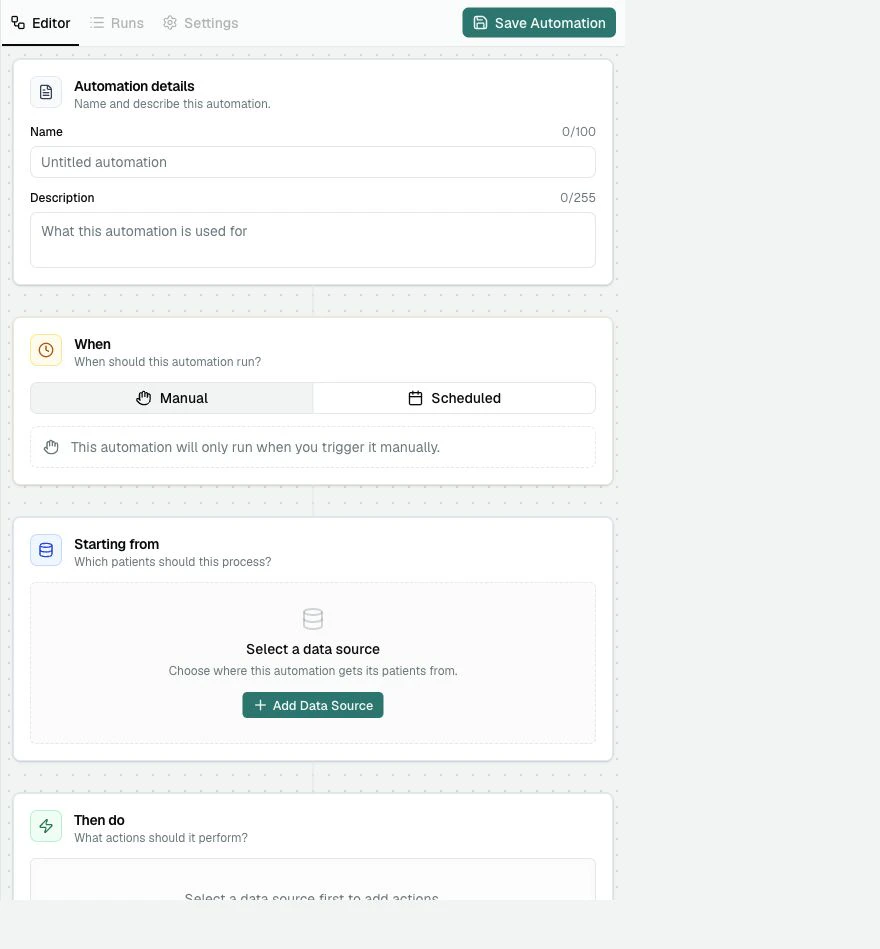
 PracticeMate opens a blank Automation editor.
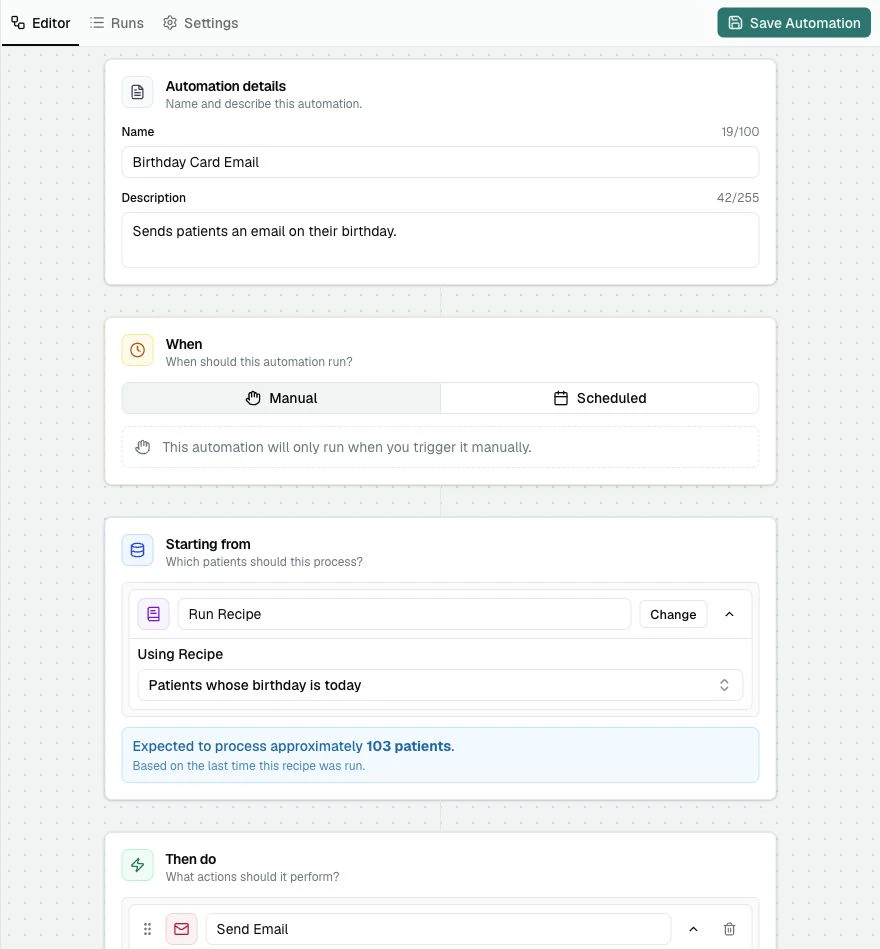
 ## Name the Automation
In **Automation details**, enter:
* **Name**: Birthday Card Email
* **Description**: Sends patients an email on their birthday.
The name and description are for your practice team. Patients do not see them.
Use a name that describes the workflow clearly. **Birthday Card Email** is
easier to recognise later than **Birthday automation** or **Test email**.
## Choose when it runs
Leave **When** set to **Manual** while you build the Automation.
Manual means PracticeMate will not run this Automation automatically. It will only run when a Member chooses **Run Now**.
If your practice is ready for this to happen automatically every day, choose **Scheduled** instead, then set the Timezone, Frequency, and Time.
## Name the Automation
In **Automation details**, enter:
* **Name**: Birthday Card Email
* **Description**: Sends patients an email on their birthday.
The name and description are for your practice team. Patients do not see them.
Use a name that describes the workflow clearly. **Birthday Card Email** is
easier to recognise later than **Birthday automation** or **Test email**.
## Choose when it runs
Leave **When** set to **Manual** while you build the Automation.
Manual means PracticeMate will not run this Automation automatically. It will only run when a Member chooses **Run Now**.
If your practice is ready for this to happen automatically every day, choose **Scheduled** instead, then set the Timezone, Frequency, and Time.
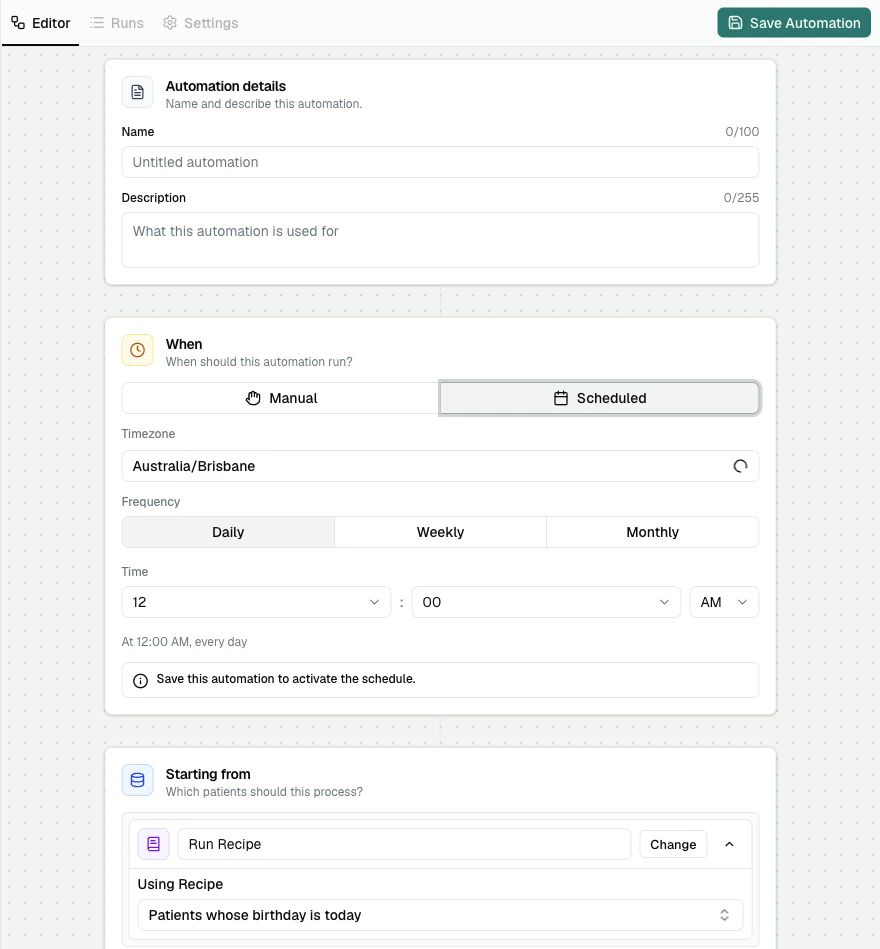 For a birthday workflow, a daily morning schedule is usually the natural choice once the team is ready.
## Add the Recipe Source
In **Starting from**, select **Add Data Source**.
For a birthday workflow, a daily morning schedule is usually the natural choice once the team is ready.
## Add the Recipe Source
In **Starting from**, select **Add Data Source**.
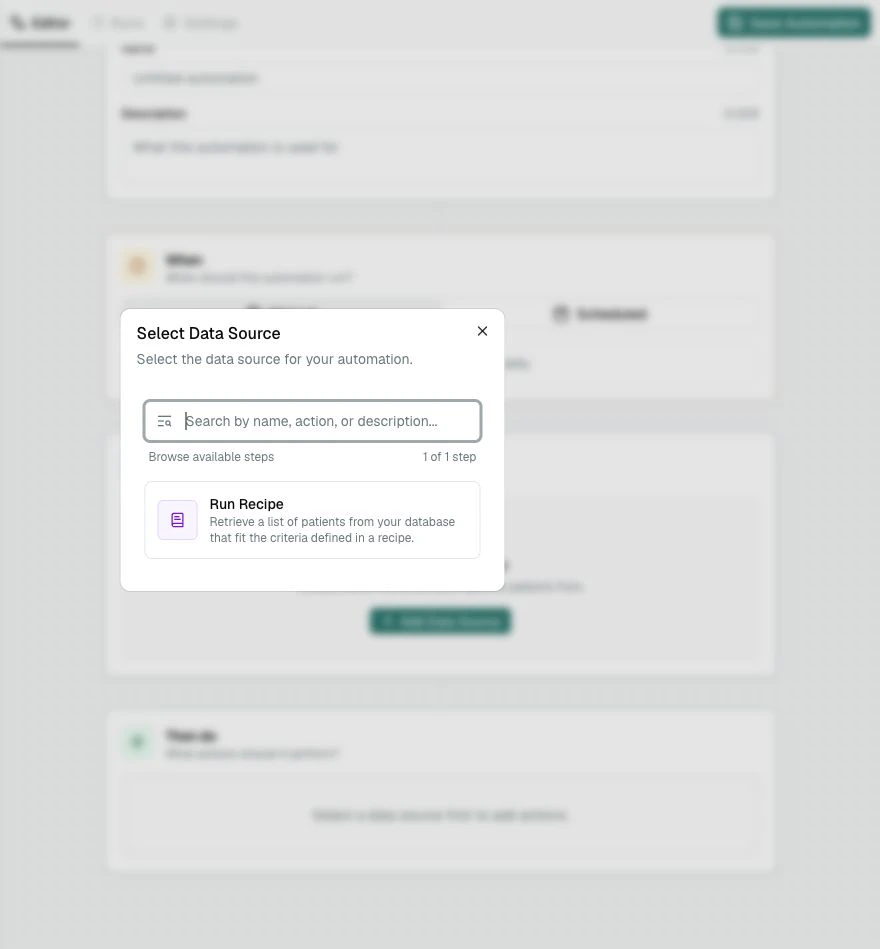 Choose **Run Recipe**.
PracticeMate adds a **Run Recipe** card to the **Starting from** section.
Choose **Run Recipe**.
PracticeMate adds a **Run Recipe** card to the **Starting from** section.
 ## Select the birthday Recipe
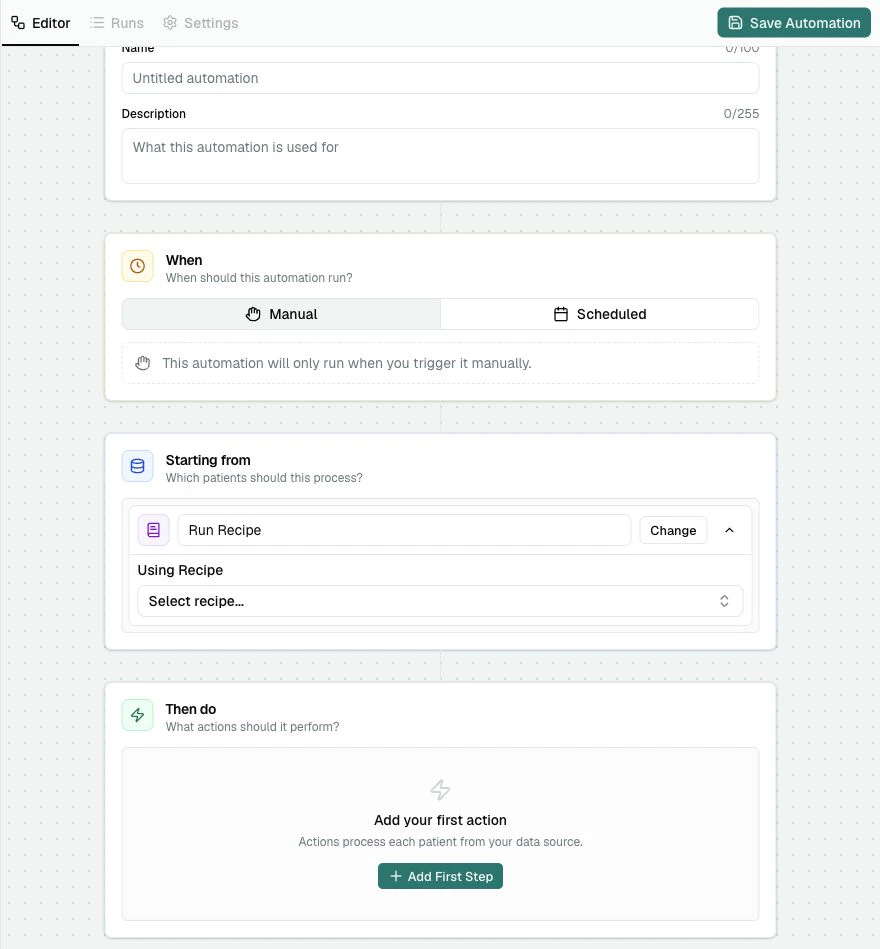
Open **Using Recipe**.
Choose **Patients whose birthday is today**.
## Select the birthday Recipe
Open **Using Recipe**.
Choose **Patients whose birthday is today**.
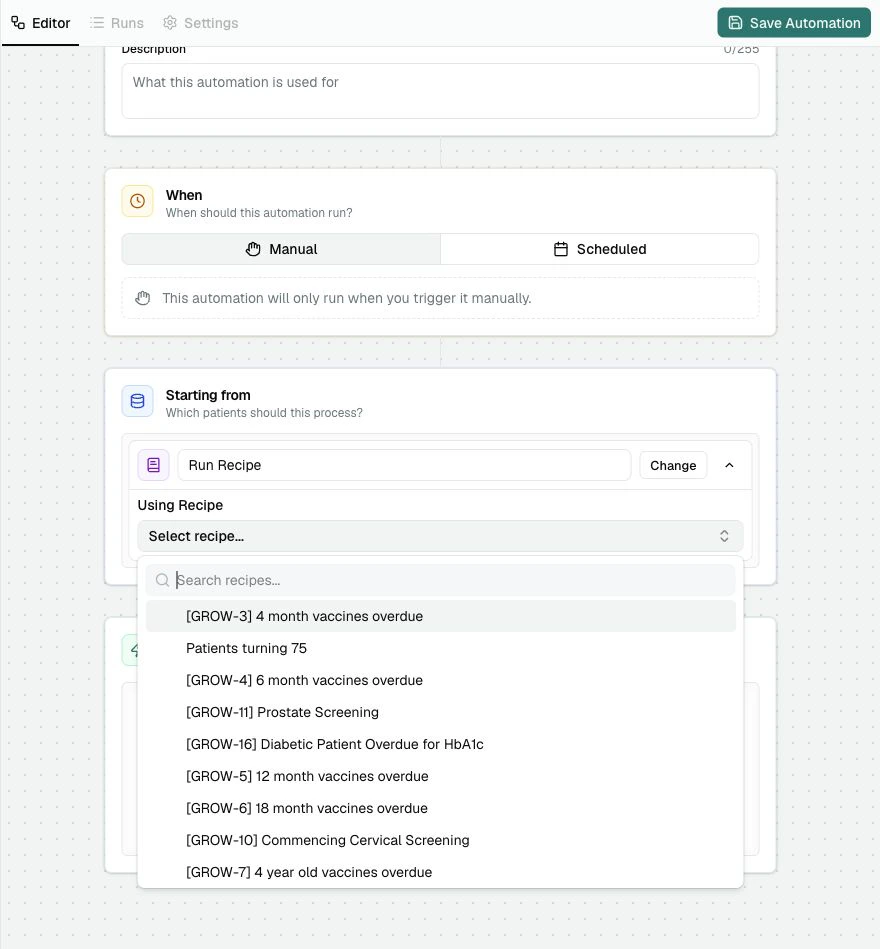 After you choose the Recipe, PracticeMate shows an expected patient count based on the last time that Recipe was run.
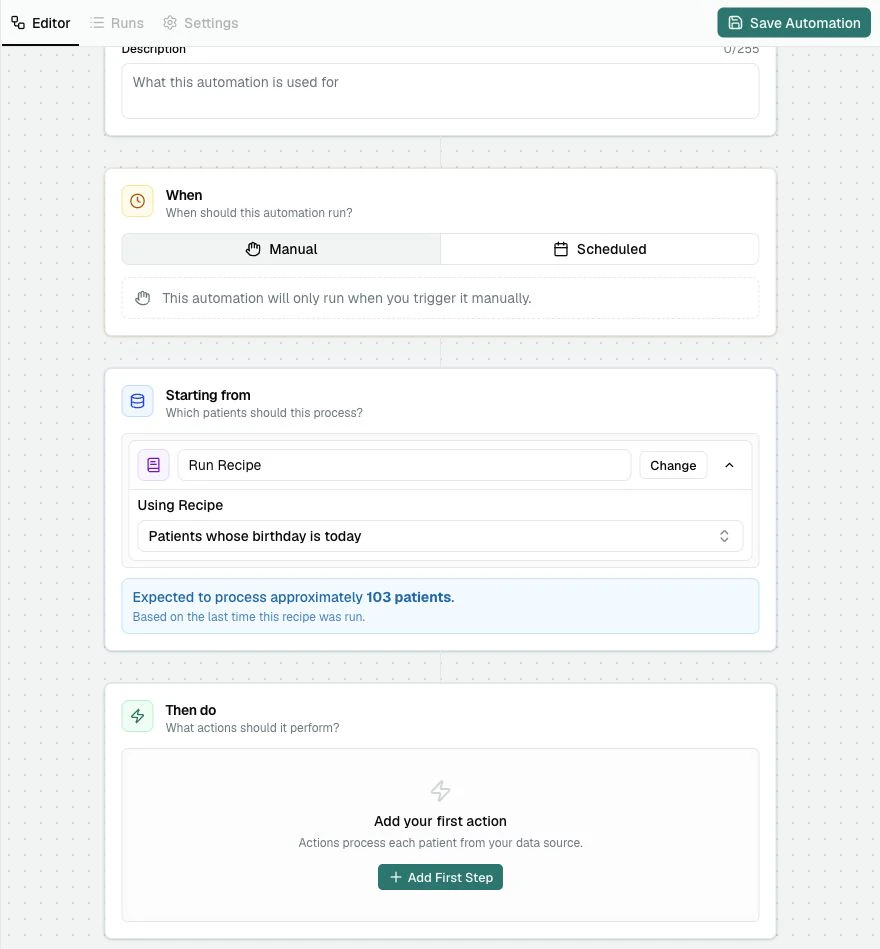 The expected count is a guide. It helps you check whether the selected Recipe
looks sensible before the Automation runs.
## Add the Email step
In **Then do**, select **Add First Step**.
PracticeMate shows the available Automation Steps.
The expected count is a guide. It helps you check whether the selected Recipe
looks sensible before the Automation runs.
## Add the Email step
In **Then do**, select **Add First Step**.
PracticeMate shows the available Automation Steps.
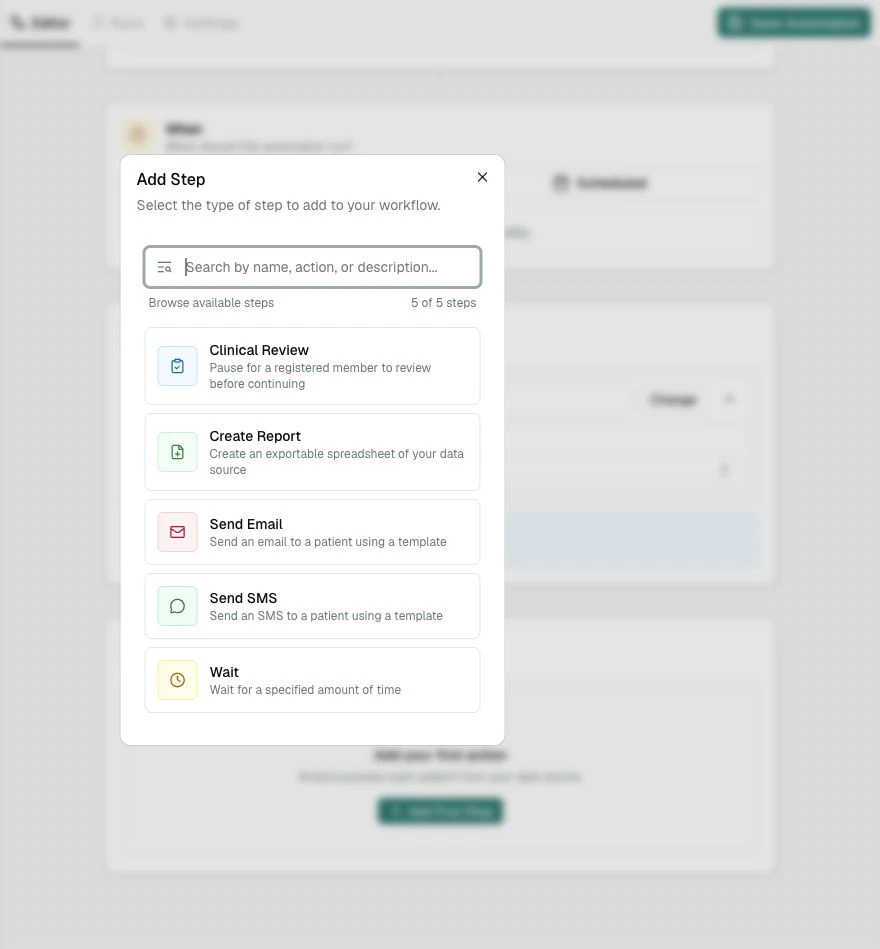 Choose **Send Email**.
PracticeMate adds a **Send Email** step.
Choose **Send Email**.
PracticeMate adds a **Send Email** step.
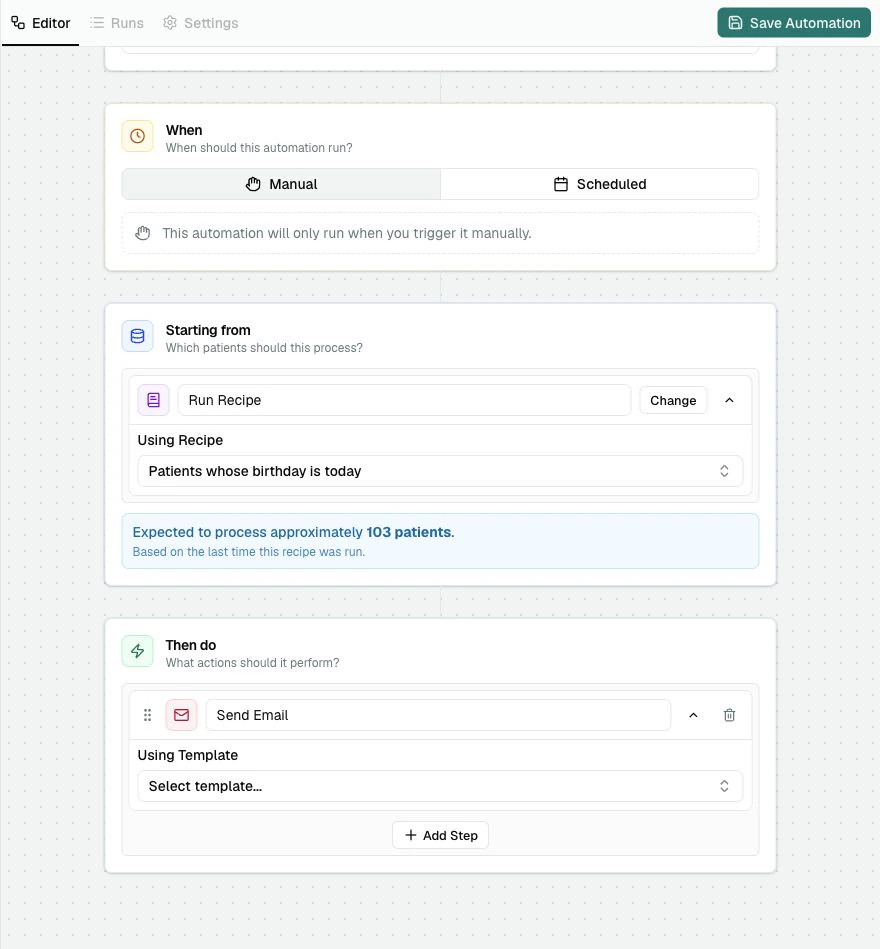 ## Select the Birthday email Template
Open **Using Template**.
Choose **Birthday email**.
## Select the Birthday email Template
Open **Using Template**.
Choose **Birthday email**.
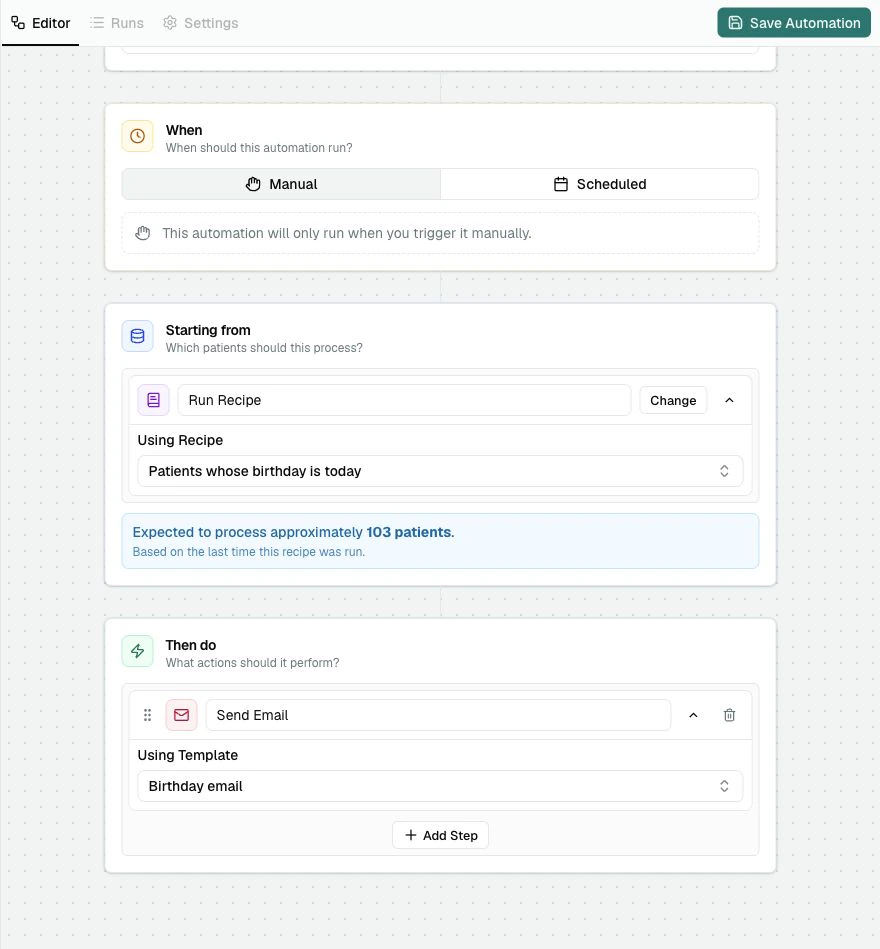
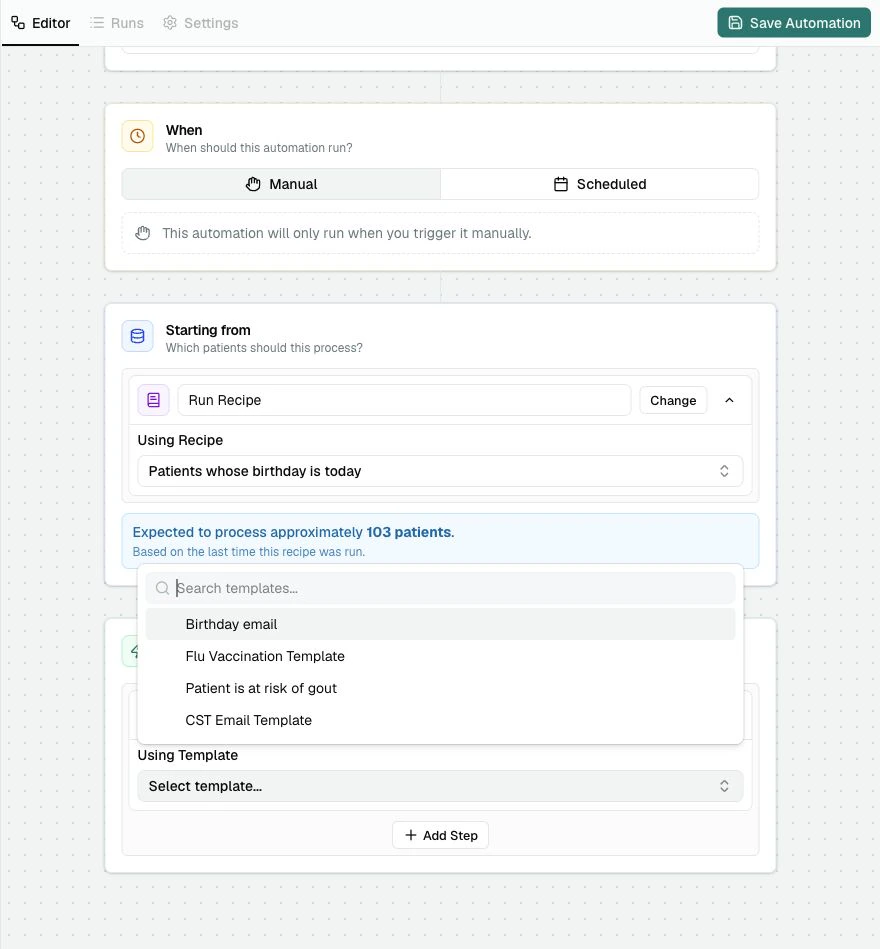 The **Send Email** step now uses the Birthday email Template.
 ## Review the complete Automation
The complete Automation should read like this:
* **When**: Manual while building, or Scheduled when your team is ready
* **Starting from**: Run Recipe using **Patients whose birthday is today**
* **Then do**: Send Email using **Birthday email**
Your editor should look similar to this finished example.
## Review the complete Automation
The complete Automation should read like this:
* **When**: Manual while building, or Scheduled when your team is ready
* **Starting from**: Run Recipe using **Patients whose birthday is today**
* **Then do**: Send Email using **Birthday email**
Your editor should look similar to this finished example.
 ## Save the Automation
Select **Save Automation**.
PracticeMate checks that the Automation has:
* a valid name
* a data source
* at least one Automation Step
* required selections inside each step
Saving also locks the selected Recipe Version and Email Template Version into the Automation.
Later edits to the Recipe or Birthday email Template will not quietly change
this Automation. If you want the Automation to use a newer Recipe or Template
version later, open the Automation and choose **Update to latest** when that
option appears.
## Check the Settings tab
After saving, open **Settings**.
## Save the Automation
Select **Save Automation**.
PracticeMate checks that the Automation has:
* a valid name
* a data source
* at least one Automation Step
* required selections inside each step
Saving also locks the selected Recipe Version and Email Template Version into the Automation.
Later edits to the Recipe or Birthday email Template will not quietly change
this Automation. If you want the Automation to use a newer Recipe or Template
version later, open the Automation and choose **Update to latest** when that
option appears.
## Check the Settings tab
After saving, open **Settings**.
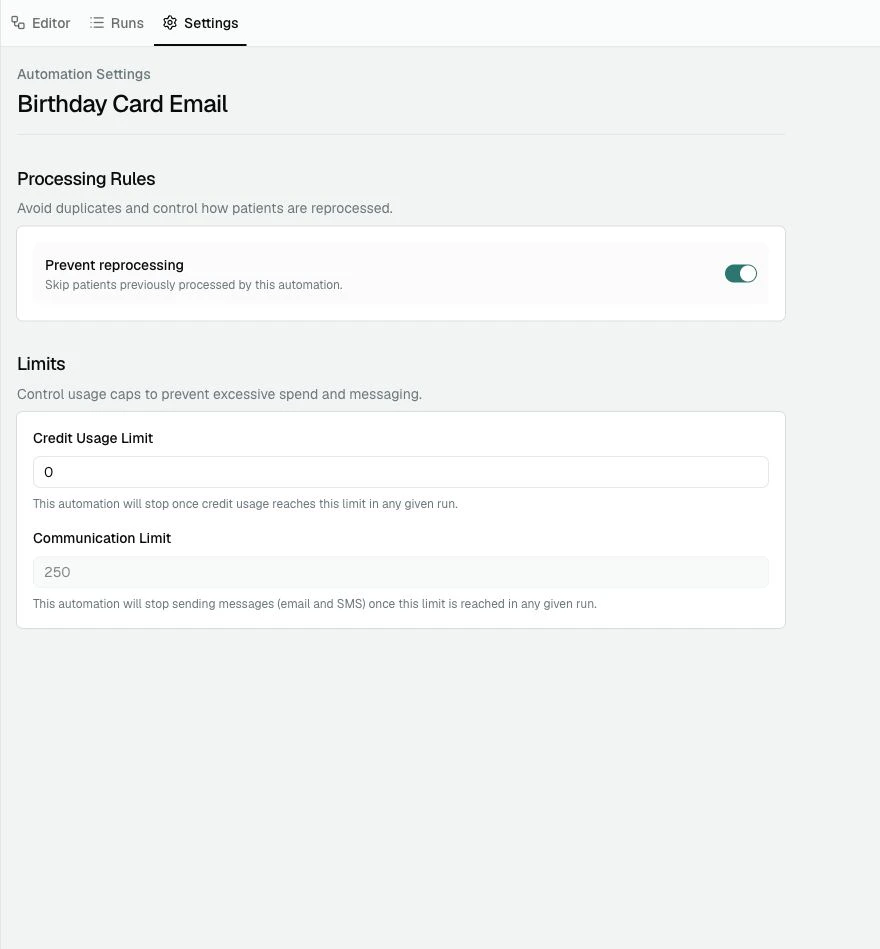 For a birthday Email, **Prevent reprocessing** is usually helpful. It stops PracticeMate from sending again to patients this Automation has already processed for the same Recipe.
You can also check the Credit Limit before running the Automation.
## Check the Runs tab
Open **Runs** when you want to see Automation Run history.
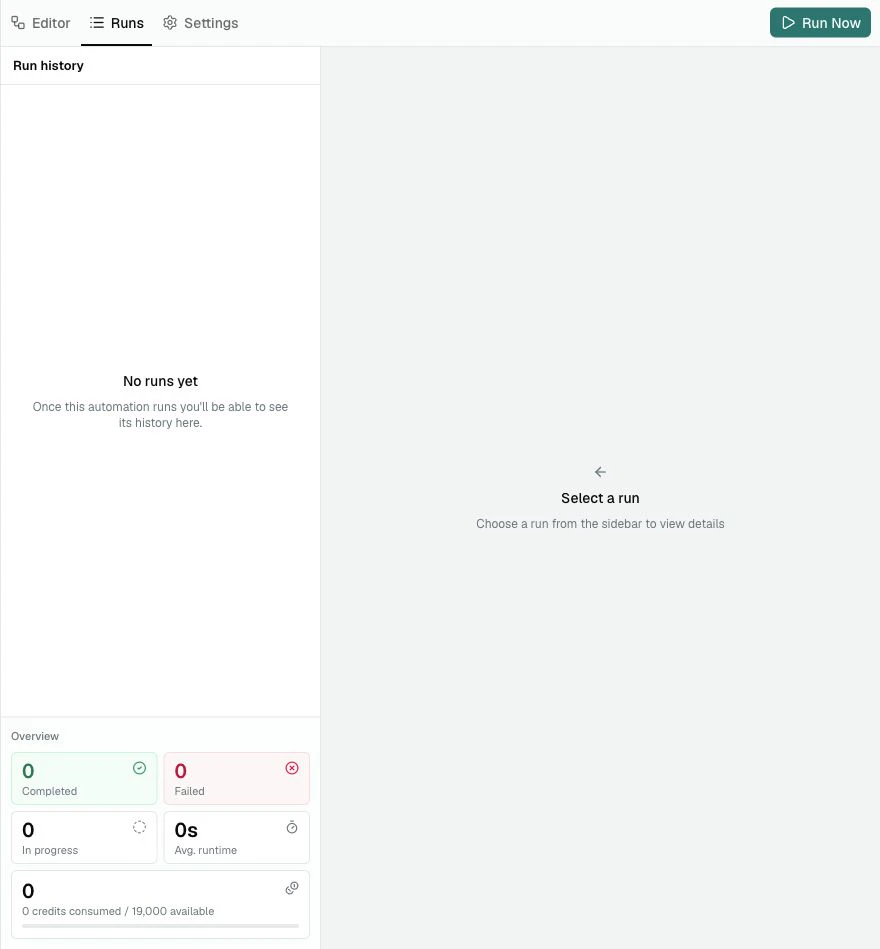
For this walkthrough, the Birthday Card Email Automation may not have previous runs yet.
For a birthday Email, **Prevent reprocessing** is usually helpful. It stops PracticeMate from sending again to patients this Automation has already processed for the same Recipe.
You can also check the Credit Limit before running the Automation.
## Check the Runs tab
Open **Runs** when you want to see Automation Run history.
For this walkthrough, the Birthday Card Email Automation may not have previous runs yet.
 A populated Runs page looks like this example:
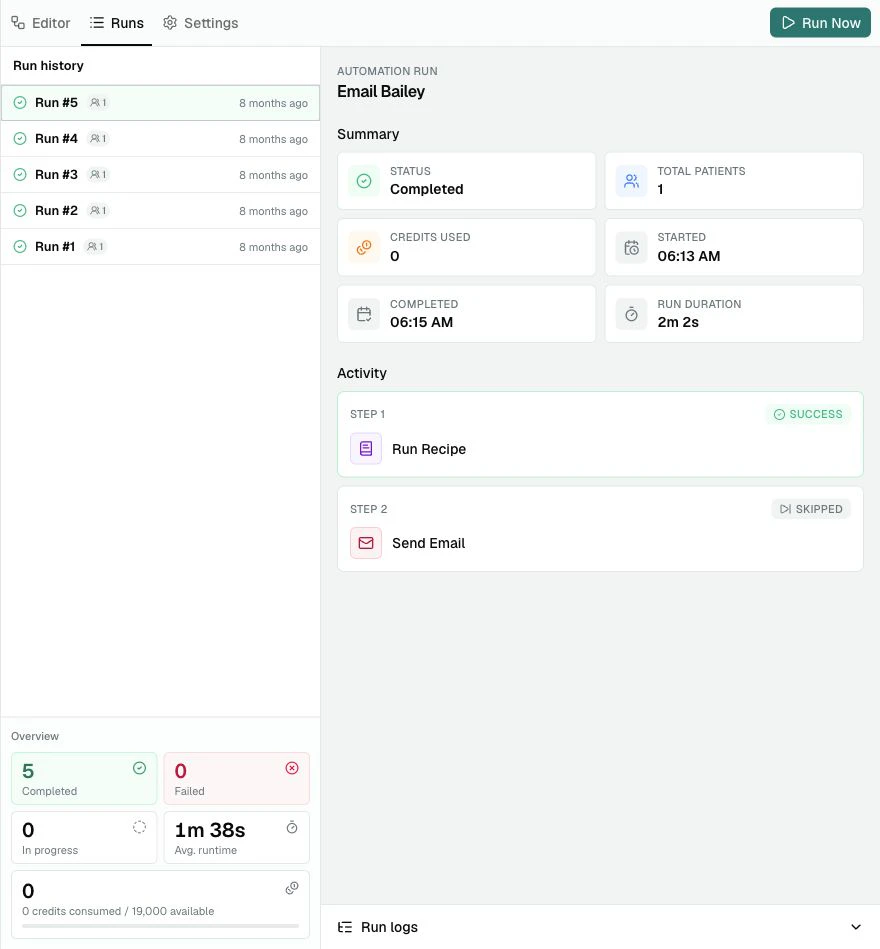 The Runs page helps your practice see what happened each time the Automation ran.
## What you learned
You used:
* **Automation details** to name and describe the workflow
* **When** to choose Manual or Scheduled
* **Starting from** to select a Recipe Source
* **Then do** to add a Send Email step
* **Using Template** to choose the Birthday email Template
* **Save Automation** to store the workflow
* **Settings** to review processing and limit controls
* **Runs** to review previous Automation Runs
You have built your first PracticeMate Automation.
Next, use the [Automation editor reference](/automations/editor-reference) when you want a complete guide to every control and available step.
The Runs page helps your practice see what happened each time the Automation ran.
## What you learned
You used:
* **Automation details** to name and describe the workflow
* **When** to choose Manual or Scheduled
* **Starting from** to select a Recipe Source
* **Then do** to add a Send Email step
* **Using Template** to choose the Birthday email Template
* **Save Automation** to store the workflow
* **Settings** to review processing and limit controls
* **Runs** to review previous Automation Runs
You have built your first PracticeMate Automation.
Next, use the [Automation editor reference](/automations/editor-reference) when you want a complete guide to every control and available step.