> ## Documentation Index
> Fetch the complete documentation index at: https://docs.practicemate.com.au/llms.txt
> Use this file to discover all available pages before exploring further.
# Automations overview
> Learn what PracticeMate Automations are and when to use them.
An **Automation** is a saved workflow that starts with a Patient Cohort and then performs one or more ordered steps.
Most Automations bring together work your practice has already prepared:
**Recipe**: who the Automation starts with.
**Template**: what an Email or SMS says.
**Automation**: when PracticeMate should run the workflow, and what steps it should follow.
For example, a birthday Automation can:
* run a Recipe that finds patients whose birthday is today
* send those patients a birthday Email Template
* keep a record of each Automation Run
* avoid sending to patients who cannot be contacted or have opted out
Automations are designed to support practice workflows. Review the Recipe,
Template, timing, limits, and any Clinical Review needs before using an
Automation with patients.
## Open Automations
Open **Automations** from the sidebar.
The Automations page shows your saved Automations, including the number of Runs, current status, next scheduled run, last run, and row actions.
 From here, you can:
* search Automations
* open an Automation
* create a new Automation
* run an existing Automation manually
* delete an Automation when it is no longer needed
## How Automations are built
The editor is arranged in the same order the workflow runs.
**Automation details** name and describe the Automation for your team.
**When** controls whether the Automation is run manually or on a schedule.
**Starting from** chooses the Patient Cohort. Today, this is usually a Recipe.
**Then do** contains the ordered Automation Steps, such as sending an Email, sending an SMS, creating a Report, waiting, or asking for Clinical Review.
## Manual or Scheduled?
Choose **Manual** when your practice wants to start each Automation Run itself. Manual Automations are useful while setting up, testing, or keeping a workflow under close team control.
Choose **Scheduled** when the Automation should run automatically at a regular time, such as every morning or every Monday.
Start manually while you are still checking the Recipe and Template. Switch to
a schedule when the team is comfortable that the Automation is ready.
## Active and Inactive Automations
An **Active Automation** has automatic triggers enabled.
An **Inactive Automation** does not have automatic triggers enabled, but it can still be edited and run manually.
A Manual Automation appears Inactive because there is no schedule for PracticeMate to run automatically. A Scheduled Automation can be Active when its automatic schedule is enabled.
## Automation Runs
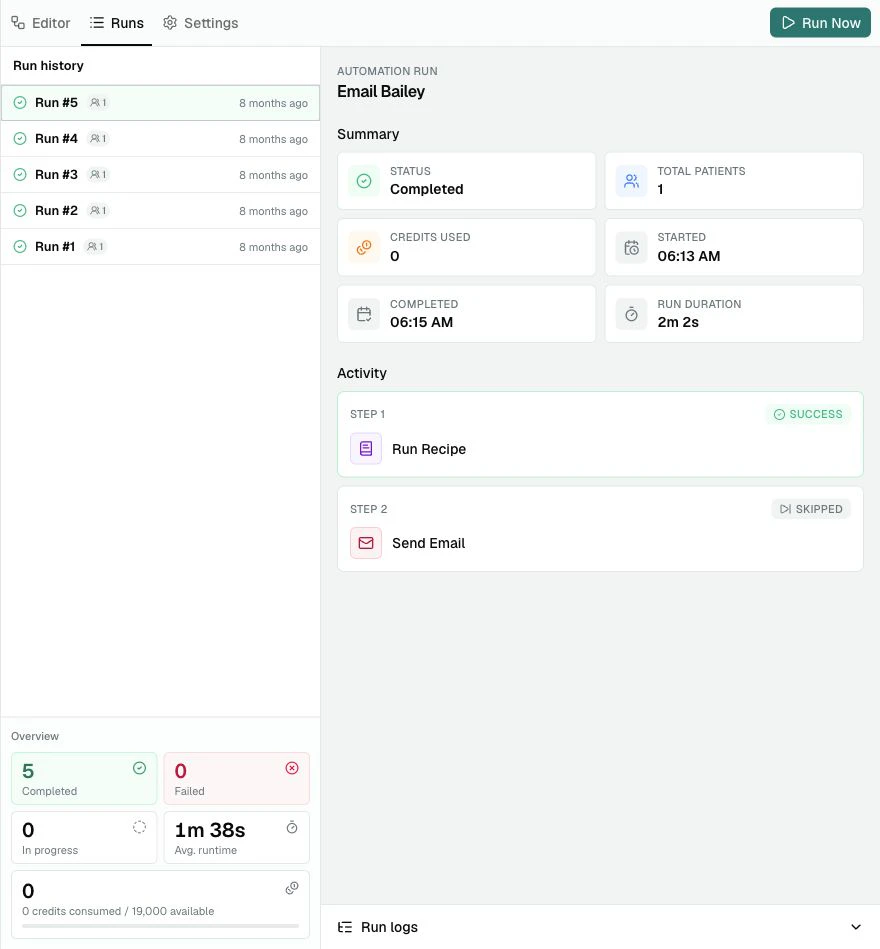
An **Automation Run** is one execution of an Automation.
Runs can be:
* **Manual Automation Runs**, started by a Member using **Run Now**
* **Scheduled Automation Runs**, started by a saved Schedule
The **Runs** tab shows previous runs, run status, patient count, credits used, step activity, and logs.
From here, you can:
* search Automations
* open an Automation
* create a new Automation
* run an existing Automation manually
* delete an Automation when it is no longer needed
## How Automations are built
The editor is arranged in the same order the workflow runs.
**Automation details** name and describe the Automation for your team.
**When** controls whether the Automation is run manually or on a schedule.
**Starting from** chooses the Patient Cohort. Today, this is usually a Recipe.
**Then do** contains the ordered Automation Steps, such as sending an Email, sending an SMS, creating a Report, waiting, or asking for Clinical Review.
## Manual or Scheduled?
Choose **Manual** when your practice wants to start each Automation Run itself. Manual Automations are useful while setting up, testing, or keeping a workflow under close team control.
Choose **Scheduled** when the Automation should run automatically at a regular time, such as every morning or every Monday.
Start manually while you are still checking the Recipe and Template. Switch to
a schedule when the team is comfortable that the Automation is ready.
## Active and Inactive Automations
An **Active Automation** has automatic triggers enabled.
An **Inactive Automation** does not have automatic triggers enabled, but it can still be edited and run manually.
A Manual Automation appears Inactive because there is no schedule for PracticeMate to run automatically. A Scheduled Automation can be Active when its automatic schedule is enabled.
## Automation Runs
An **Automation Run** is one execution of an Automation.
Runs can be:
* **Manual Automation Runs**, started by a Member using **Run Now**
* **Scheduled Automation Runs**, started by a saved Schedule
The **Runs** tab shows previous runs, run status, patient count, credits used, step activity, and logs.
 ## Version locks
When you save an Automation, PracticeMate locks in the current Recipe Version and Template Version selected in the editor.
This means later edits to that Recipe or Template do not quietly change an Automation your team has already prepared.
If a selected Recipe or Template changes later, the Automation can show that it is using an older version. You can review the change and choose **Update to latest** when you want the Automation to use the newest saved version.
Version locks are there to protect saved workflows. They help make sure an
Automation keeps using the Recipe and Template content your team selected,
until someone deliberately updates it.
## A reliable way to build
Check that the Recipe finds the right Patient Cohort. Test it before using
it in an Automation.
Review and test the Email or SMS Template. Make sure Template Variables,
links, and wording are appropriate.
Use Manual while building, so the Automation only runs when your team
chooses **Run Now**.
In **Starting from**, choose **Run Recipe** and select the Recipe the
Automation should use.
In **Then do**, add the actions in the order they should happen.
Save the Automation, then check the **Runs** and **Settings** tabs before
running it with patients.
If the workflow should run automatically, switch **When** to Scheduled,
choose the timing, and save.
## Next
Build [your first Automation](/automations/first-automation), then use the [Automation editor reference](/automations/editor-reference) when you want a complete guide to each control.
## Version locks
When you save an Automation, PracticeMate locks in the current Recipe Version and Template Version selected in the editor.
This means later edits to that Recipe or Template do not quietly change an Automation your team has already prepared.
If a selected Recipe or Template changes later, the Automation can show that it is using an older version. You can review the change and choose **Update to latest** when you want the Automation to use the newest saved version.
Version locks are there to protect saved workflows. They help make sure an
Automation keeps using the Recipe and Template content your team selected,
until someone deliberately updates it.
## A reliable way to build
Check that the Recipe finds the right Patient Cohort. Test it before using
it in an Automation.
Review and test the Email or SMS Template. Make sure Template Variables,
links, and wording are appropriate.
Use Manual while building, so the Automation only runs when your team
chooses **Run Now**.
In **Starting from**, choose **Run Recipe** and select the Recipe the
Automation should use.
In **Then do**, add the actions in the order they should happen.
Save the Automation, then check the **Runs** and **Settings** tabs before
running it with patients.
If the workflow should run automatically, switch **When** to Scheduled,
choose the timing, and save.
## Next
Build [your first Automation](/automations/first-automation), then use the [Automation editor reference](/automations/editor-reference) when you want a complete guide to each control.