> ## Documentation Index
> Fetch the complete documentation index at: https://docs.practicemate.com.au/llms.txt
> Use this file to discover all available pages before exploring further.
# Broadcasts overview
> Learn what PracticeMate Broadcasts are and when to use them.
A **Broadcast** is a one-off Communication sent to a Patient Cohort.
Use a Broadcast when your practice has a saved Recipe, a reviewed Template, and a clear reason to contact the matching patients now. Broadcasts are useful for things like:
* birthday greetings
* flu vaccination reminders
* appointment preparation
* recall or review invitations
* health check follow-ups
* practice updates
Broadcasts are designed for planned, reviewed patient Communication. They do not replace your practice's usual clinical judgement or patient-record review process.
## How Broadcasts fit together
A Broadcast uses two things your team has already prepared.
**Recipe**: who should receive the Communication.
**Template**: what the Communication says.
For example:
* A Recipe finds patients whose birthday is today.
* An Email Template contains a warm birthday message.
* A Broadcast sends that Email Template to the selected Patient Cohort.
## Open Broadcasts
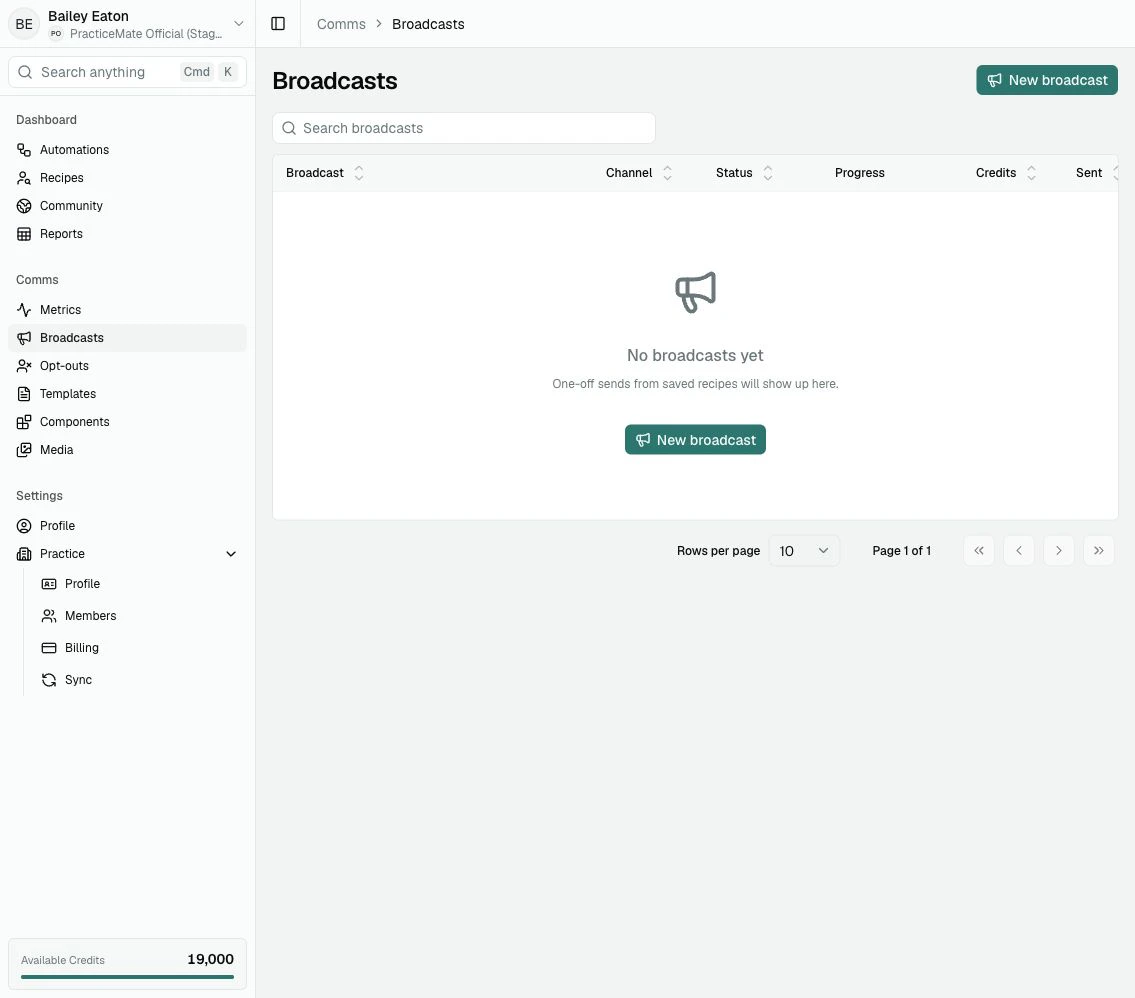
In the sidebar, under **Comms**, select **Broadcasts**.
From here, you can search previous Broadcasts, see their channel, status, progress, Credits, and when they were sent, or start a new Broadcast.
 ## Broadcast or Automation?
Choose a **Broadcast** when you want to send one Communication now.
Choose an **Automation** when you want PracticeMate to repeat a workflow over time, such as checking a Recipe on a schedule and sending Communications when new patients match.
A good Broadcast starts with a clear sentence: "We are sending this Template
to this Patient Cohort because..." If that sentence is hard to finish, pause
and review the Recipe or Template first.
## What happens when you send
Before a Broadcast starts, PracticeMate calculates an estimated reach and estimated Credits from the selected Recipe and Template.
When the Broadcast starts, PracticeMate checks the Recipe again. This helps the Broadcast use current Practice Data, but it also means the final reach and cost may move slightly if the Patient Cohort changes between calculation and sending.
PracticeMate also keeps the selected Template wording steady for that Broadcast. Later edits to the Template do not quietly change a Broadcast your team has already prepared.
Patients may be skipped when they cannot be contacted through the selected channel or have opted out of Communications from your practice.
## A reliable way to send
Check that the Recipe finds the Patient Cohort you expect before using it in
a Broadcast.
Make sure the Email or SMS Template is clear, kind, and ready for patients
to receive.
Select the channel, Recipe, and Template.
Review the estimated number of patients and Credits before continuing.
Sending a Broadcast cannot be undone. Only continue when the patient group,
Template, and cost all look right.
After sending, the Broadcast appears in the table with its channel, status,
progress, Credits, and sent time.
Use extra care with broad Recipes. A Recipe such as "All active patients" may
be right for a practice-wide update, but it can contact many people and use
many Credits.
## Next
Create [your first Broadcast](/broadcasts/first-broadcast) when you are ready to walk through the full flow.
## Broadcast or Automation?
Choose a **Broadcast** when you want to send one Communication now.
Choose an **Automation** when you want PracticeMate to repeat a workflow over time, such as checking a Recipe on a schedule and sending Communications when new patients match.
A good Broadcast starts with a clear sentence: "We are sending this Template
to this Patient Cohort because..." If that sentence is hard to finish, pause
and review the Recipe or Template first.
## What happens when you send
Before a Broadcast starts, PracticeMate calculates an estimated reach and estimated Credits from the selected Recipe and Template.
When the Broadcast starts, PracticeMate checks the Recipe again. This helps the Broadcast use current Practice Data, but it also means the final reach and cost may move slightly if the Patient Cohort changes between calculation and sending.
PracticeMate also keeps the selected Template wording steady for that Broadcast. Later edits to the Template do not quietly change a Broadcast your team has already prepared.
Patients may be skipped when they cannot be contacted through the selected channel or have opted out of Communications from your practice.
## A reliable way to send
Check that the Recipe finds the Patient Cohort you expect before using it in
a Broadcast.
Make sure the Email or SMS Template is clear, kind, and ready for patients
to receive.
Select the channel, Recipe, and Template.
Review the estimated number of patients and Credits before continuing.
Sending a Broadcast cannot be undone. Only continue when the patient group,
Template, and cost all look right.
After sending, the Broadcast appears in the table with its channel, status,
progress, Credits, and sent time.
Use extra care with broad Recipes. A Recipe such as "All active patients" may
be right for a practice-wide update, but it can contact many people and use
many Credits.
## Next
Create [your first Broadcast](/broadcasts/first-broadcast) when you are ready to walk through the full flow.