> ## Documentation Index
> Fetch the complete documentation index at: https://docs.practicemate.com.au/llms.txt
> Use this file to discover all available pages before exploring further.
# Components
> Learn what PracticeMate Components are, how to create an Email Component, and how to add it to an Email Template.
A **Template Component** is a reusable Email block.
PracticeMate shows Template Components under **Comms > Components**. They help your practice keep repeated Email content consistent. Instead of rebuilding the same letterhead, footer, booking link, or contact details in every Email Template, you can save that content once as a Template Component and insert it when you need it.
Use Template Components for content your practice repeats often, such as:
* letterhead with your Practice Logo
* a standard greeting
* a reusable sign-off
* opening hours or contact details
* appointment preparation instructions
* booking links
* privacy or recall wording your team has already reviewed
Template Components are used in Email Templates. SMS Templates do not use
Template Components, because SMS messages are purely text-based.
## How Components fit with Templates
A Template Component is one reusable part of an Email Template. It does not send anything to patients by itself.
For example:
* **Letterhead** is a Template Component.
* **Birthday Email** is an Email Template.
* A Broadcast or Automation sends the saved Email Template to patients.
When you insert the **Letterhead** Template Component into the **Birthday Email** Template, the Email Template gets a consistent logo and greeting without your team needing to rebuild it each time.
## Open Components
In the sidebar, under **Comms**, select **Components**.
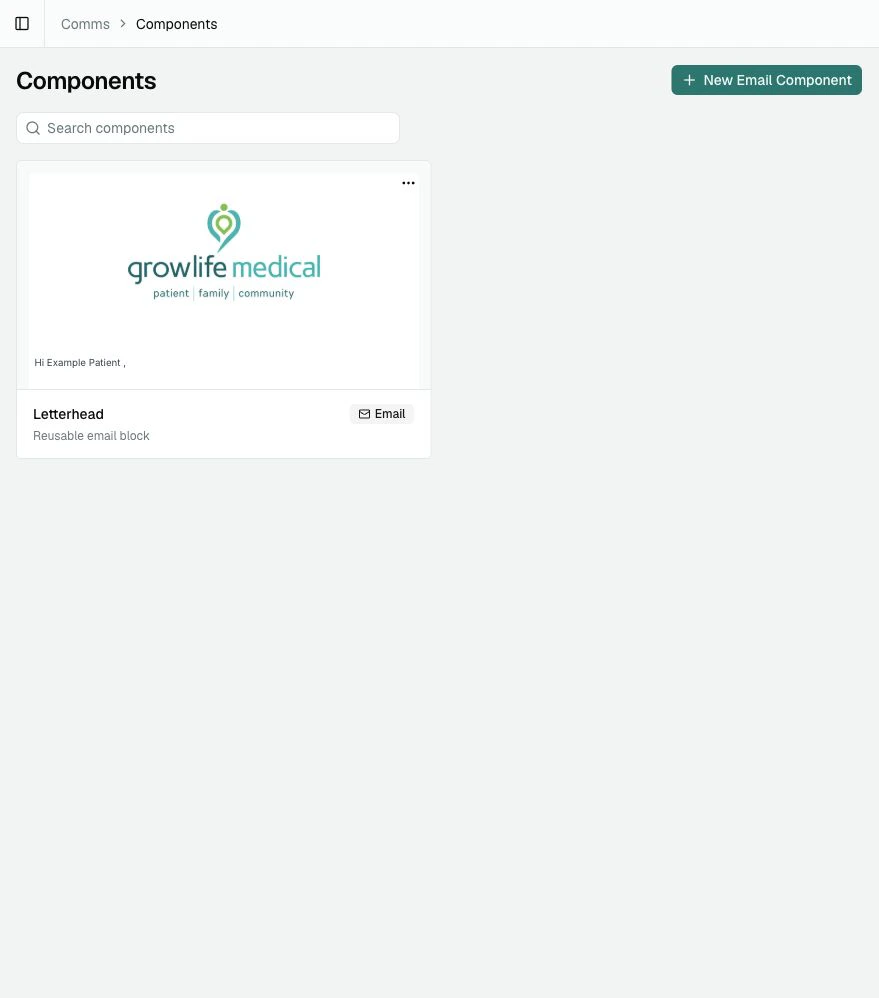
The Components page shows reusable Email blocks saved by your practice. The **Letterhead** Template Component below is a simple example with a Practice Logo and greeting.
 ## Create a Template Component
Select **New Email Component**.
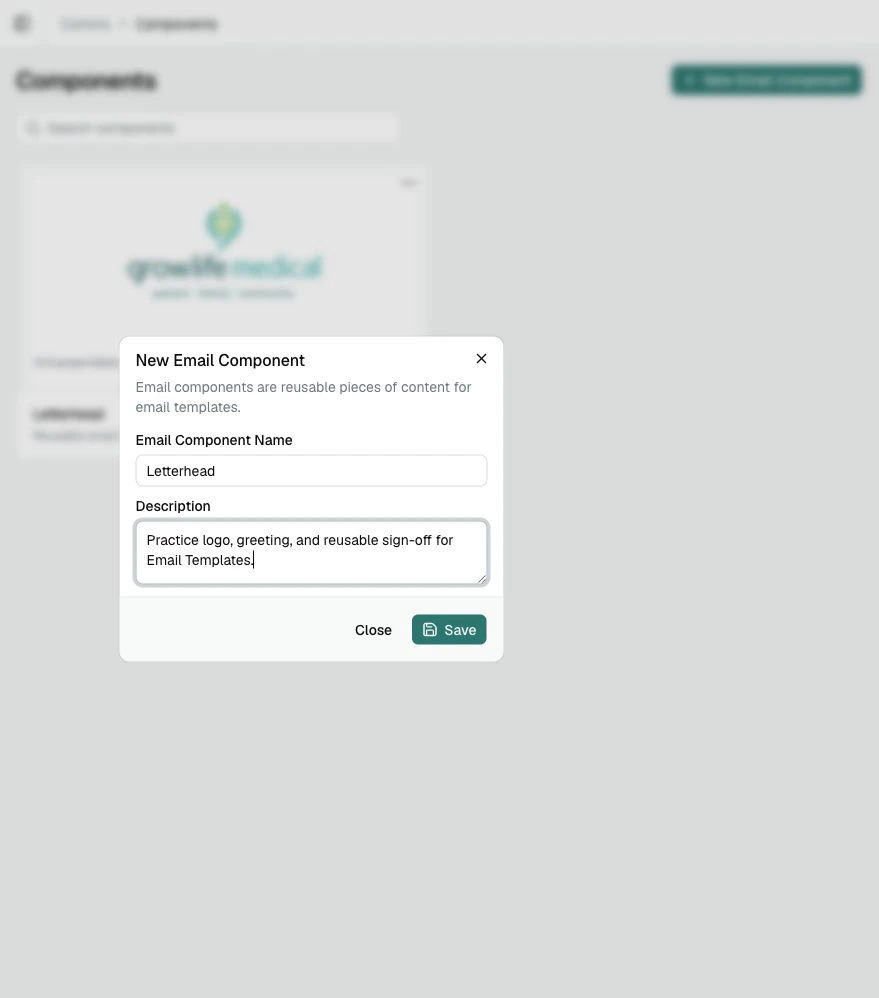
Enter a clear name and a short description. The name helps your team find the Template Component later, and the description helps explain when to use it.
For example:
* **Name**: Letterhead
* **Description**: Practice logo, greeting, and reusable sign-off for Email Templates.
## Create a Template Component
Select **New Email Component**.
Enter a clear name and a short description. The name helps your team find the Template Component later, and the description helps explain when to use it.
For example:
* **Name**: Letterhead
* **Description**: Practice logo, greeting, and reusable sign-off for Email Templates.
 Select **Save**.
PracticeMate opens the Template Component editor.
## Build the Template Component
The Template Component editor works like the Email Template body editor. You can type normally, add Template Variables with **@**, and add blocks with **/**.
After a Template Component is created, edits in this editor save as you work. If you are making several changes, pause for a moment before leaving the page so the latest edits have time to save.
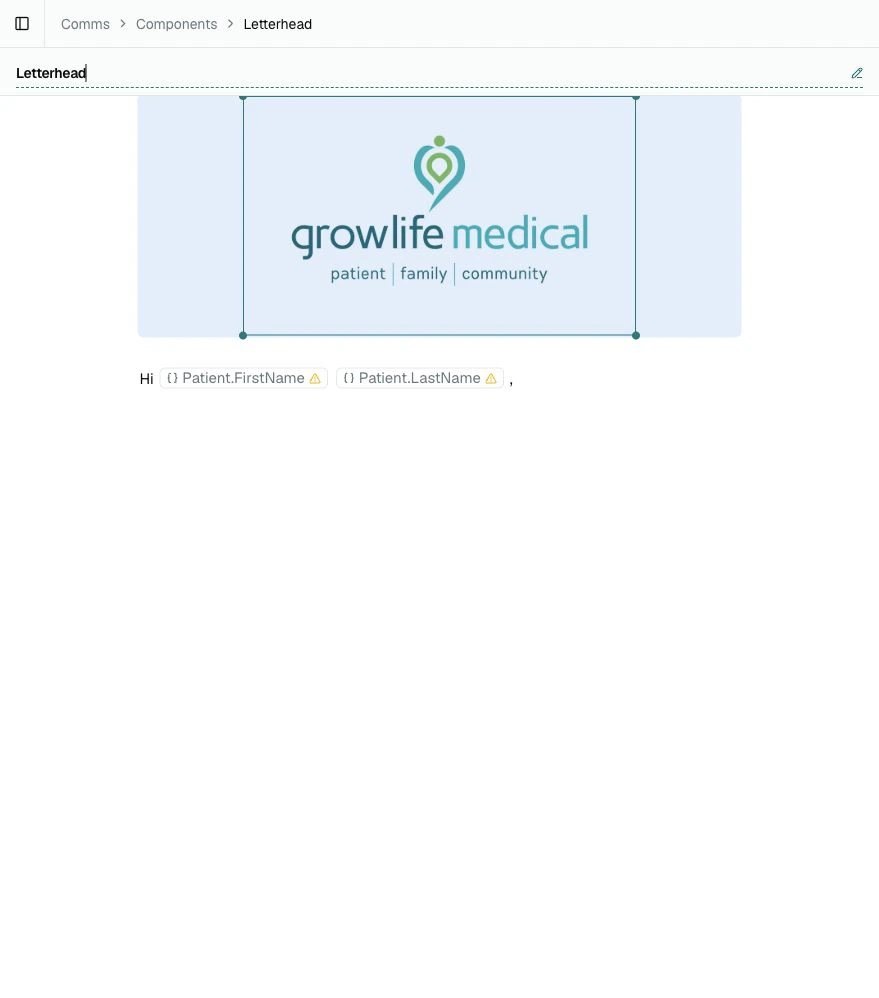
The **Letterhead** example includes a Practice Logo and Template Variables for the patient's name.
Select **Save**.
PracticeMate opens the Template Component editor.
## Build the Template Component
The Template Component editor works like the Email Template body editor. You can type normally, add Template Variables with **@**, and add blocks with **/**.
After a Template Component is created, edits in this editor save as you work. If you are making several changes, pause for a moment before leaving the page so the latest edits have time to save.
The **Letterhead** example includes a Practice Logo and Template Variables for the patient's name.
 Good Template Components are focused. A letterhead Template Component might include the logo and greeting. A footer Template Component might include contact details and a standard sign-off. The rest of the Email should usually stay in the Email Template itself.
If PracticeMate marks a Template Variable as needing attention, select the
variable and add a fallback value. For example, a fallback of **there** can
help a greeting still read naturally when a patient's first name is not
available.
## Add a Template Component to an Email Template
Open the Email Template where you want to use the Template Component.
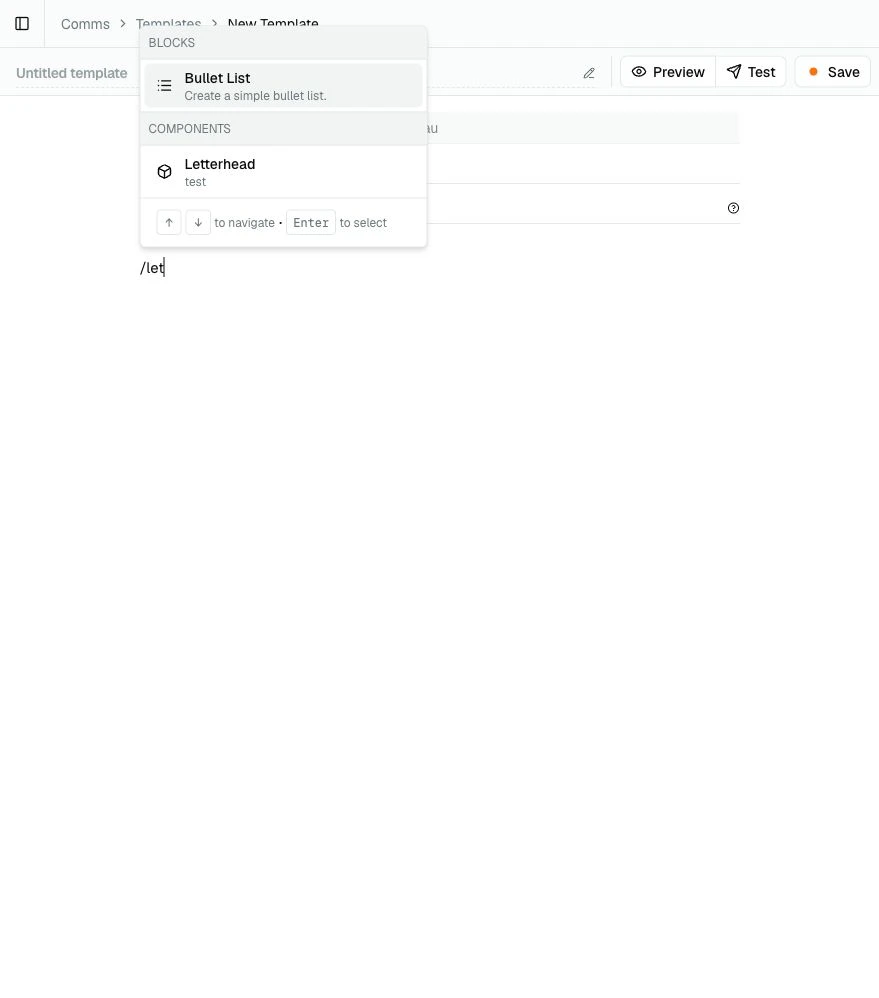
Click into the Email body, type **/**, then either scroll to **Components** or start typing the Template Component name.
Good Template Components are focused. A letterhead Template Component might include the logo and greeting. A footer Template Component might include contact details and a standard sign-off. The rest of the Email should usually stay in the Email Template itself.
If PracticeMate marks a Template Variable as needing attention, select the
variable and add a fallback value. For example, a fallback of **there** can
help a greeting still read naturally when a patient's first name is not
available.
## Add a Template Component to an Email Template
Open the Email Template where you want to use the Template Component.
Click into the Email body, type **/**, then either scroll to **Components** or start typing the Template Component name.
 Select the Template Component.
PracticeMate inserts the Template Component content into the Email Template where your cursor was.
Select the Template Component.
PracticeMate inserts the Template Component content into the Email Template where your cursor was.
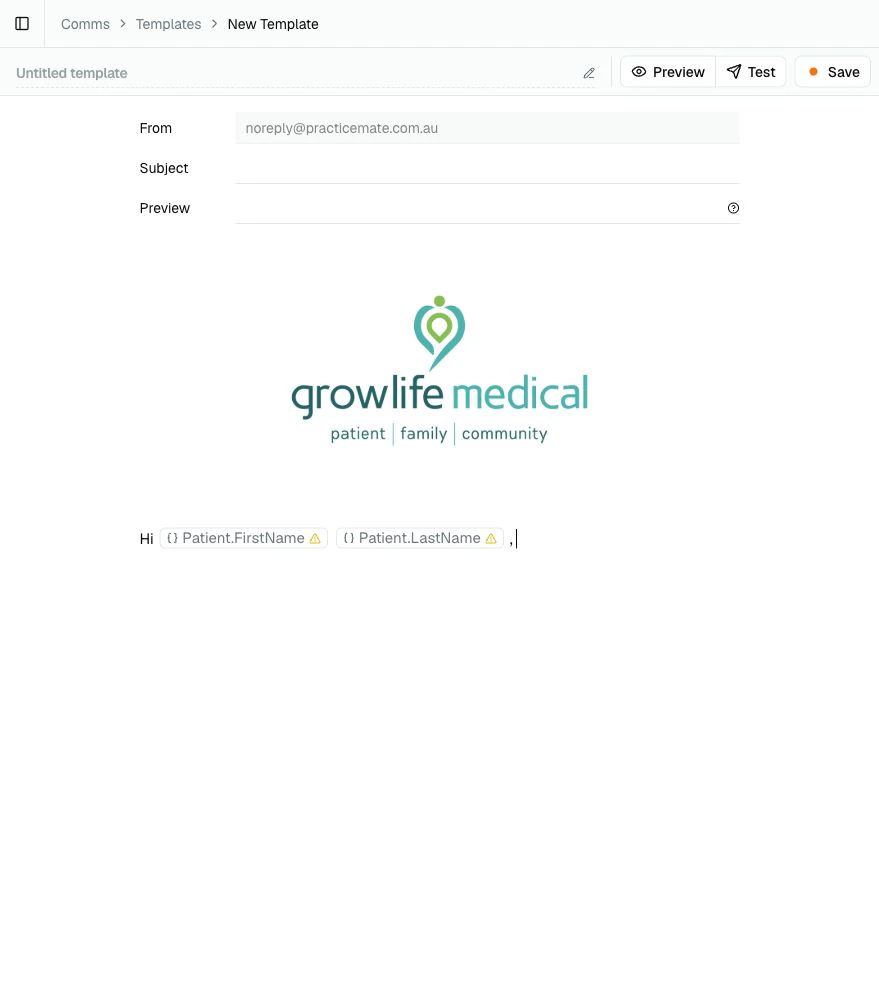 You can then continue writing the rest of the Email Template below the inserted Template Component.
## Updating a Template Component
When you edit a Template Component, the updated version is available the next time your team inserts it into an Email Template.
Existing Email Templates are not quietly rewritten when a Template Component changes. Once a Template Component is inserted, its content becomes part of that Email Template. If you want an existing Email Template to use the updated wording or layout, open that Template and update the inserted content there.
A Template Component is not a full patient Communication on its own. Always
review the complete Email Template, then use **Preview** and **Test** from the
Email Template before sending it to patients.
## Duplicate or delete a Template Component
Use the **...** menu on a Template Component card when you need to duplicate or delete it.
Duplicating is helpful when you want a close variation, such as a different letterhead for a particular kind of Email.
Deleting removes the saved Template Component from the Components page, but it does not remove content that has already been inserted into existing Email Templates.
## A reliable way to build
Start with something your practice uses often, such as a letterhead, footer,
or booking link.
Use a name your team will recognise later, such as **Letterhead** or
**Appointment Booking Link**.
Put only the reusable part in the Template Component. Write the
patient-specific message in the Email Template.
Add variables where they make the message warmer or clearer, and add
fallbacks when a missing value would read awkwardly.
Use the **/** menu in the Email Template body, then choose the Template
Component from **Components**.
Check the complete Email Template before using it in a Broadcast or
Automation.
A good Template Component saves your team time without making the Email feel
generic. It should sound like a familiar part of your practice's own
communication style.
## What you learned
You learned how to:
* open **Components**
* create a new Email Component
* name and describe a Template Component
* build reusable content with the Email editor
* use Template Variables inside a Template Component
* insert a Template Component into an Email Template with the **/** menu
* understand what happens when a Template Component is updated later
Next, create [your first Email Template](/templates/first-email-template) or use the [Template editor reference](/templates/editor-reference) for a complete guide to the Email editor controls.
You can then continue writing the rest of the Email Template below the inserted Template Component.
## Updating a Template Component
When you edit a Template Component, the updated version is available the next time your team inserts it into an Email Template.
Existing Email Templates are not quietly rewritten when a Template Component changes. Once a Template Component is inserted, its content becomes part of that Email Template. If you want an existing Email Template to use the updated wording or layout, open that Template and update the inserted content there.
A Template Component is not a full patient Communication on its own. Always
review the complete Email Template, then use **Preview** and **Test** from the
Email Template before sending it to patients.
## Duplicate or delete a Template Component
Use the **...** menu on a Template Component card when you need to duplicate or delete it.
Duplicating is helpful when you want a close variation, such as a different letterhead for a particular kind of Email.
Deleting removes the saved Template Component from the Components page, but it does not remove content that has already been inserted into existing Email Templates.
## A reliable way to build
Start with something your practice uses often, such as a letterhead, footer,
or booking link.
Use a name your team will recognise later, such as **Letterhead** or
**Appointment Booking Link**.
Put only the reusable part in the Template Component. Write the
patient-specific message in the Email Template.
Add variables where they make the message warmer or clearer, and add
fallbacks when a missing value would read awkwardly.
Use the **/** menu in the Email Template body, then choose the Template
Component from **Components**.
Check the complete Email Template before using it in a Broadcast or
Automation.
A good Template Component saves your team time without making the Email feel
generic. It should sound like a familiar part of your practice's own
communication style.
## What you learned
You learned how to:
* open **Components**
* create a new Email Component
* name and describe a Template Component
* build reusable content with the Email editor
* use Template Variables inside a Template Component
* insert a Template Component into an Email Template with the **/** menu
* understand what happens when a Template Component is updated later
Next, create [your first Email Template](/templates/first-email-template) or use the [Template editor reference](/templates/editor-reference) for a complete guide to the Email editor controls.