> ## Documentation Index
> Fetch the complete documentation index at: https://docs.practicemate.com.au/llms.txt
> Use this file to discover all available pages before exploring further.
# Create your first Recipe
> Build a simple Recipe for active male patients aged 50 or older.
In this guide, you will build a Recipe for:
**Active male patients aged 50 or older.**
It is a simple example, but it introduces the main pattern you will use again and again: choose a field, choose how to compare it, then choose the value.
The screenshots in this guide are cropped to the Recipe area of the dashboard.
They show the exact choices to make, without showing patient details.
## Before you start
Open **Recipes** from the sidebar, then select **New Recipe**.
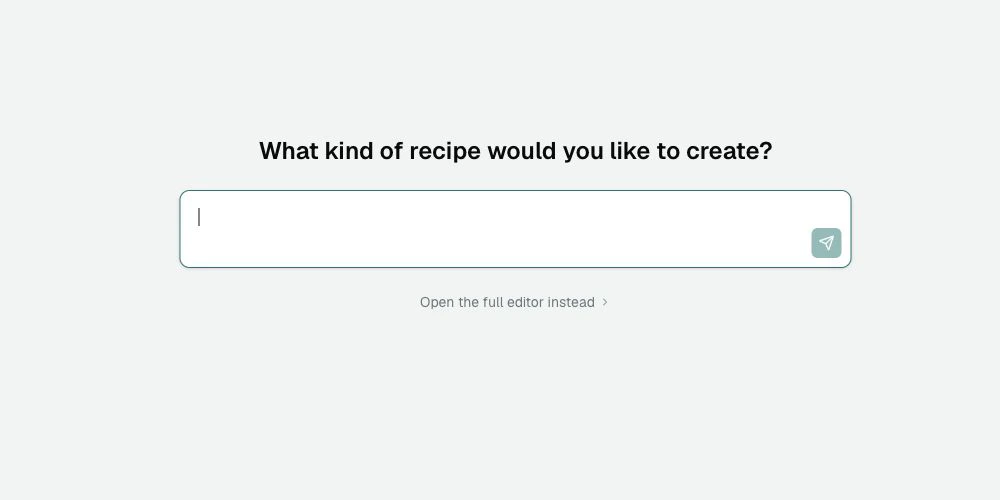
PracticeMate first asks:
**What kind of Recipe would you like to create?**
You can describe the Recipe in plain English, or select **Open the full editor instead**. This guide uses the full editor so you can see exactly how the Recipe is built.
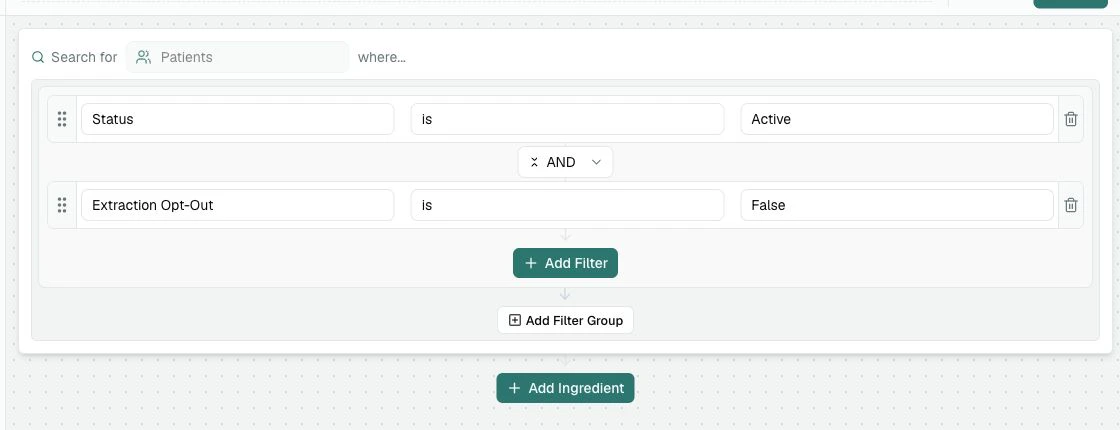
 New Recipes include **Status is Active** and **Extraction Opt-Out is False**
by default. Keep both filters for this example.
After opening the full editor, you should see the two default patient filters:
New Recipes include **Status is Active** and **Extraction Opt-Out is False**
by default. Keep both filters for this example.
After opening the full editor, you should see the two default patient filters:
 ## Add the age filter
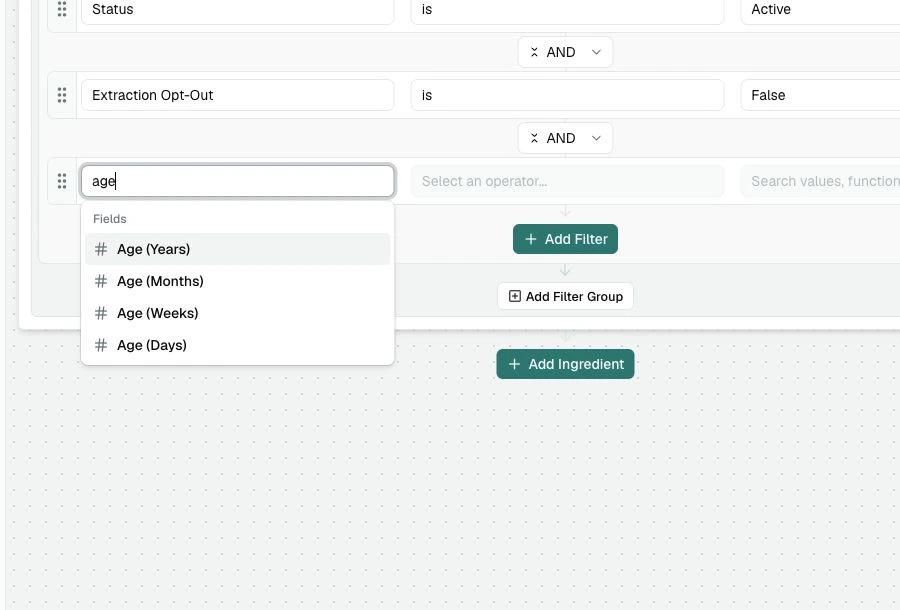
In the Patients section, select **Add Filter**. A new blank filter row appears under the default filters.
In the first box, type **age**, then select **Age (Years)**.
## Add the age filter
In the Patients section, select **Add Filter**. A new blank filter row appears under the default filters.
In the first box, type **age**, then select **Age (Years)**.
 In the second box, choose **is greater than or equal to**.
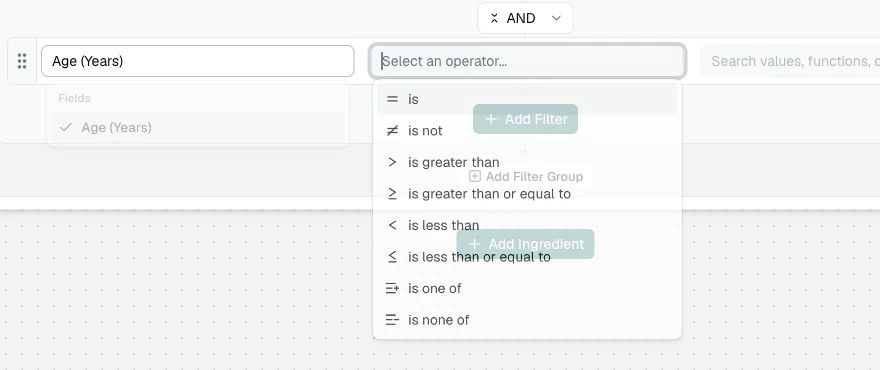 In the value box, enter **50**.
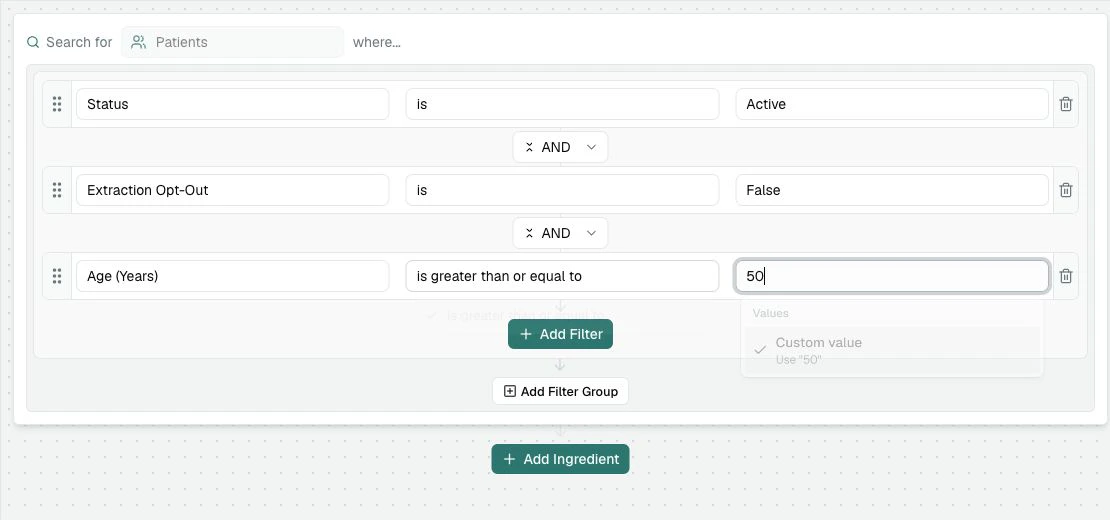 This means PracticeMate will include patients who are 50 or older.
## Add the sex filter
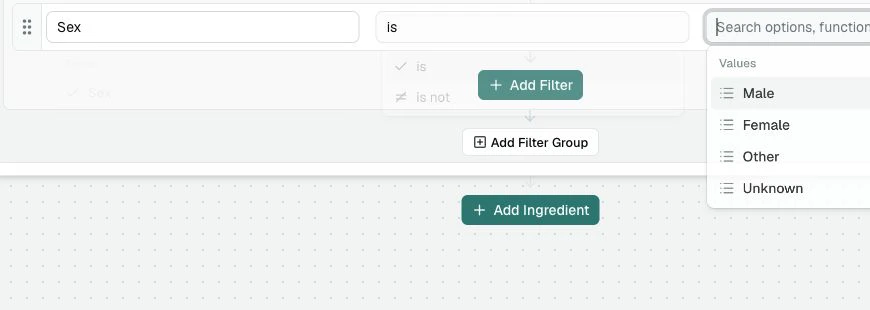
Select **Add Filter** again, under the age filter.
Select **Sex**.
Choose **is**.
Select **Male**.
This means PracticeMate will include patients who are 50 or older.
## Add the sex filter
Select **Add Filter** again, under the age filter.
Select **Sex**.
Choose **is**.
Select **Male**.
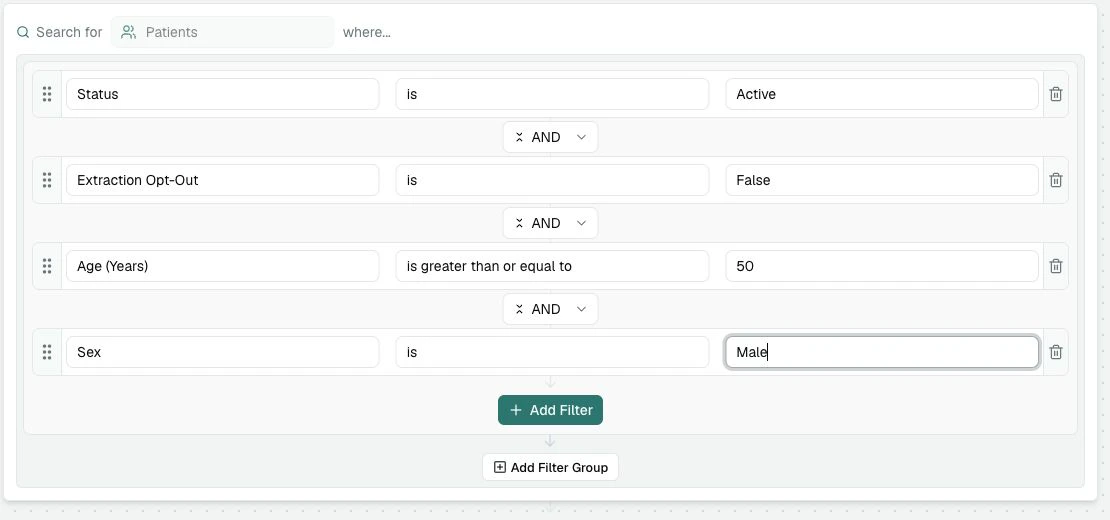
 Your Recipe now reads as a set of patient filters:
 ## Why the AND connectors matter
The filters are joined with **AND**, which means a patient must match every line:
* active
* not opted out of extraction
* age 50 or older
* male
If you changed one of these connectors to **OR**, the Recipe would become much broader. For this Recipe, leave the connectors as **AND**.
Read the Recipe back before testing:
> Find active patients who have not opted out of extraction, are aged 50 or older, and have Sex set to Male.
## Test the Recipe
Select **Test** in the top right of the builder.
PracticeMate will check the Recipe and show how many patients match. If the number looks unexpected, review the filters before saving.
Testing is a quick safety check. It does not change patient records, and it
does not save the Recipe.
## Save the Recipe
When the test result looks sensible:
Select the title at the top of the page and enter **Active male patients
aged 50+**.
Select **Save**.
You have built your first PracticeMate Recipe.
Saving also creates the first version of the Recipe. If you edit and save the Recipe again later, PracticeMate adds another version to its Version history.
You can open **Version history** from the **...** menu on the Recipes page. It lets you look back at earlier saved versions and restore one if your team needs to return to it.
## What you learned
You used:
* the default active-patient filters
* a number field, **Age (Years)**
* a list field, **Sex**
* the **is greater than or equal to** operator
* the **is** operator
* **AND** connectors
* **Test** and **Save**
* **Version history** as a way to return to earlier saved work
Next, you will add an ingredient to find patients with [three or more visits in the last two years](/recipes/frequent-visits).
## Why the AND connectors matter
The filters are joined with **AND**, which means a patient must match every line:
* active
* not opted out of extraction
* age 50 or older
* male
If you changed one of these connectors to **OR**, the Recipe would become much broader. For this Recipe, leave the connectors as **AND**.
Read the Recipe back before testing:
> Find active patients who have not opted out of extraction, are aged 50 or older, and have Sex set to Male.
## Test the Recipe
Select **Test** in the top right of the builder.
PracticeMate will check the Recipe and show how many patients match. If the number looks unexpected, review the filters before saving.
Testing is a quick safety check. It does not change patient records, and it
does not save the Recipe.
## Save the Recipe
When the test result looks sensible:
Select the title at the top of the page and enter **Active male patients
aged 50+**.
Select **Save**.
You have built your first PracticeMate Recipe.
Saving also creates the first version of the Recipe. If you edit and save the Recipe again later, PracticeMate adds another version to its Version history.
You can open **Version history** from the **...** menu on the Recipes page. It lets you look back at earlier saved versions and restore one if your team needs to return to it.
## What you learned
You used:
* the default active-patient filters
* a number field, **Age (Years)**
* a list field, **Sex**
* the **is greater than or equal to** operator
* the **is** operator
* **AND** connectors
* **Test** and **Save**
* **Version history** as a way to return to earlier saved work
Next, you will add an ingredient to find patients with [three or more visits in the last two years](/recipes/frequent-visits).