> ## Documentation Index
> Fetch the complete documentation index at: https://docs.practicemate.com.au/llms.txt
> Use this file to discover all available pages before exploring further.
# Recipes overview
> Learn what PracticeMate recipes are and when to use them.
A **Recipe** is a saved way to find a group of patients.
You choose the details that matter, such as age, sex, visit history, results, prescriptions, reminders, or appointments. PracticeMate then checks your Practice Data and shows which patients match.
Recipes are useful when your practice wants to answer questions like:
* Which active patients are due for a review?
* Which patients match a recall or quality improvement cohort?
* Which patients have had several visits recently?
* Which patients have a result, prescription, condition, reminder, or appointment pattern worth reviewing?
Recipes are designed to support practice workflows. They do not make clinical
decisions by themselves. Always review the results in the context of the
patient's record and your practice's usual process.
## How Recipes are built
Most Recipes have two parts.
**Patient filters** describe the patient group you are starting with. For example:
* Status is Active
* Extraction Opt-Out is False
* Age (Years) is greater than or equal to 50
* Sex is Male
**Ingredients** describe related records each patient must have, must not have, or must have a certain number of. For example:
* has any Prescriptions where Product Name contains statin
* has no Appointments where Appointment Date is after today
* has a count of at least 3 Visits where Visit Date is greater than or equal to 2 years ago
## Default filters
New Recipes start with two filters already in place:
* **Status is Active**
* **Extraction Opt-Out is False**
These defaults are there so your first Recipe starts with active patients who have not opted out of extraction. Keep them unless you have a clear reason to broaden the search.
## Version history
Each time you save a Recipe, PracticeMate keeps that saved version. This makes it easier to review what changed and return to an earlier version if a Recipe no longer looks right.
Open **Recipes**, select the **...** menu beside a Recipe, then choose **Version history**.
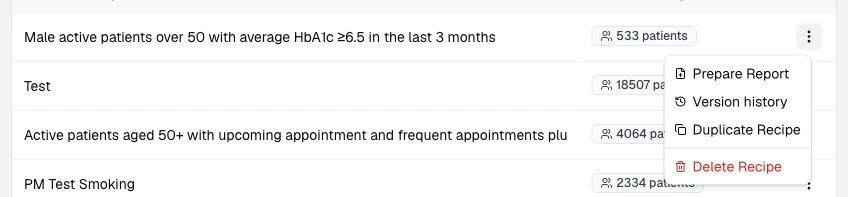 From there, you can:
* browse earlier saved versions
* see which version is current
* preview an older Recipe before changing anything
* restore an older version when your practice wants to go back to it
Older versions remain available for 365 days.
When a Recipe is already used in a Broadcast or Automation, PracticeMate keeps
that saved workflow connected to the version it was set up with. This helps
prevent later edits from quietly changing work your team has already prepared.
## A reliable way to build
For example: "Active male patients aged 50 or older."
"Male" becomes **Sex is Male**. "50 or older" becomes **Age (Years) is
greater than or equal to 50**.
Use **Test** to check whether the number of matching patients looks right
before you save or use the Recipe elsewhere.
A good name makes the Recipe easier to find later. Use names like "Active
male patients aged 50+" rather than "Test recipe".
Saving creates a new version, so your practice has a point to return to if
the Recipe changes later.
If the result is much larger or smaller than expected, check one filter at a
time. The issue is usually a missing value, the wrong operator, or an AND/OR
connector that does not match the intended meaning.
## Next
Start with [Create your first Recipe](/recipes/first-recipe), then move on to [Find frequent visitors](/recipes/frequent-visits) when you are ready to add visit history.
From there, you can:
* browse earlier saved versions
* see which version is current
* preview an older Recipe before changing anything
* restore an older version when your practice wants to go back to it
Older versions remain available for 365 days.
When a Recipe is already used in a Broadcast or Automation, PracticeMate keeps
that saved workflow connected to the version it was set up with. This helps
prevent later edits from quietly changing work your team has already prepared.
## A reliable way to build
For example: "Active male patients aged 50 or older."
"Male" becomes **Sex is Male**. "50 or older" becomes **Age (Years) is
greater than or equal to 50**.
Use **Test** to check whether the number of matching patients looks right
before you save or use the Recipe elsewhere.
A good name makes the Recipe easier to find later. Use names like "Active
male patients aged 50+" rather than "Test recipe".
Saving creates a new version, so your practice has a point to return to if
the Recipe changes later.
If the result is much larger or smaller than expected, check one filter at a
time. The issue is usually a missing value, the wrong operator, or an AND/OR
connector that does not match the intended meaning.
## Next
Start with [Create your first Recipe](/recipes/first-recipe), then move on to [Find frequent visitors](/recipes/frequent-visits) when you are ready to add visit history.