> ## Documentation Index
> Fetch the complete documentation index at: https://docs.practicemate.com.au/llms.txt
> Use this file to discover all available pages before exploring further.
# Create your first Email Template
> Build a simple birthday Email Template with a subject, preview text, body copy, Template Variables, preview, and test send.
In this guide, you will build a simple Email Template for:
**A birthday message from your practice.**
It is a gentle example, but it introduces the main parts of the Email Template editor: the Template name, fixed subject line, preview text, body content, Template Variables, Preview, Test, and Save.
## Before you start
In the sidebar, under **Comms**, select **Templates**.
Select **New Email Template**.
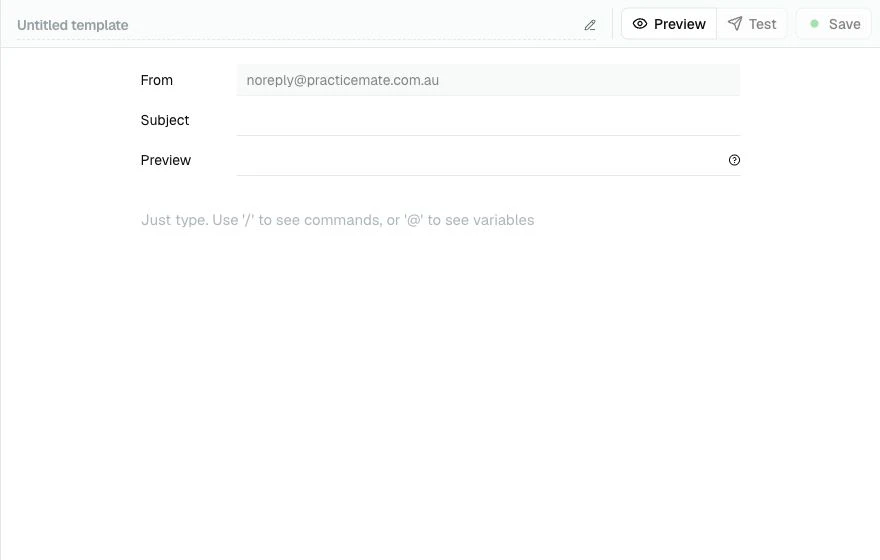
PracticeMate opens a blank Email Template editor.
 ## Name the Template
Select the title at the top of the page and enter:
**Birthday Email**
The name is for your practice team. Patients do not see it.
Use a name your team will recognise later. **Birthday Email** is clearer than
**Email 1** or **Test birthday**.
## Add the Email details
The Email editor has four fields above the body.
**From** uses your Practice Email settings.
**Reply-To** is available when your practice sends from an active BYO Email Domain.
**Subject** is the line patients see in their inbox.
**Preview** is the short snippet many inboxes show beside or under the subject.
For this guide, use:
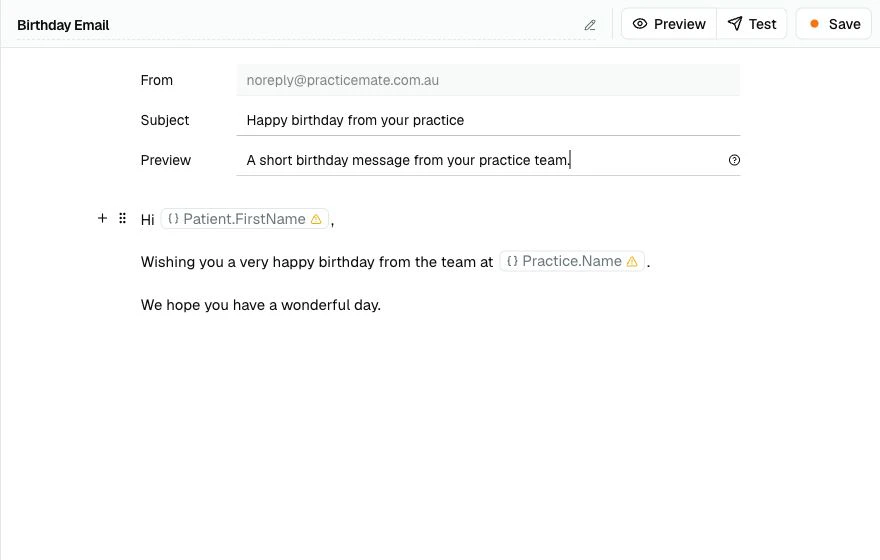
* **Subject**: Happy birthday from your practice
* **Preview**: A short birthday message from your practice team.
Email subject lines and preview text are fixed plain text. Do not use Template
Variables in these two fields. Add Template Variables in the Email body
instead.
## Write the greeting
Click into the body area and start with:
**Hi**
Then type **@** to open the Template Variable menu.
Choose **Patient.FirstName**.
## Name the Template
Select the title at the top of the page and enter:
**Birthday Email**
The name is for your practice team. Patients do not see it.
Use a name your team will recognise later. **Birthday Email** is clearer than
**Email 1** or **Test birthday**.
## Add the Email details
The Email editor has four fields above the body.
**From** uses your Practice Email settings.
**Reply-To** is available when your practice sends from an active BYO Email Domain.
**Subject** is the line patients see in their inbox.
**Preview** is the short snippet many inboxes show beside or under the subject.
For this guide, use:
* **Subject**: Happy birthday from your practice
* **Preview**: A short birthday message from your practice team.
Email subject lines and preview text are fixed plain text. Do not use Template
Variables in these two fields. Add Template Variables in the Email body
instead.
## Write the greeting
Click into the body area and start with:
**Hi**
Then type **@** to open the Template Variable menu.
Choose **Patient.FirstName**.
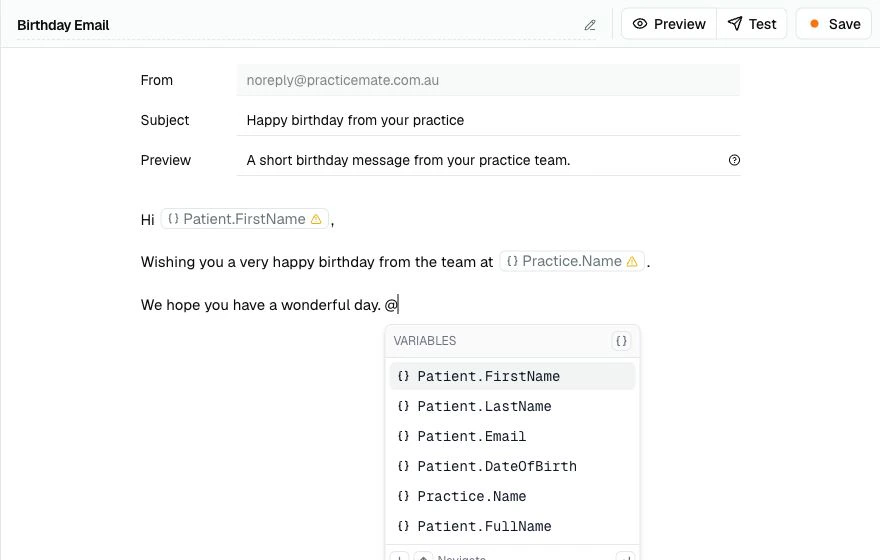 This inserts a variable pill into the message. When the Email is sent, PracticeMate replaces it with the patient's first name.
Continue the message:
> Wishing you a very happy birthday from the team at Practice.Name.
Insert **Practice.Name** with the same **@** menu.
This inserts a variable pill into the message. When the Email is sent, PracticeMate replaces it with the patient's first name.
Continue the message:
> Wishing you a very happy birthday from the team at Practice.Name.
Insert **Practice.Name** with the same **@** menu.
 ## Add more structure if needed
For a simple Email, plain paragraphs are enough.
If you want to add headings, lists, images, buttons, sections, dividers, or reusable Template Components, type **/** on a blank line.
For this first Template, keep the Email short and easy to read.
A birthday Email does not need much. A warm greeting, one short message, and a
sign-off is usually enough.
## Compare with the example Birthday Email
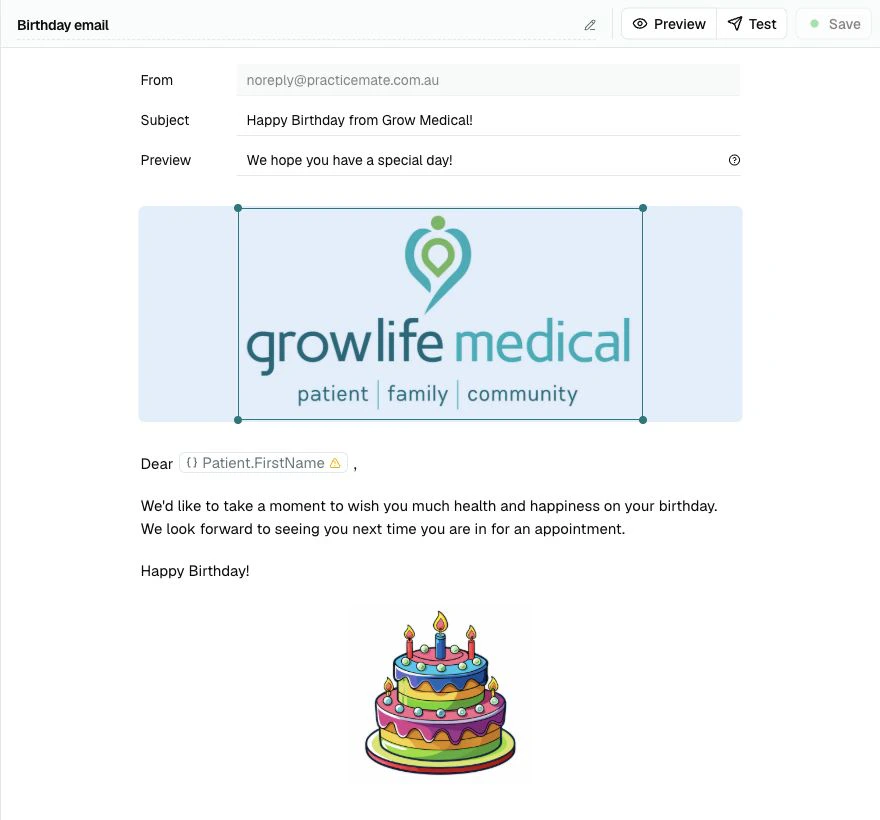
Your practice may already have a **Birthday email** Template. It shows the same idea with a logo, body copy, image, and sign-off.
## Add more structure if needed
For a simple Email, plain paragraphs are enough.
If you want to add headings, lists, images, buttons, sections, dividers, or reusable Template Components, type **/** on a blank line.
For this first Template, keep the Email short and easy to read.
A birthday Email does not need much. A warm greeting, one short message, and a
sign-off is usually enough.
## Compare with the example Birthday Email
Your practice may already have a **Birthday email** Template. It shows the same idea with a logo, body copy, image, and sign-off.
 ## Preview the Email
Select **Save** first, then select **Preview**.
Preview shows the saved Email as a patient might see it, including the inbox-style subject and preview text. You can switch between **Mobile** and **Desktop**.
## Preview the Email
Select **Save** first, then select **Preview**.
Preview shows the saved Email as a patient might see it, including the inbox-style subject and preview text. You can switch between **Mobile** and **Desktop**.
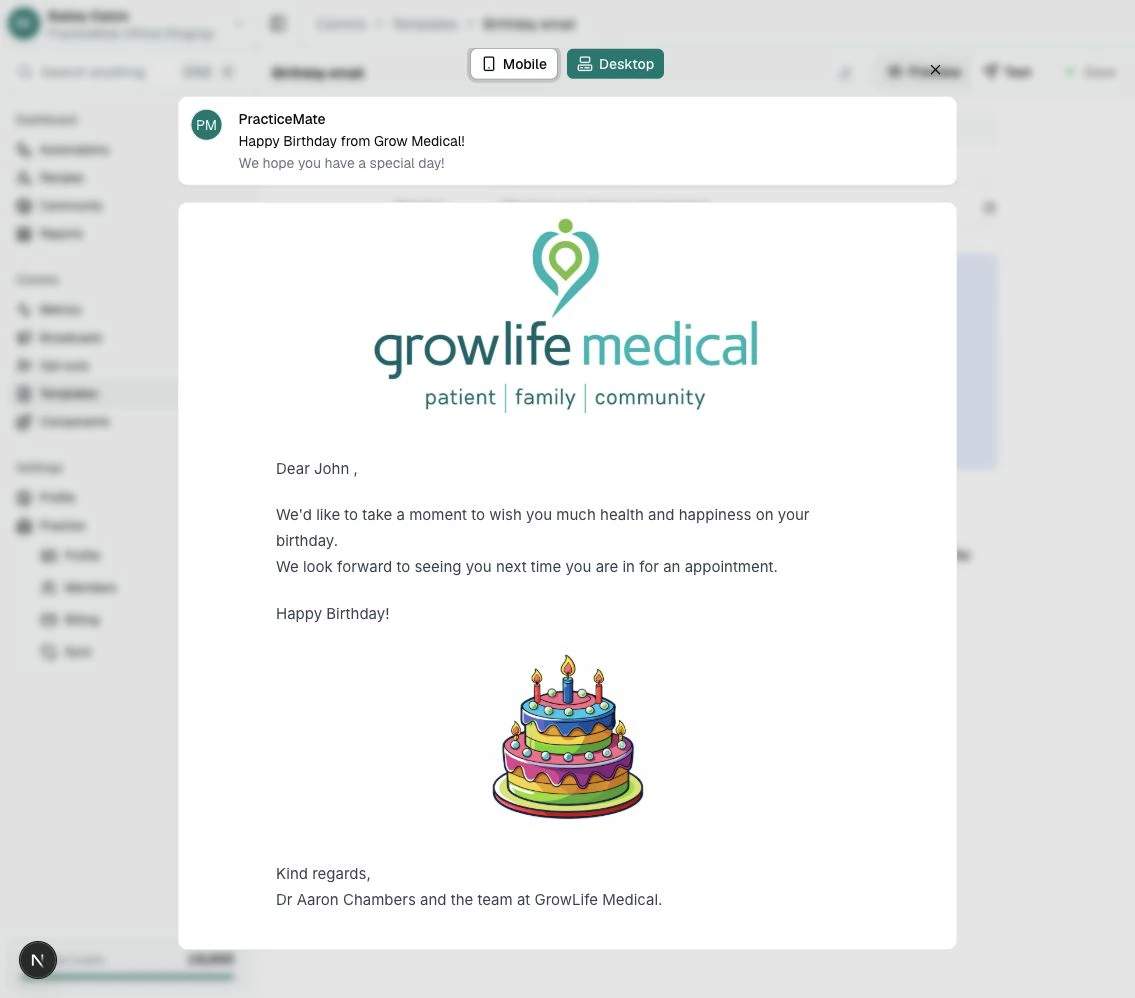 Preview renders the saved Template. If you have made changes, save before previewing so the Preview matches your latest draft.
## Send a test Email
Select **Test**.
Enter an Email address for yourself or another team member, then send the test.
Preview renders the saved Template. If you have made changes, save before previewing so the Preview matches your latest draft.
## Send a test Email
Select **Test**.
Enter an Email address for yourself or another team member, then send the test.
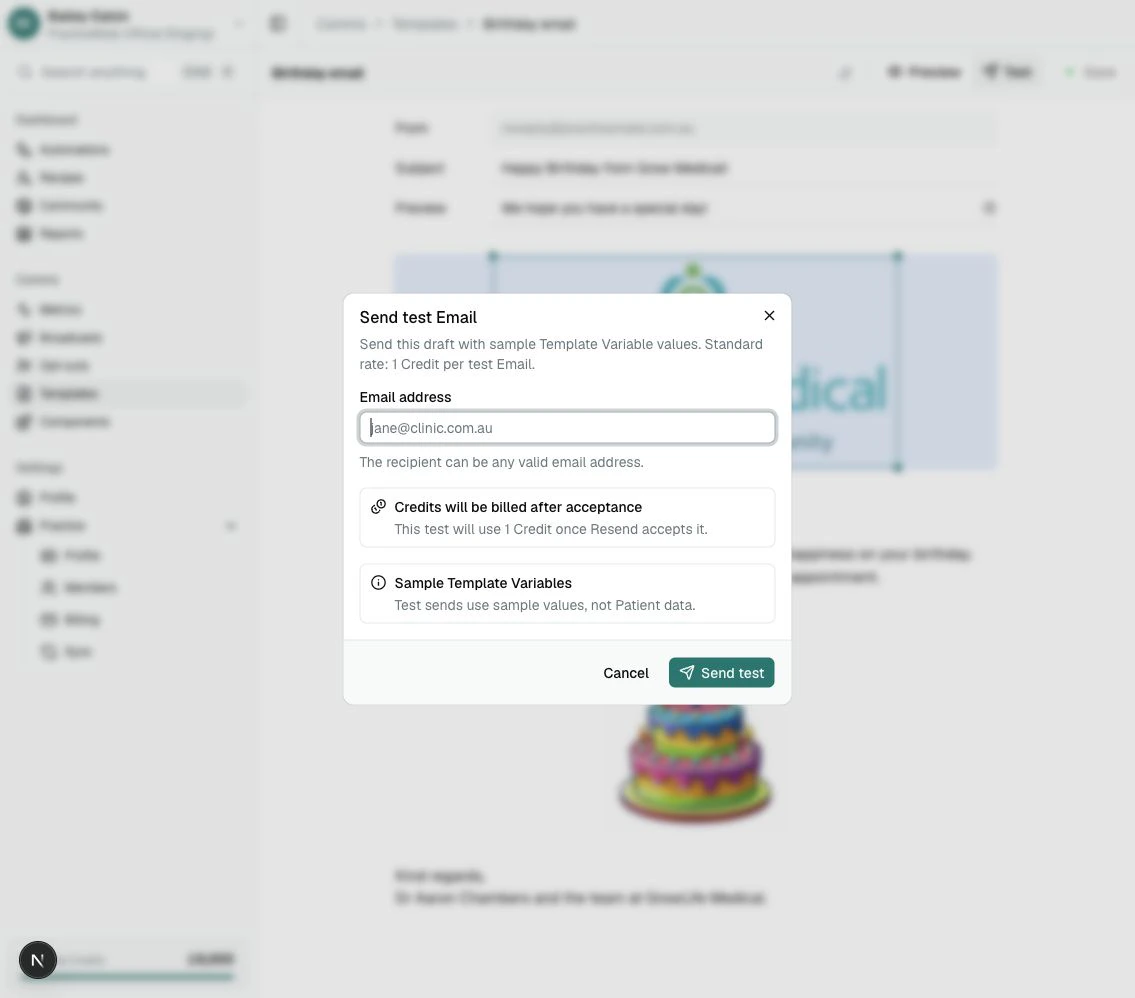 Test Emails use sample Template Variable values. They are helpful for checking the wording, layout, subject, preview text, and links before sending to patients.
A test Email uses 1 Credit.
## Save the Template
When the Template reads well and the test looks right, select **Save**.
You have built your first PracticeMate Email Template.
Saving creates the first version of the Email Template. If you edit and save the Template again later, PracticeMate adds another version to its Version history.
Open **Version history** from the **...** menu on a Template card. It lets you preview earlier saved wording and restore it if your practice needs to return to it.
## What you learned
You used:
* a clear Template name
* a fixed subject line
* fixed preview text
* Email body copy
* the **@** menu for Template Variables
* the **/** menu for Email blocks
* **Preview**
* **Test**
* **Save**
* **Version history** as a way to return to earlier saved wording
Next, create [your first SMS Template](/templates/first-sms-template).
Test Emails use sample Template Variable values. They are helpful for checking the wording, layout, subject, preview text, and links before sending to patients.
A test Email uses 1 Credit.
## Save the Template
When the Template reads well and the test looks right, select **Save**.
You have built your first PracticeMate Email Template.
Saving creates the first version of the Email Template. If you edit and save the Template again later, PracticeMate adds another version to its Version history.
Open **Version history** from the **...** menu on a Template card. It lets you preview earlier saved wording and restore it if your practice needs to return to it.
## What you learned
You used:
* a clear Template name
* a fixed subject line
* fixed preview text
* Email body copy
* the **@** menu for Template Variables
* the **/** menu for Email blocks
* **Preview**
* **Test**
* **Save**
* **Version history** as a way to return to earlier saved wording
Next, create [your first SMS Template](/templates/first-sms-template).