> ## Documentation Index
> Fetch the complete documentation index at: https://docs.practicemate.com.au/llms.txt
> Use this file to discover all available pages before exploring further.
# Create your first SMS Template
> Build a short flu vaccination SMS Template with Template Variables, the segment counter, phone preview, test send, and save.
In this guide, you will build a simple SMS Template for:
**A flu vaccination reminder.**
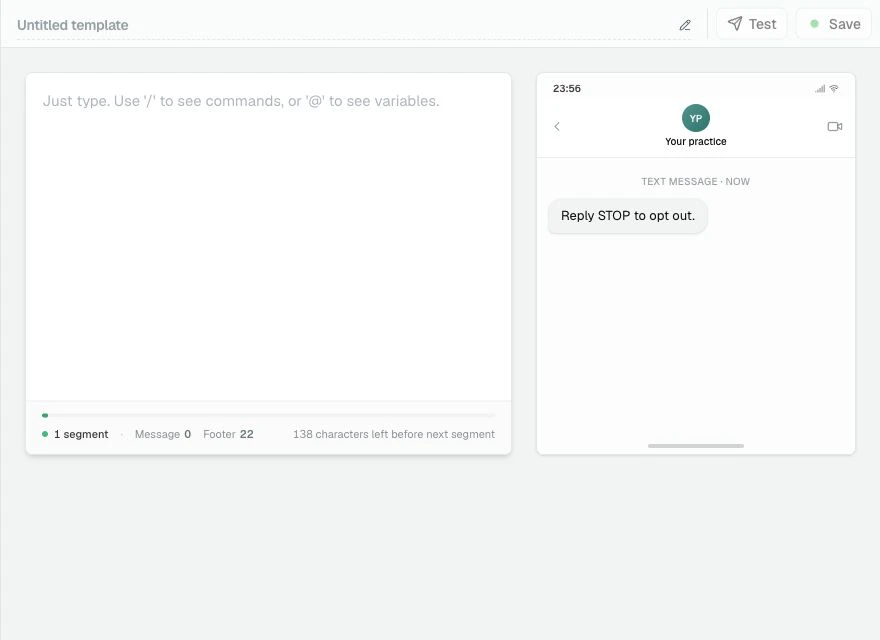
SMS Templates are best when they are short, direct, and easy to understand on a phone. This guide shows the body editor, live phone preview, Template Variables, the segment counter, the automatic opt-out footer, Test, and Save.
## Before you start
In the sidebar, under **Comms**, select **Templates**.
Select **New SMS Template**.
PracticeMate opens a blank SMS Template editor.
 ## Name the Template
Select the title at the top of the page and enter:
**Flu Vax Reminder SMS**
The name is only used inside PracticeMate. Patients do not see it.
## Write the message
Click into the message composer and write a short reminder.
For example:
> Protect yourself and your loved ones this flu season. Ask your GP about scheduling a flu vaccination at your next appointment.
You can keep the message general, or add a Template Variable at the start.
To insert the patient's first name, type **@**, then choose **Patient.FirstName**.
## Name the Template
Select the title at the top of the page and enter:
**Flu Vax Reminder SMS**
The name is only used inside PracticeMate. Patients do not see it.
## Write the message
Click into the message composer and write a short reminder.
For example:
> Protect yourself and your loved ones this flu season. Ask your GP about scheduling a flu vaccination at your next appointment.
You can keep the message general, or add a Template Variable at the start.
To insert the patient's first name, type **@**, then choose **Patient.FirstName**.
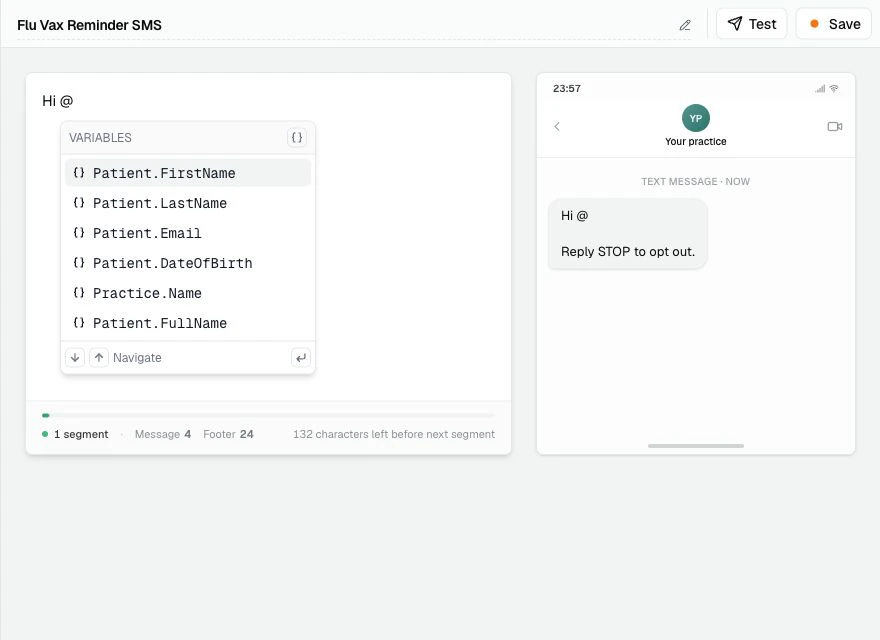 The message updates as you type. The phone preview on the right shows how the SMS will look to a patient.
 ## Watch the segment counter
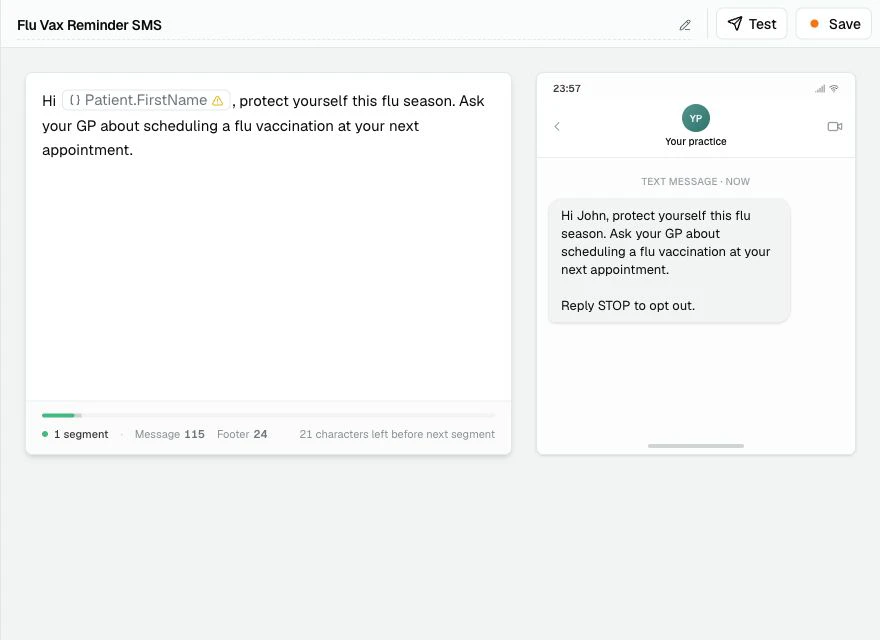
Under the SMS composer, PracticeMate shows:
* how many SMS segments the message uses
* how many characters are in your message
* how many characters are reserved for the opt-out footer
* how much room is left before the next segment
SMS messages are billed per segment. Shorter messages are easier for patients to read and usually cost less to send.
PracticeMate adds the opt-out footer automatically. Do not type **Reply STOP to opt out** yourself.
## Compare with the example Flu Vax Reminder
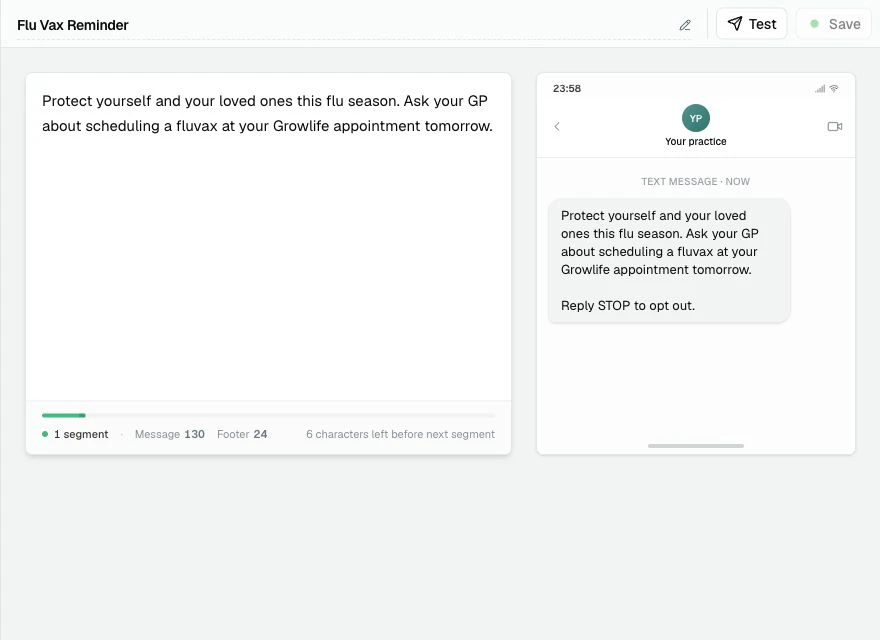
Your practice may already have a **Flu Vax Reminder** SMS Template. It is a good example of a short, single-purpose SMS.
## Watch the segment counter
Under the SMS composer, PracticeMate shows:
* how many SMS segments the message uses
* how many characters are in your message
* how many characters are reserved for the opt-out footer
* how much room is left before the next segment
SMS messages are billed per segment. Shorter messages are easier for patients to read and usually cost less to send.
PracticeMate adds the opt-out footer automatically. Do not type **Reply STOP to opt out** yourself.
## Compare with the example Flu Vax Reminder
Your practice may already have a **Flu Vax Reminder** SMS Template. It is a good example of a short, single-purpose SMS.
 Keep the final wording short and review it before saving.
## Send a test SMS
Select **Test**.
Enter a mobile number with the country code, then send the test.
Keep the final wording short and review it before saving.
## Send a test SMS
Select **Test**.
Enter a mobile number with the country code, then send the test.
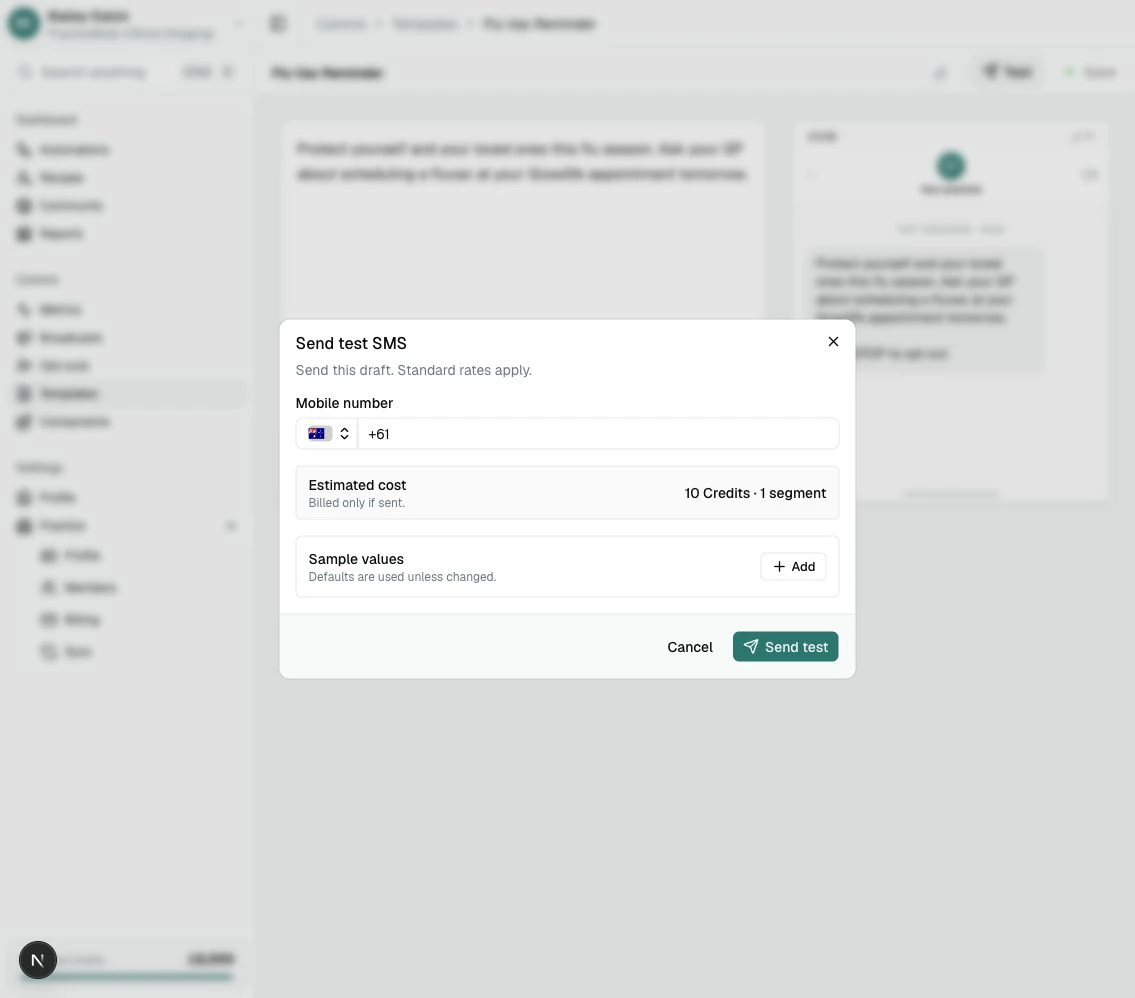 Test SMS sends are useful for checking wording, length, and the automatic opt-out footer before using the Template with patients.
SMS tests use 10 Credits per segment.
## Save the Template
When the message is clear, short, and tested, select **Save**.
You have built your first PracticeMate SMS Template.
Saving creates the first version of the SMS Template. If you change the wording later, each successful save adds another version.
Open **Version history** from the **...** menu on a Template card when your team wants to review earlier SMS wording or restore a previous version.
## What you learned
You used:
* a clear Template name
* the SMS message composer
* the **@** menu for Template Variables
* the live phone preview
* the segment counter
* the automatic opt-out footer
* **Test**
* **Save**
* **Version history** as a way to return to earlier saved wording
Use the [Template editor reference](/templates/editor-reference) when you want a complete guide to each control in the Email and SMS Template editors.
Test SMS sends are useful for checking wording, length, and the automatic opt-out footer before using the Template with patients.
SMS tests use 10 Credits per segment.
## Save the Template
When the message is clear, short, and tested, select **Save**.
You have built your first PracticeMate SMS Template.
Saving creates the first version of the SMS Template. If you change the wording later, each successful save adds another version.
Open **Version history** from the **...** menu on a Template card when your team wants to review earlier SMS wording or restore a previous version.
## What you learned
You used:
* a clear Template name
* the SMS message composer
* the **@** menu for Template Variables
* the live phone preview
* the segment counter
* the automatic opt-out footer
* **Test**
* **Save**
* **Version history** as a way to return to earlier saved wording
Use the [Template editor reference](/templates/editor-reference) when you want a complete guide to each control in the Email and SMS Template editors.