

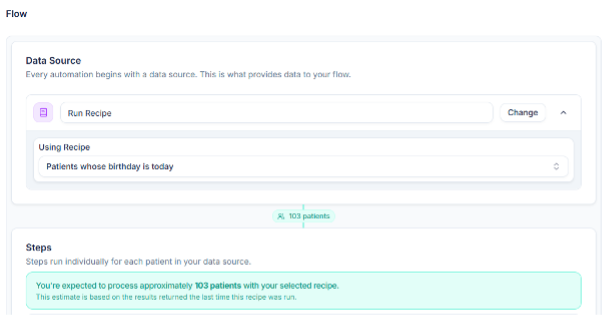
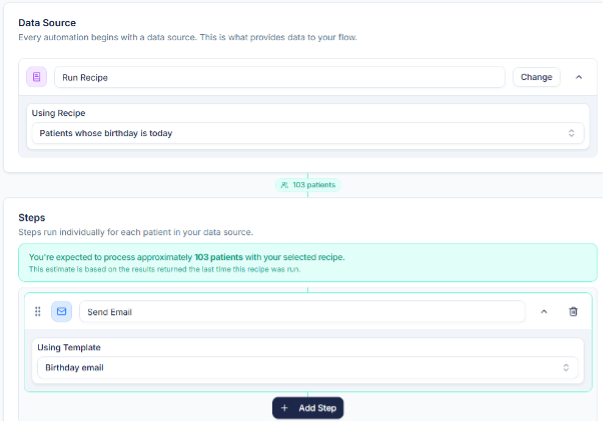
Using the Birthday recipe and template that you’ve built, now we can make an automation so that every day, PracticeMate sends a birthday email to each patient whose special day it is. Go into the Automations section and click + New Automation Name and describe your automation, then click + Add Data Source Click Run Recipe and find and select the birthday recipe. You should see a current count of the expected results of your recipe (when run today): Picture1 Pn Click + Add First Step to continue. Click Send Email Click Select template and select the birthday template: Picture2 Pn We don’t need any extra steps for this simple automation, so click Save Automation. An automation won’t run automatically until you publish it and set a schedule.
TIP - Use a test patient to test automations - you could go into Best Practice and put in your email address and change the data of birth to today’s day and month on your test patient, so that it is included in the automation
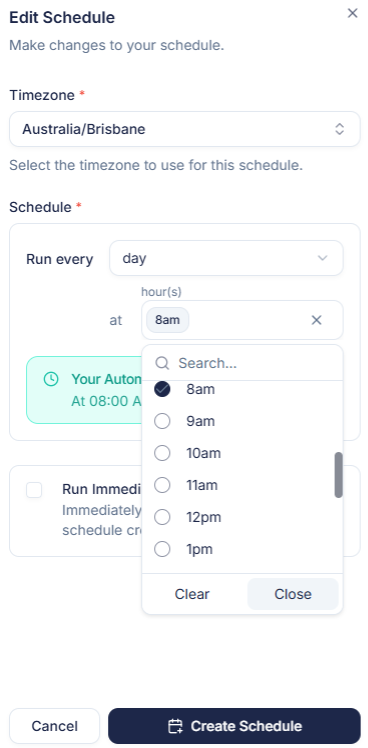
Scroll to the bottom of the page and click + Create Schedule We want this schedule to run daily at 8am (in our time zone): Picture3 Pn If you are doing this and it’s past the time you select, you may with to select “Run Immediately” to run after you create the schedule. Click Create Schedule and Confirm.