

Recipes are powerful search tools that help you find specific patient groups based on various criteria. They’re perfect for clinical audits, patient outreach, and quality improvement initiatives.
Getting Started
To begin, click the + New Recipe button to open the Recipe Builder: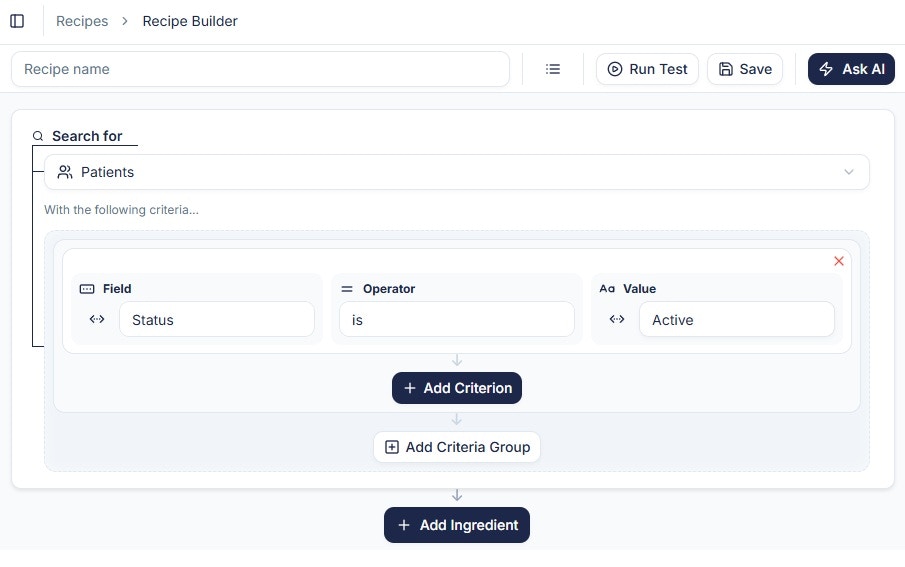
By default, PracticeMate includes only active patients in your search. You can modify this setting, but for this tutorial, we’ll keep the default “Status is Active” criterion.
Adding Your First Criterion
Let’s add a postcode range to find patients in a specific geographic area.Step 1: Add a New Criterion
Click + Add Criterion to expand your search parameters.Step 2: Select the Postcode Field
Click inside the Field selector to view all available search fields: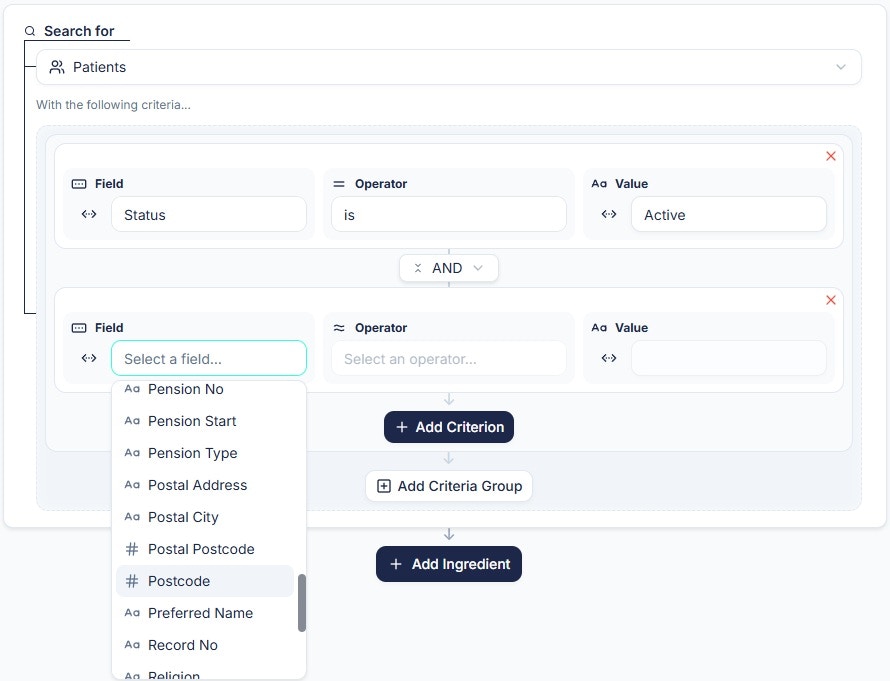
Step 3: Configure Your Search Range
- In the Operator field, select ≥ is greater than or equal to
- In the Value field, enter your starting postcode (we’ll use 4000 as an example)
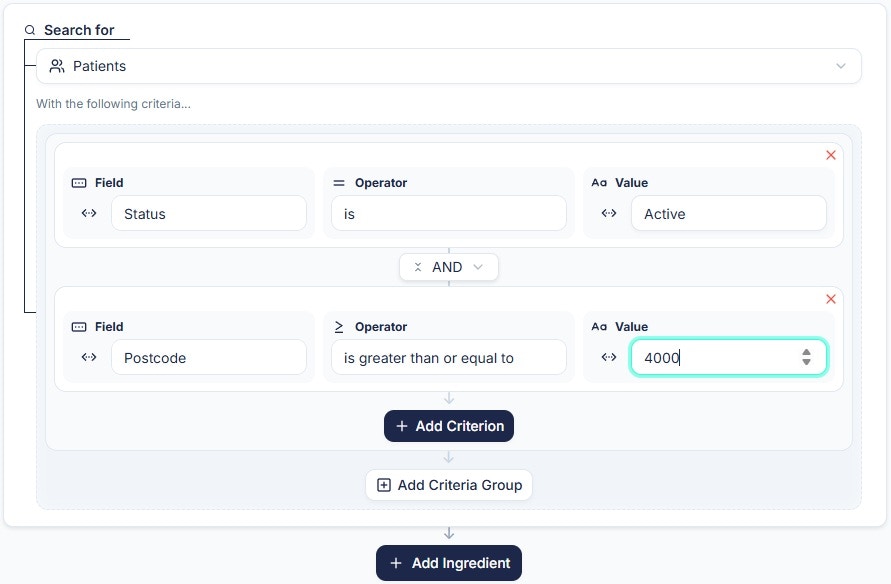
Feel free to use your own local postcode range for more relevant results!
Step 4: Add the End Range
Add another criterion for the upper limit of your postcode range:- Click + Add Criterion again
- Select # Postcode
- Choose ≤ is less than or equal to as the operator
- Enter your ending postcode (we’ll use 4010)

Testing Your Recipe
Once you’ve configured both postcode criteria, it’s time to test your recipe:- Click the Test Recipe button at the top of the screen

- Watch as PracticeMate processes your query and displays the results

The test results show you exactly how many patients match your criteria without saving the recipe permanently.
Saving Your Recipe
If you’re happy with your results, save your recipe for future use:- Enter a descriptive name in the Recipe name field
- Click Save Recipe

Congratulations! You’ve successfully created your first recipe!
What’s Next?
Now that you’ve mastered the basics, you can:Advanced Criteria
Learn to build more complex searches with multiple conditions
Recipe Management
Turn your recipes into reusable automations