Click into the Templates section and click + New Email Template
Give your template a name and description then hit Save:
 You will be presented with the PracticeMate Email Template builder screen.
Fill in your desired Subject and Preview (the text that is visible in most Inboxes below the subject of the email).
You will be presented with the PracticeMate Email Template builder screen.
Fill in your desired Subject and Preview (the text that is visible in most Inboxes below the subject of the email).
 Before you compose your message you may want to insert a graphic like your practice logo. To do that, hit / and select Image:
 You can add a Source URL, which will copy an image from a web site down to PracticeMate, or add an External URL, to display an image from a web site when the email is read. We’re going to use an External URL so that we know it will remain in the email.

Finding a Source or External URL
In your web browser, right-click an image on a web site and select “Copy Image Address”.
 Once you have an image in your template, you can drag it’s corners to resize it, or use the menu to adjust the properties of the image, including it’s alignment, source, border radius and size. You can also unlock the aspect ratio if you want to squeeze the image.
Next we’ll use a variable to substitute for the patient’s first name. Type @ and select Patient.FirstName:
Once you have an image in your template, you can drag it’s corners to resize it, or use the menu to adjust the properties of the image, including it’s alignment, source, border radius and size. You can also unlock the aspect ratio if you want to squeeze the image.
Next we’ll use a variable to substitute for the patient’s first name. Type @ and select Patient.FirstName:
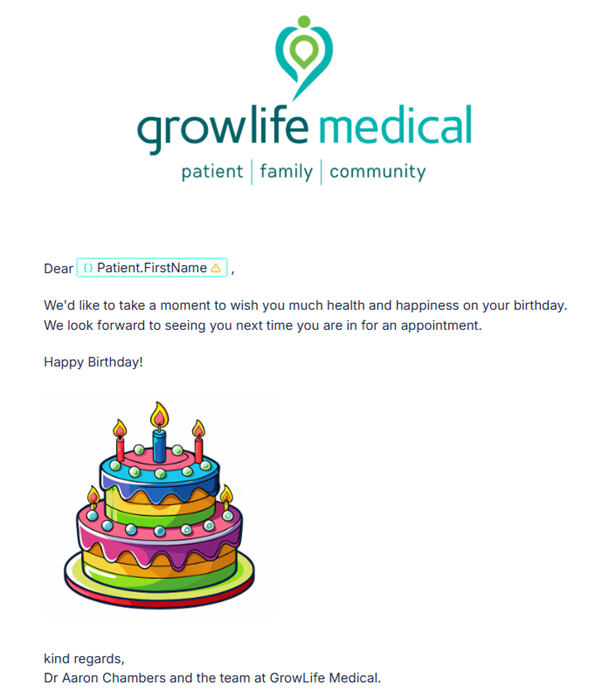
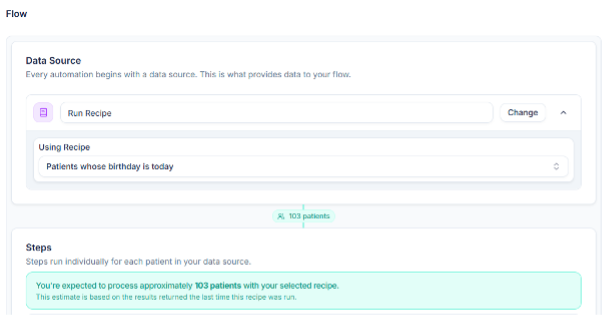
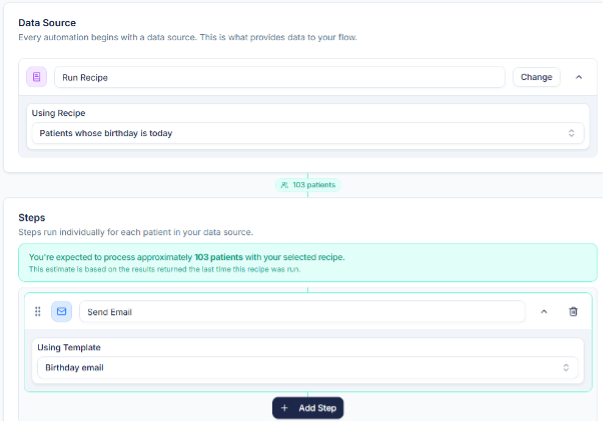
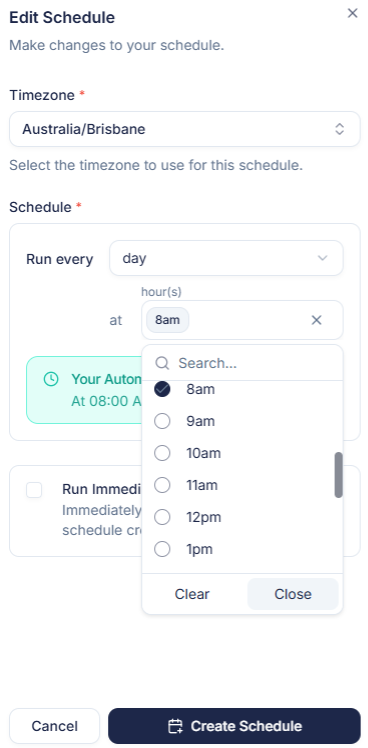 Type the rest of your email, and use the Preview button to see what the email will look like, on either Desktop or Mobile:
 I think this email needs more cake. Let’s find a cake image on the Internet and insert it the same way we did our logo!
Make sure you use an image that is in the public domain.
I think this email needs more cake. Let’s find a cake image on the Internet and insert it the same way we did our logo!
Make sure you use an image that is in the public domain.