
Opening Automations
Open Automations from the sidebar. The Automations page lets you:- search saved Automations
- open an Automation
- create a new Automation
- see how many Runs an Automation has
- see whether it is Active or Inactive
- see the next scheduled run
- see the last run status
- open row actions such as Run Now or Delete

Editor tabs
Saved Automations have two tabs. Editor is where you build the workflow. Runs shows Automation Run history, run details, activity, and logs. Processing rules and usage limits are in Settings within the editor’s Details section. For a new Automation, Runs is disabled until the Automation is saved. You can configure Settings before the first save.Save Automation
Save Automation stores the current workflow, Details, and Settings together. Changes to processing rules and limits are applied only when you save. PracticeMate checks the Automation before saving. You may be asked to fix missing details such as:- Automation name
- at least one Automation Step
- selected Recipe
- selected Template
- selected Reviewer for a Clinical Review step
Version locks prevent later Recipe or Template edits from quietly changing an
Automation your team has already prepared. If a selected Recipe or Template is
updated later, the editor can offer Update to latest so your team can
choose when to move the Automation forward.
Automation details
The first section is Details. It contains the Automation name, description, and Settings. Use Name for the short label your team will recognise. Good names are specific:- Birthday Card Email
- Flu Vax Recall SMS
- Weekly Chronic Disease Review Report
- Health Check Clinical Review
Run
The Run section controls how Automation Runs start and which patients they process. Use When to choose the trigger.Manual
Choose I trigger this manually when the Automation should only run after a Member chooses Run Now. Manual is useful when:- you are still building or checking the Automation
- the workflow needs a team member to decide when it should run
- the Automation should not run automatically
Scheduled
Choose On a recurring schedule when PracticeMate should start Automation Runs automatically. Scheduled Automations ask for: Timezone: the local timezone used for the schedule. Frequency: Daily, Weekly, or Monthly. Days of week: shown for Weekly schedules. Day of month: shown for Monthly schedules. Time: the hour, minute, and AM/PM value. PracticeMate also shows the schedule in plain language, such as At 12:00 AM, every day.Schedule changes are applied when you save the Automation. If you are creating
a new Automation, save it before expecting the schedule to run.
Event
If Automation events are available for your practice, choose An event occurs to start a Run when the selected event happens. Use Event to choose the specific Patient or Appointment event. The Automation processes only the Patient affected by that event.Recipe
For Manual and Scheduled Automations, use Using Recipe in the trigger settings to select the Recipe. PracticeMate evaluates that Recipe and uses the matching Patient Cohort as the starting point for the Automation. PracticeMate shows the expected number of patients based on the last time the Recipe was run. Use this as a sense check before saving or running the Automation.Recipe version is out of date
If the selected Recipe has changed since the Automation was saved, the editor may show a warning that the Recipe version is out of date. Choose Update to latest only after checking that the newer Recipe is the one you want this Automation to use.Active and Inactive
An Active Automation has automatic triggers enabled. An Inactive Automation does not have automatic triggers enabled. Manual Automations appear Inactive because they do not have a schedule. They can still be run manually.Do this
The Do this section contains the ordered Automation Steps. Each step processes the Recipe’s Patient Cohort, or the Patient affected by an event trigger. Select Add First Step or Add Step to open the Add Step dialog. Open Action to browse or search the available actions. Each option includes an icon and a short description. After you choose an Action, its settings appear in the dialog. Complete the settings, then select Add Step.Step cards
Each step appears as an open card containing:- Do this or Then this, showing its place in the workflow
- an Action selector with the current Action and its icon
- the Action’s settings
- a delete button in the card header
Available Automation Steps
PracticeMate currently includes these step types.Clinical Review
Clinical Review pauses the Automation Run and asks a registered Member to review before the Automation continues. Use Clinical Review when a qualified person should check the Patient Cohort or output before the next steps run. The step asks for: Reviewer: the registered Member who should receive the Clinical Review Request. When the Automation Run reaches this step, PracticeMate creates a Clinical Review Request. The Automation Run waits while the review is open. If the review is approved, the Automation continues to the next step. If the review is rejected or expires, the Automation Run stops.Clinical Review Requests have a seven-day review window. Approval or rejection
applies to the whole Clinical Review Request, not to individual patients.
Create Report
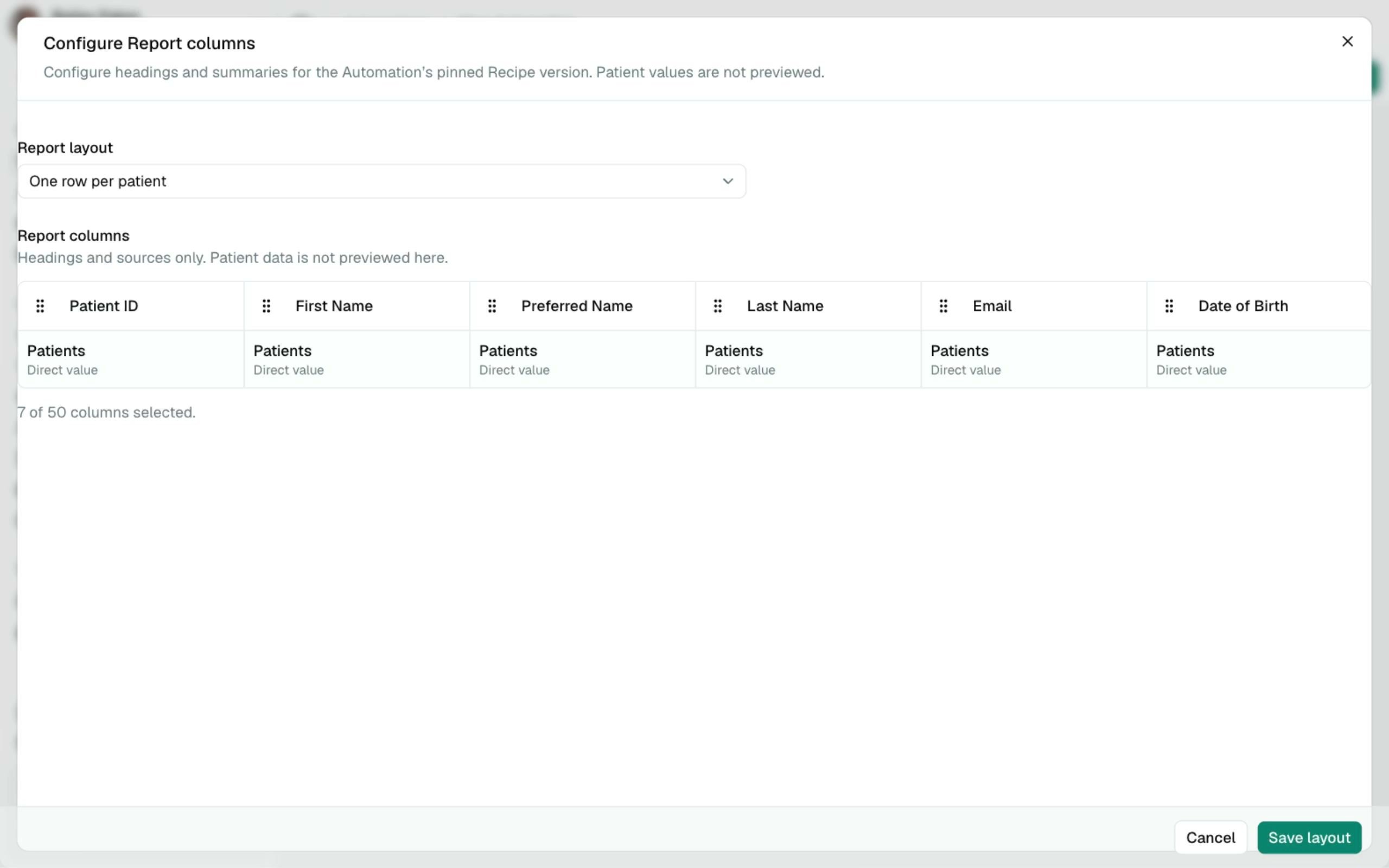
Create Report creates an exportable CSV from the Automation’s pinned Recipe version. Use Create Report when your practice wants a downloadable snapshot of the patients found by the Automation. The step asks for: Report Name: the name used for the Report. Append Date to Report Name: adds the run date to the Report name, so repeated runs are easier to tell apart. Expire after the first download: removes the file after a signed-in Practice Member downloads it successfully. This is recommended for stronger security. Configure columns: opens the full-screen Report editor. Use One row per to choose Patient or a matching record from a related Recipe source, then configure headings and summaries. The Automation stores the layout against its pinned Recipe version. If the Automation moves to a newer Recipe version, PracticeMate preserves columns that are still available and identifies any unavailable columns that must be removed before saving.The Automation Report editor previews headings and Recipe sources only. It
does not show patient values.
Send Email
Send Email sends an Email Communication to patients using an Email Template. The step asks for: Using Template: the Email Template to send. Reply-To: optional. Use this when replies for this Automation should go to a different inbox. It is available when your practice sends from an active BYO Email Domain. Send Email uses Template Variables in the Email Template to fill patient and practice details at send time. PracticeMate filters patients before sending. Patients can be skipped when, for example, they have no usable Email address, have opted out, or have already been processed by this Automation when Prevent reprocessing is on. Email Communications use Credits. The Automation’s limits are checked while the step runs.Email template version is out of date
If the selected Email Template has changed since the Automation was saved, the editor may show a warning that the Email Template version is out of date. Choose Update to latest only when you want the Automation to use the newest saved Email Template wording.Send SMS
Send SMS sends an SMS Communication to patients using an SMS Template. The step asks for: Using Template: the SMS Template to send. SMS Templates are filtered separately from Email Templates, so the selector only shows SMS Templates. PracticeMate filters patients before sending. Patients can be skipped when, for example, they have no usable mobile number, have opted out, or have already been processed by this Automation when Prevent reprocessing is on. SMS Communications use Credits based on SMS length and segment count. The automatic opt-out footer is included when SMS content is prepared.SMS template version is out of date
If the selected SMS Template has changed since the Automation was saved, the editor may show a warning that the SMS Template version is out of date. Choose Update to latest only when you want the Automation to use the newest saved SMS Template wording.Wait
Wait pauses the Automation for a set amount of time before the next step. Use Wait when the workflow needs a delay between steps. The step asks for: Duration: the number to wait. Interval: minutes, hours, days, weeks, or months. PracticeMate shows a validation message if the duration is outside the allowed range for the chosen interval, and adjusts the value when you leave the field.Runs tab
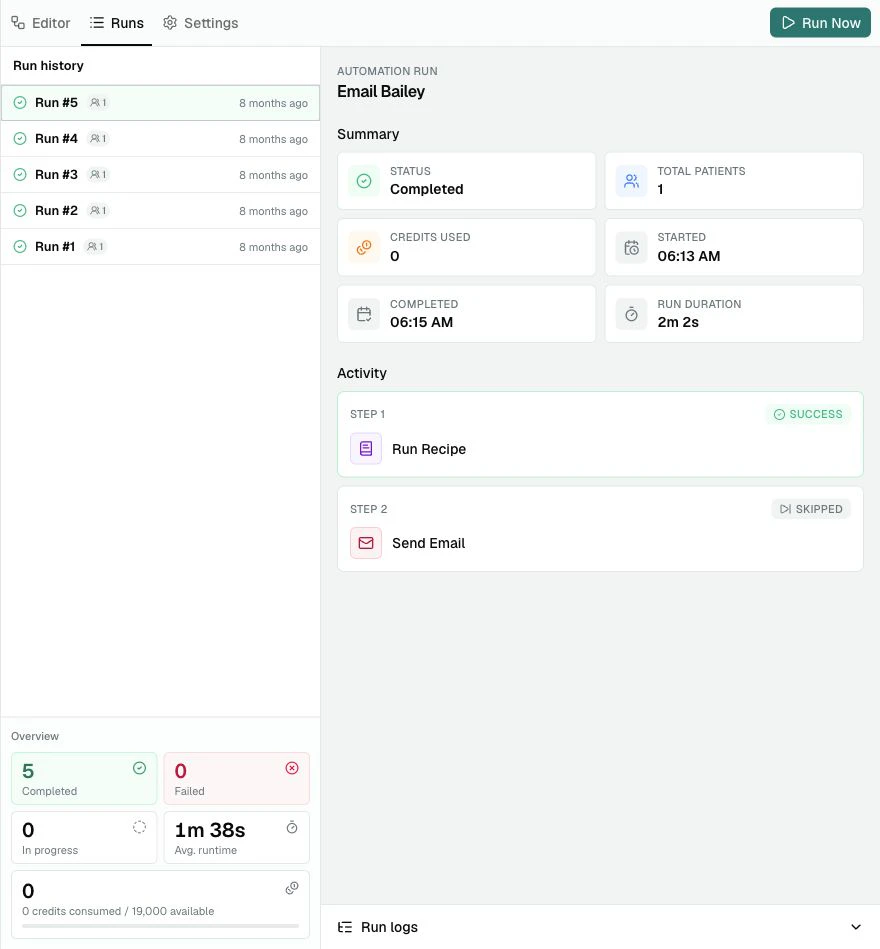
The Runs tab shows what happened when an Automation ran.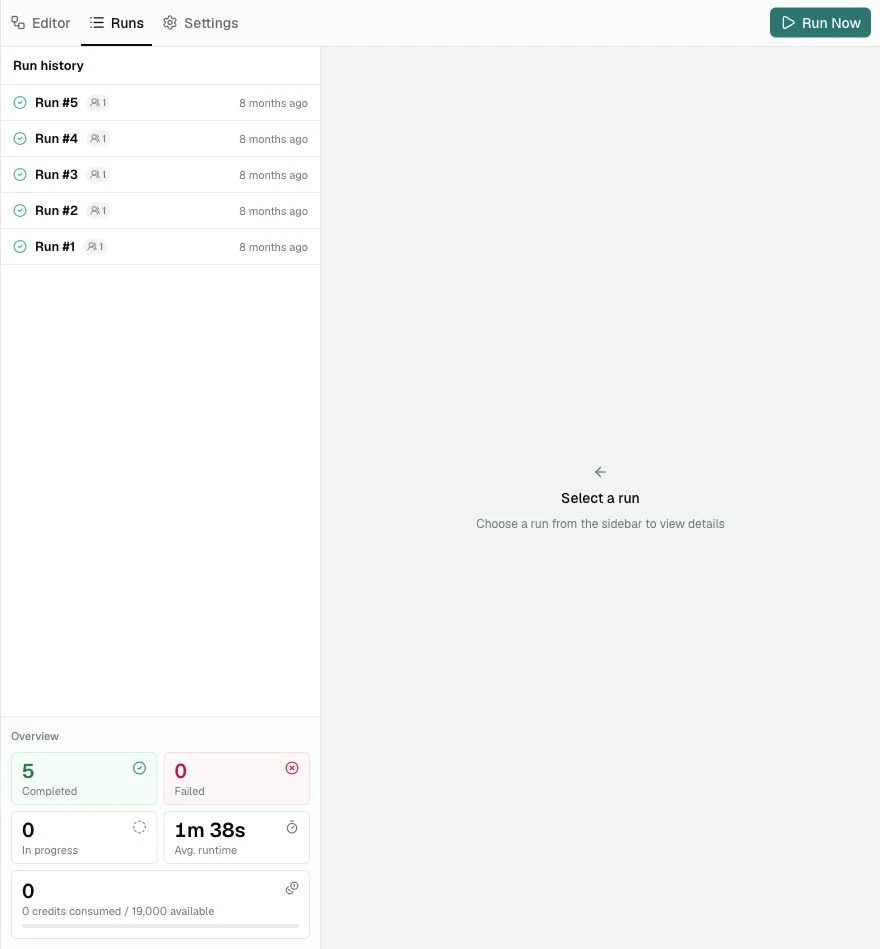
- completed run count
- failed run count
- in-progress run count
- average runtime
- Credits consumed and Credits available
- status
- total patients
- Credits used
- start time
- completion time
- run duration
- step activity
- run logs
Run Now
Run Now starts a Manual Automation Run. PracticeMate asks for confirmation before starting the run.Run statuses
Automation Runs can show these statuses. Completed means the run finished successfully. Failed means an unexpected error prevented the run from finishing. In progress means the run is currently running. Waiting for review means the run is paused while a Clinical Review Request waits for a review outcome. Stopped means the run ended intentionally before all downstream steps, usually because a Clinical Review was rejected or expired.Activity steps
The run detail view shows the Patient source and each step in order. Each activity card can show whether the step:- succeeded
- failed
- was skipped
- was stopped by a limit
- is waiting
Run logs
Run logs show messages recorded while the Automation Run was processed. Logs are useful when a step was skipped, stopped, or failed. They can explain issues such as missing contact details, opted-out patients, limit checks, or delivery preparation problems.Settings within Details
Use Settings within Details to edit processing rules and limits for a new or saved Automation. These settings are saved together with the workflow when you select Save Automation. Changing a field or switch does not save it immediately. Review your changes and save the Automation to apply them.Processing Rules
Prevent reprocessing skips patients previously processed by this Automation for the same Recipe. This is useful for workflows where a patient should not receive the same Communication or be handled repeatedly just because the Automation runs again. For example, in a birthday Email Automation, Prevent reprocessing helps avoid contacting the same patient again if the Automation is run twice for the same birthday Recipe result. Patients skipped because a Communication or Credit Limit was reached remain eligible for a later run. Finding a patient in the Recipe result does not, by itself, mark them as processed. A recorded send prevents reprocessing even if delivery later fails. Turn it off only when your practice intentionally wants the same patient to be processed again on later runs. Prevent reprocessing is on by default for a new Automation.Limits
Limits apply per Automation Run. Credit Limit stops the Automation once the run has used that many Credits. Use 0 for no Credit Limit. Communication Limit sets the maximum number of Email and SMS Communications the Automation can send in one run. Use 0 for no Communication Limit. Both limits accept whole numbers of 0 or more. If both limits are set, the first limit reached stops the Automation Run. The limits start again for each new Run.Common checks before saving
Before saving an Automation, check:- The Automation name and description are clear.
- When is I trigger this manually while building, or On a recurring schedule only when the workflow is ready.
- The selected Recipe finds the right Patient Cohort.
- The expected patient count looks sensible.
- The selected Template has been reviewed and tested.
- Automation Steps are in the correct order.
- Clinical Review is included when a reviewer should check before downstream steps run.
- Email and SMS steps use the correct Template type.
- Wait steps use the intended duration.
- Report settings are appropriate for the sensitivity of the Patient Cohort.
- Prevent reprocessing is set the way your workflow needs.
- Credit and Communication limits are acceptable.
- The Automation has been saved after important changes.
A good Automation should be easy to explain in one sentence: “Start with these
patients, at this time, then do these steps in this order.”