
Before you start
In the sidebar, under Comms, select Templates. Select New Email Template. PracticeMate opens a blank Email Template editor.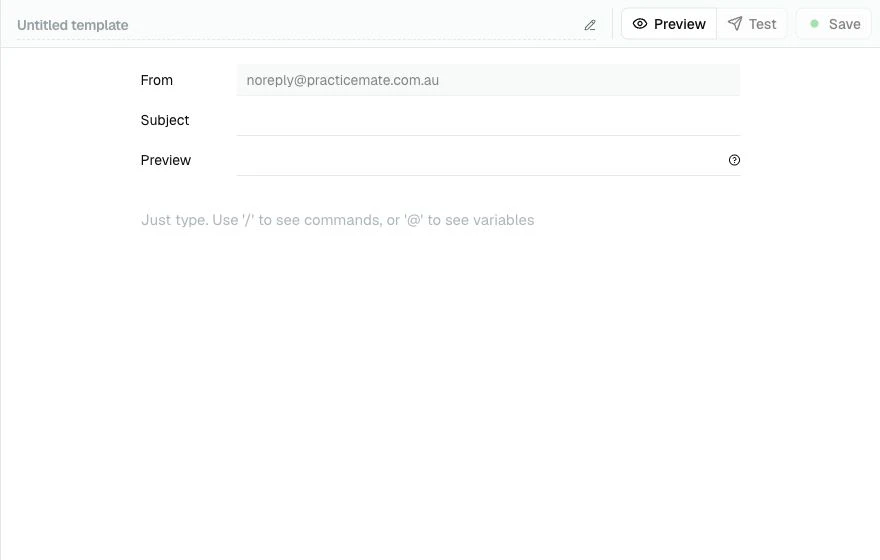
Name the Template
Select the title at the top of the page and enter: Birthday Email The name is for your practice team. Patients do not see it.Add the Email details
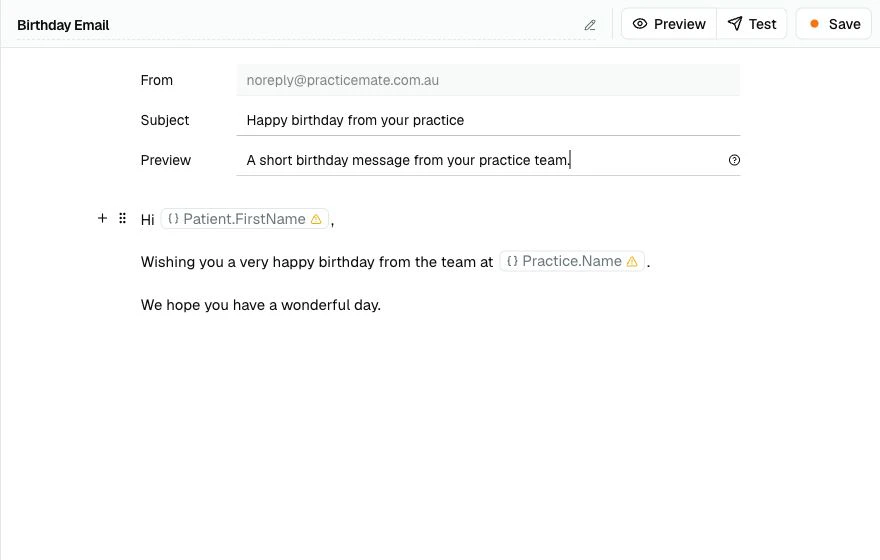
The Email editor has four fields above the body. From uses your Practice Email settings. Reply-To is available when your practice sends from an active BYO Email Domain. Subject is the line patients see in their inbox. Preview is the short snippet many inboxes show beside or under the subject. For this guide, use:- Subject: Happy birthday from your practice
- Preview: A short birthday message from your practice team.
Write the greeting
Click into the body area and start with: Hi Then type @ to open the Template Variable menu. Choose Patient.FirstName.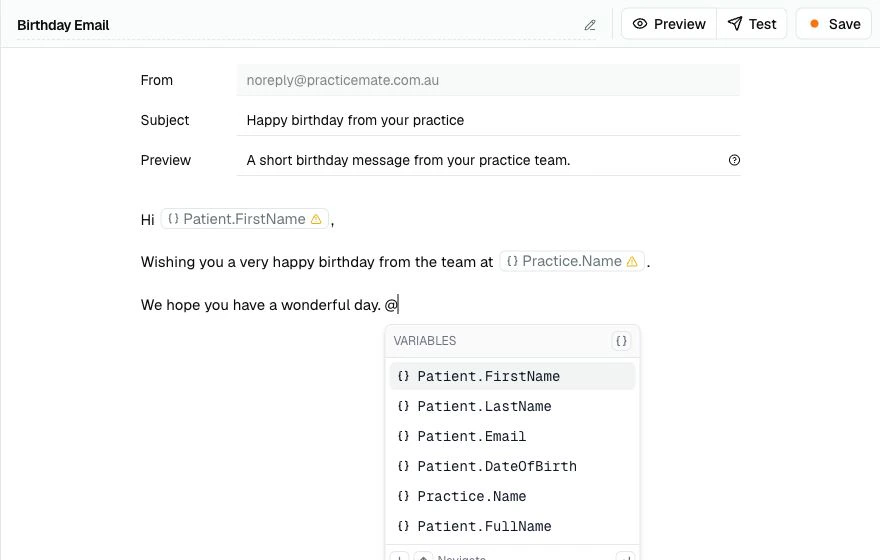
Wishing you a very happy birthday from the team at Practice.Name.Insert Practice.Name with the same @ menu.
Add more structure if needed
For a simple Email, plain paragraphs are enough. If you want to add headings, lists, images, buttons, sections, dividers, or reusable Template Components, type / on a blank line. For this first Template, keep the Email short and easy to read.Compare with the example Birthday Email
Your practice may already have a Birthday email Template. It shows the same idea with a logo, body copy, image, and sign-off.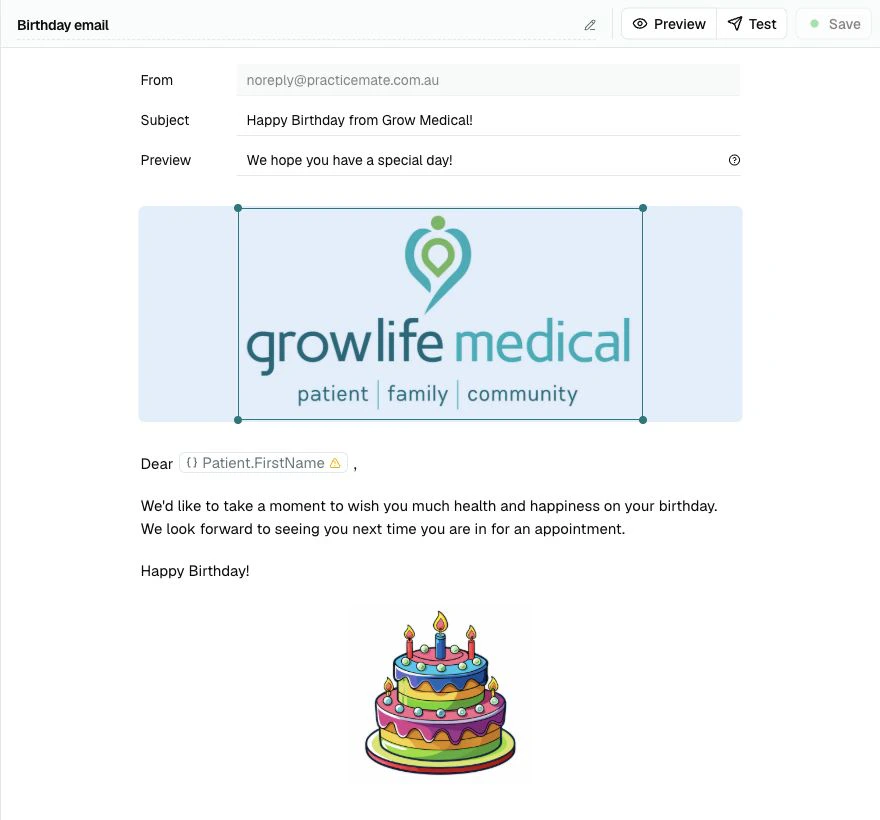
Preview the Email
Select Save first, then select Preview. Preview shows the saved Email as a patient might see it, including the inbox-style subject and preview text. You can switch between Mobile and Desktop.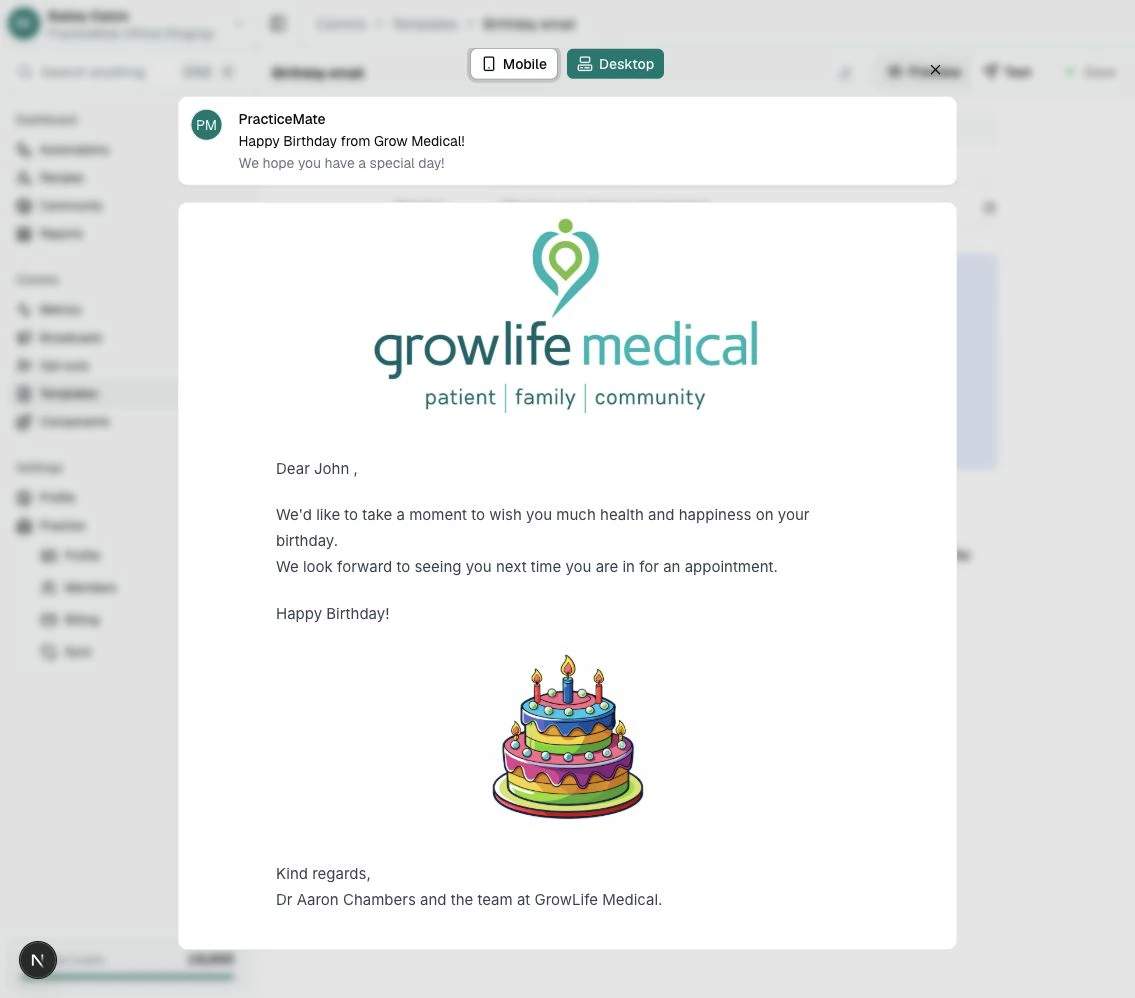
Send a test Email
Select Test. Enter an Email address for yourself or another team member, then send the test.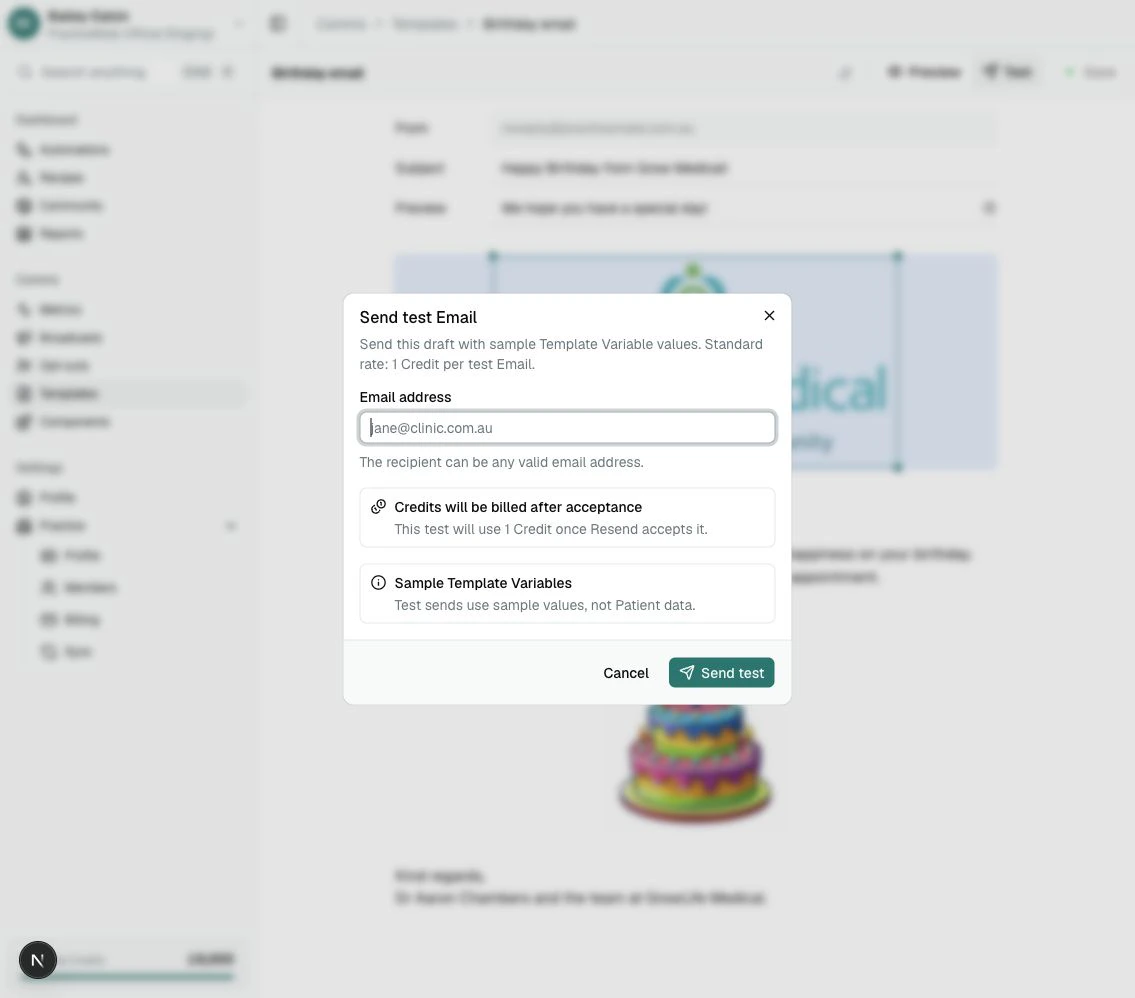
Save the Template
When the Template reads well and the test looks right, select Save.You have built your first PracticeMate Email Template.
What you learned
You used:- a clear Template name
- a fixed subject line
- fixed preview text
- Email body copy
- the @ menu for Template Variables
- the / menu for Email blocks
- Preview
- Test
- Save
- Version history as a way to return to earlier saved wording