
The screenshots in this guide show the Report setup screens and table status.
They do not show a downloaded patient spreadsheet.
Before you start
Open Reports from the sidebar, then select Prepare Report. PracticeMate opens the full-page Report Builder.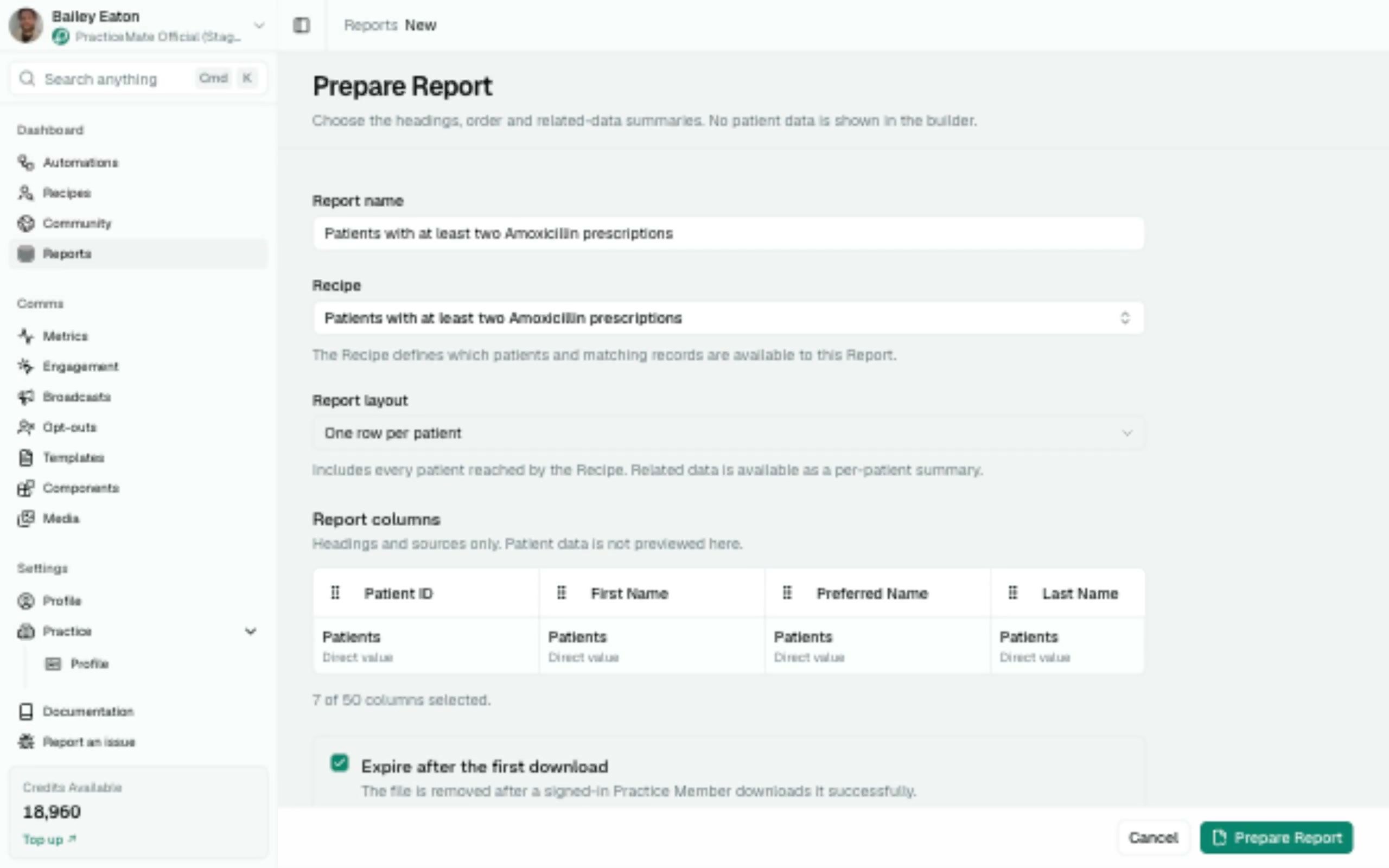
Name the Report
Choose a name your team will recognise later. For this guide, use: ESA prescriptions review report The name is for your practice team. It appears in the Reports table after the Report is requested.Select the Recipe and row type
Open Select Recipe. Search for or choose the Recipe you want to turn into a Report. For this example, choose: Active patients with prescriptions for ESAs Recipes define what the Report will contain. If the Recipe does not describe the right Patient Cohort yet, update and test the Recipe before preparing the Report. Use One row per to choose what each row represents: Patient includes every patient reached by the Recipe once. Related data is available as a per-patient summary. Choosing Matching record from Prescriptions creates one row for each matching record. Direct related fields then come from the same record row, and patients without a matching prescription are excluded. For the prescription example, choose Matching record from Prescriptions.Configure the columns
The layout table starts with the current seven Patient columns. Select Add report column to search fields by heading, Recipe source or description. Results are grouped by friendly Recipe source. After choosing a field:- Set the heading your team should see in the CSV.
- Choose Matching record for a direct field from the selected record source, or choose a compatible summary.
- Select Save.
The table previews headings and source details only. PracticeMate does not
load or display patient values in the Report Builder.
Check the expiry option
PracticeMate selects Expire after the first download by default. Keep this option selected for most Reports. It means the Report will expire immediately after it is downloaded. Reports are also only available for 48 hours, even if they have not been downloaded.Prepare the Report
Check the name, Recipe, row type, headings, summaries and expiry option. Select Prepare Report in the sticky action bar. PracticeMate returns to Report history and adds the Report to the table.Wait for the Report
The Report first appears with a Preparing status.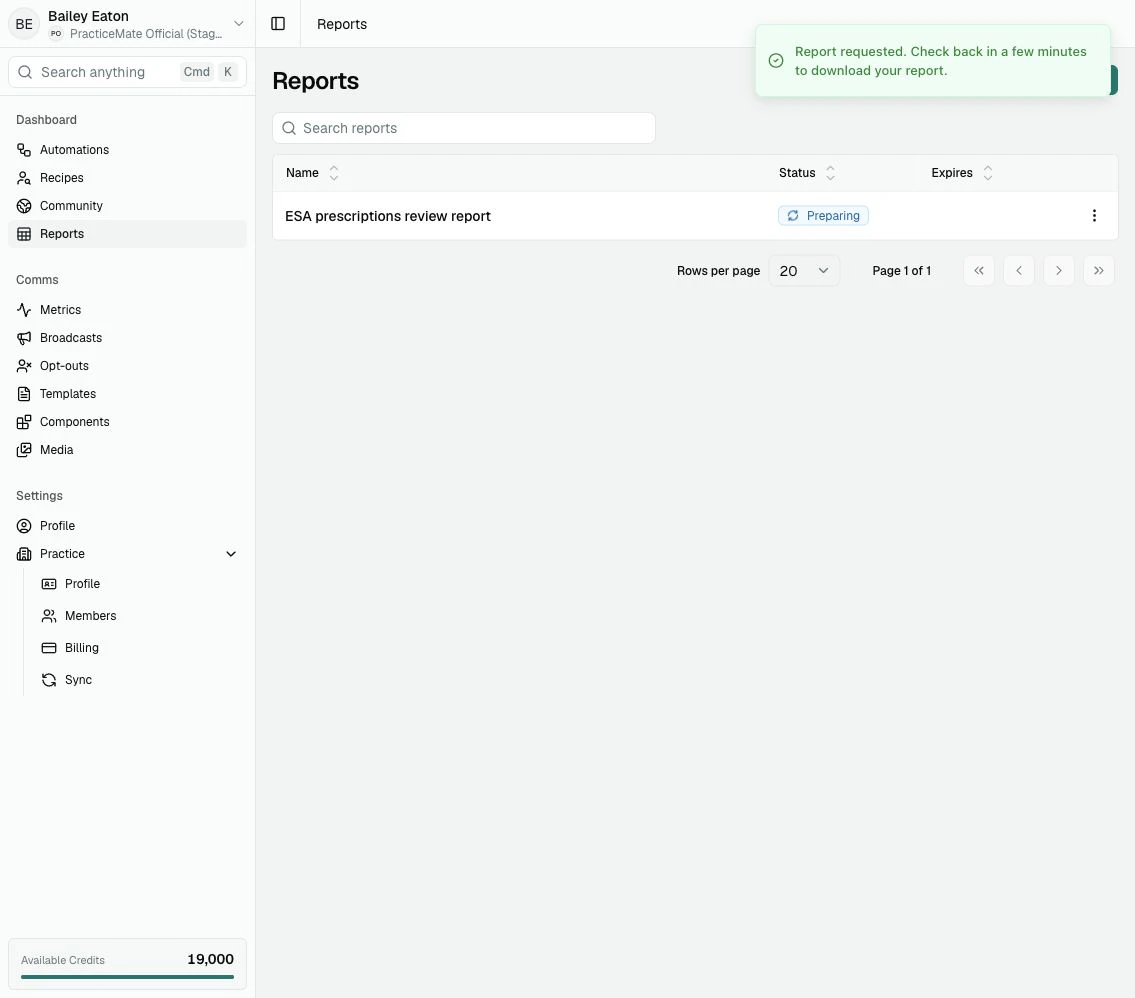
Download the Report
When the status changes to Ready, sign in as a Member of the same Practice and download the Report from the Reports table. You can select the Report name, or open the … menu and choose Download Report. If Expire after viewing was selected, the Report expires after it is downloaded. If your team needs another copy later, prepare the Report again from the same Recipe.Delete Reports you no longer need
Use the … menu on a Report row to delete a Report. Deleting a Report removes it from PracticeMate. It does not delete any downloaded copies your team may already have saved outside PracticeMate.What you learned
You used:- a clear Report name
- a saved Recipe
- the two Report row layouts
- direct matching-record fields and per-patient summaries
- the headings-only layout table
- the Expire after the first download option
- the Prepare Report button
- the Reports table status
- the Ready state as the sign that a Report can be downloaded
- the … menu for downloading or deleting a Report