
Opening the builder
From Recipes, select New Recipe. PracticeMate opens with a prompt: What kind of Recipe would you like to create? You can describe the Recipe in plain English, or choose Open the full editor instead. The full editor gives you direct control over every filter, ingredient, connector, and value.Title
The title appears at the top of the editor. Select it to rename the Recipe. Good names are specific:- Active male patients aged 50+
- Patients with 3+ visits in 2 years
- Active patients with no mobile number
Test
Test checks how many patients match the Recipe. Use it before saving, and again after any meaningful change. Testing is especially useful after adding an ingredient, changing an AND/OR connector, or adding a date filter.A test result is a count. It helps you check whether the Recipe looks sensible
before you save or use it in another workflow.
View Results
View Results checks the current Recipe and lists the matching Patient Cohort. The table shows each patient’s Patient ID, first name, last name, and date of birth. Results include any unsaved changes in the builder. A successful results check also counts as a successful test, so you can review the Patient Cohort before saving. Use the search field to find a patient by Patient ID, name, or date of birth. PracticeMate loads results a page at a time, so large Patient Cohorts remain manageable. PracticeMate keeps one results snapshot for each Recipe for 15 minutes. Searching and changing pages use that snapshot instead of running the Recipe again. If you change the Recipe filters, the next results check replaces the previous snapshot.Viewing results does not change patient records or save the Recipe. Results
reflect the data in Best Practice Premier when the snapshot was loaded and may
be up to 15 minutes old.
Save
Save stores the Recipe so you and your team can use it again. PracticeMate will ask you to fix highlighted filters if a required field, operator, or value is missing. Each successful save also creates a new version of the Recipe. Versions are helpful when a Recipe changes over time and your team wants to check what was saved before.Version history
Open Recipes, select the … menu beside a Recipe, then choose Version history. Version history shows earlier saved versions of the Recipe. Select a version to preview it in a read-only builder, then choose Restore version if your practice wants to make that older version current again.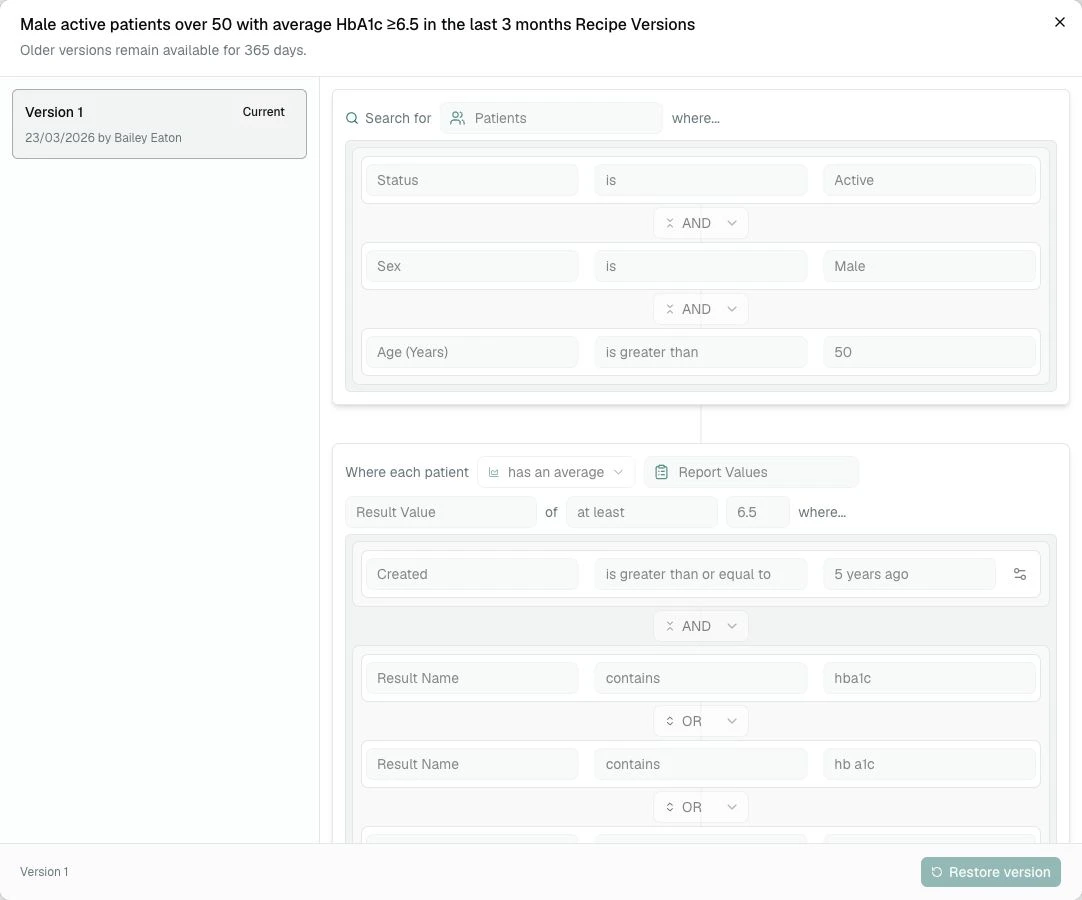
Version history is there to help your team review and restore recent saved
work. It is not intended to be a permanent record of every change. Older
versions remain available for 365 days.
Patient section
Every Recipe starts by searching for Patients. This section contains filters about the patient record itself, such as:- age
- sex
- status
- postcode
- usual doctor
- MyMedicare registration
- contact details
- Status is Active
- Extraction Opt-Out is False
Filter rows
A filter row has three main choices. Field is the piece of information you want to check. Examples: Age (Years), Sex, Postcode, Visit Date. Operator is the comparison. Examples: is, contains, is on or after, and is in the last. Value is what you are comparing against. Examples: Male, 50, today, or 2 years. A complete filter reads like a sentence: Age (Years) is greater than or equal to 50Field chooser
The field chooser includes fields from the current section. In the Patients section, it shows patient fields. Inside a Visits ingredient, it shows visit fields. Inside a Prescriptions ingredient, it shows prescription fields. The field chooser may also include more advanced options for combining or transforming dates, numbers, and text. Most teams can start with the standard fields and only explore these when a Recipe needs them.Operators
The available operators depend on the field you picked. Common operators include:- is for an exact match
- is not for excluding a value
- contains for text that includes a word or phrase
- does not contain for text that should not include a word or phrase
- starts with and ends with for text patterns
- is greater than, is greater than or equal to, is less than, and is less than or equal to for numbers
- is on and is not on for an exact date
- is before, is on or before, is after, and is on or after for a one-sided date cut-off
- is in the last and is in the next for a rolling period relative to today
- is one of and is none of for matching several values
Values
The value box changes depending on the field. For some fields, you type a value, such as 50. For fields with known options, you choose from a list, such as Male, Female, Other, or Unknown. For is in the last and is in the next, enter a positive whole number and choose days, weeks, months, or years. These periods stay relative to today whenever the Recipe runs. For specific-date operators, you can type plain language values such as today, yesterday, or 2 years ago. If PracticeMate offers a relative-date suggestion, choose it so the cut-off stays current over time.Fixing highlighted filters
PracticeMate checks a field, operator, or value after you leave that control. Moving between parts of one control—such as the number and unit in is in the last 2 months—does not interrupt you with an error. Test, View Results, and Save check the entire Recipe before continuing. If something needs attention, PracticeMate keeps the Recipe in place, focuses the first highlighted control, and shows its message in a small panel beside it. Select any red alert icon to see that message again, or press Escape to close the panel without clearing the highlight. Repeated fields are allowed because they can form useful ranges or alternatives. However, filters joined by AND must be able to be true at the same time. For example, Sex is Male AND Sex is Female has no possible match. PracticeMate outlines every filter involved in the contradiction, and selecting any highlighted field shows the shared explanation. Change AND to OR, adjust one condition, or remove the unnecessary filter. PracticeMate also highlights conflicting ranges and direct combinations such as contains with does not contain for the same text.A highlight clears after you correct the control and leave it. Editing alone
does not hide an existing message, so you can still refer to it while making
the correction.
AND and OR
Connectors decide how filters work together. AND means every connected line must be true. Example:- Age (Years) is greater than or equal to 50
- AND Sex is Male
- Sex is Male
- OR Sex is Female
Add Filter
Use Add Filter when you want to add another condition inside the same section. For example, in the Patients section:- Age (Years) is greater than or equal to 50
- Sex is Male
- Visit Date is in the last 2 years
- Doctor Name is Dr Smith
Add Filter Group
A filter group lets you keep a set of filters together. Use filter groups when the Recipe needs a careful mix of AND and OR logic. For example, you might want:- Age (Years) is greater than or equal to 50
- AND a group where Postcode is 4000 OR Postcode is 4001
Add Ingredient
Use Add Ingredient when the Recipe needs to look beyond the patient record. Ingredients let you ask about related information, such as:- visits
- appointments
- prescriptions
- observations
- reports
- report values
- reminders
- immunisations
- correspondence
- past history
- smoking or alcohol history
Ingredient relationships
PracticeMate supports these ingredient relationships. has any means the patient must have at least one matching related record. Example: has any Prescriptions where Product Name contains amoxicillin. has no means the patient must not have a matching related record. Example: has no Appointments where Appointment Date is after today. only has means all matching related records must fit the filters you set. Use this carefully, because it is more restrictive than “has any”. has a count of lets you count related records. Example: has a count of at least 3 Visits where Visit Date is in the last 2 years. has an average lets you average a number field from related records. Example: has an average Result Value greater than or equal to 6.5 where Result Name contains HbA1c.Count ingredients
Use a count ingredient when the number of records matters. The count controls are:- exactly
- more than
- at least
- less than
- at most
Average ingredients
Use an average ingredient when you need an average of a number field from related records. An average ingredient asks for:- the related table
- the number field to average
- the operator
- the comparison value
- filters that decide which records are included in the average
Saved ingredients
The small import button on an ingredient opens Saved Ingredients. Use saved ingredients for filter patterns your practice uses often, such as a common visit timeframe or prescription search. You can save the current ingredient with a name and description, then load it into another Recipe later.Reordering and deleting
Each filter row has a drag handle on the left and a delete button on the right. Use the drag handle to reorder filters for readability. Reordering filters does not usually change the result unless you are also changing groups or connectors. Use the delete button to remove a filter you no longer need.AI prompt bar
The prompt bar at the bottom of the builder lets you ask PracticeMate to change the Recipe in plain English. For example: Add patients with 3 or more visits in the last 2 years. Review any changes before saving. The visual builder always shows exactly what will be tested and saved.Common checks before saving
Before saving a Recipe, check:- The title explains the patient group.
- The default active-patient filters are still present if you need them.
- Every filter has a field, operator, and value.
- AND/OR connectors match the plain-English intention.
- Ingredient filters are inside the correct ingredient.
- Date filters use a current relative date when the Recipe should stay up to date.
- The Recipe has been tested and the count looks reasonable.
- The Recipe has been saved after important changes, so Version history has a useful point to return to.
A good Recipe is easy to read aloud. If you can explain it clearly, your team
is more likely to use it safely and consistently.