
- review a Patient Cohort before taking action
- prepare a list for a practice meeting or quality improvement activity
- check which patients matched a Recipe at a point in time
- share a spreadsheet with authorised Members of your practice team
- keep a short-lived working copy while planning the next step
Reports can contain patient-identifying Practice Data. Only prepare and
download Reports when your team has a clear reason to use them, and handle
downloaded files according to your practice’s usual privacy process.
How Reports fit together
Reports start with Recipes. Recipe: defines which patients should be included. Report: creates a downloadable CSV file from that Recipe. Practice workflow: your team reviews the spreadsheet and decides what to do next. For example:- A Recipe finds active patients with a particular prescription pattern.
- A Report creates a spreadsheet of the patients who currently match.
- Your team reviews the spreadsheet before deciding whether any follow-up is needed.
Open Reports
Open Reports from the sidebar. From here, you can search existing Reports, prepare a new Report, download a ready Report, or delete a Report you no longer need.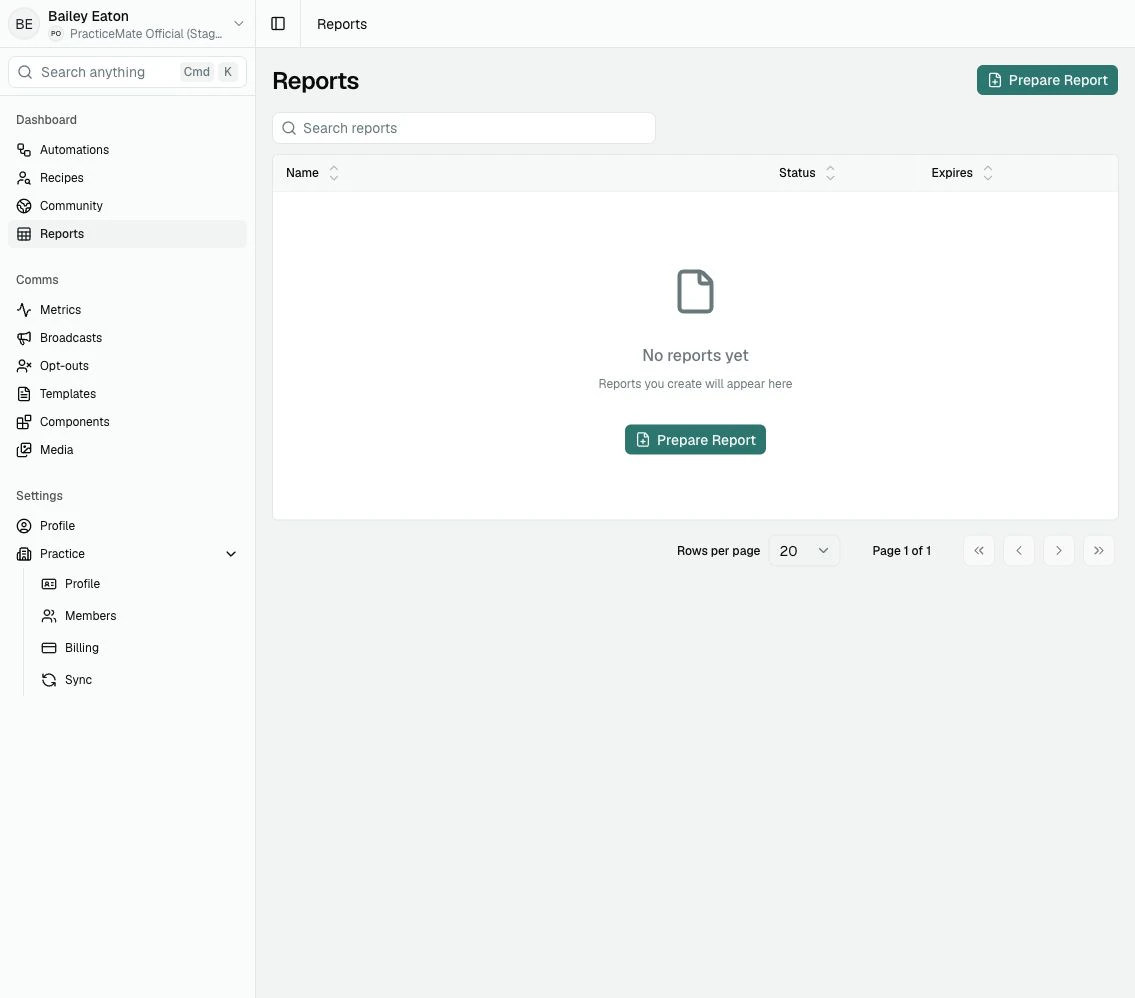
Choose what each row represents
Use One row per to choose what each row in the Report represents. Patient includes every patient reached by the Recipe once. You can add Patient fields directly and summarise related Recipe records for each patient. Choosing a matching-record source creates one row for each matching record from that source. For example, choosing Matching record from Prescriptions lets a row contain the product, dose and script date from the same prescription. Patients without a matching prescription are not included. You can still add per-patient summaries from other Recipe sources. A summary repeats on each matching-record row for that patient.A Recipe condition that looks for patients who do not have a record cannot be
selected as a record source because there are no matching records to export.
Choose columns and summaries
Reports start with the same seven Patient columns used by earlier Reports. You can add, remove, rename and reorder columns. Related fields can be summarised using options that fit the field:- number of matching records
- average, sum, minimum or maximum for numeric fields
- earliest or latest for date fields
- combined distinct values for displayable fields
Report statuses
Reports move through a few simple states. Preparing means PracticeMate has received the request and is creating the spreadsheet. Ready means the spreadsheet can be downloaded. Failed means PracticeMate could not prepare the Report. If this happens, try again later or contact support if the problem continues.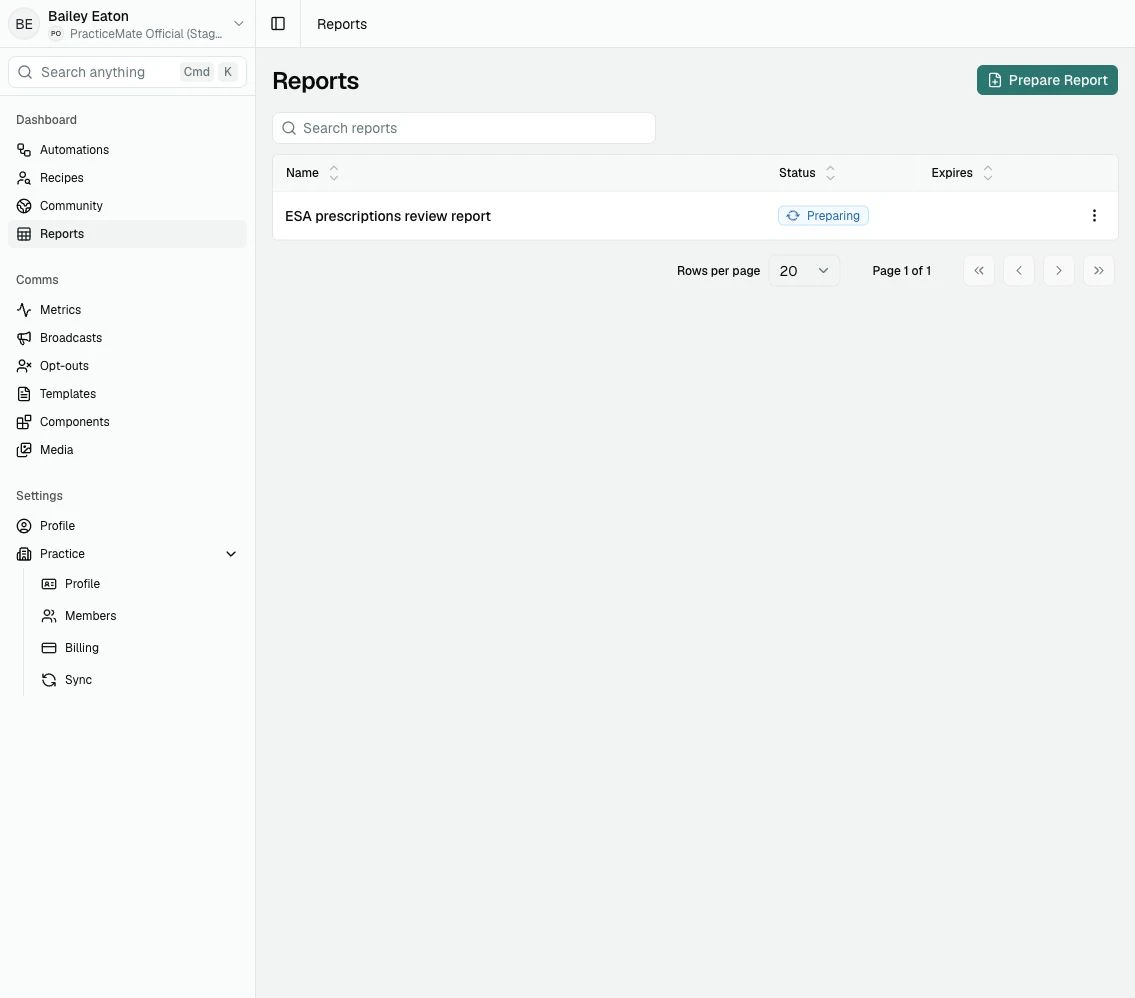
Availability and expiry
Reports are only available to download for 48 hours. When you prepare a Report, PracticeMate recommends keeping Expire after the first download turned on. With this option selected, the Report expires immediately after it is downloaded successfully. This keeps Reports short-lived by default, which is helpful because they may contain patient-identifying Practice Data.A reliable way to use Reports
1
Start with a saved Recipe
Make sure the Recipe describes the Patient Cohort you want to review.
2
Prepare the Report
Give the Report a clear name, select the Recipe and choose the row layout.
3
Configure the columns
Add, rename, summarise and order the headings your team needs. The builder
does not load patient values.
4
Leave expiry protection on
Keep Expire after viewing selected unless your practice has a clear
reason to download the file more than once.
5
Wait for the Ready status
Larger Patient Cohorts can take longer to prepare. You can leave the page
and return later.
6
Download and handle the file carefully
Sign in as a Practice Member, then store, share, and delete the downloaded
CSV according to your practice’s privacy process.