
Opening Templates
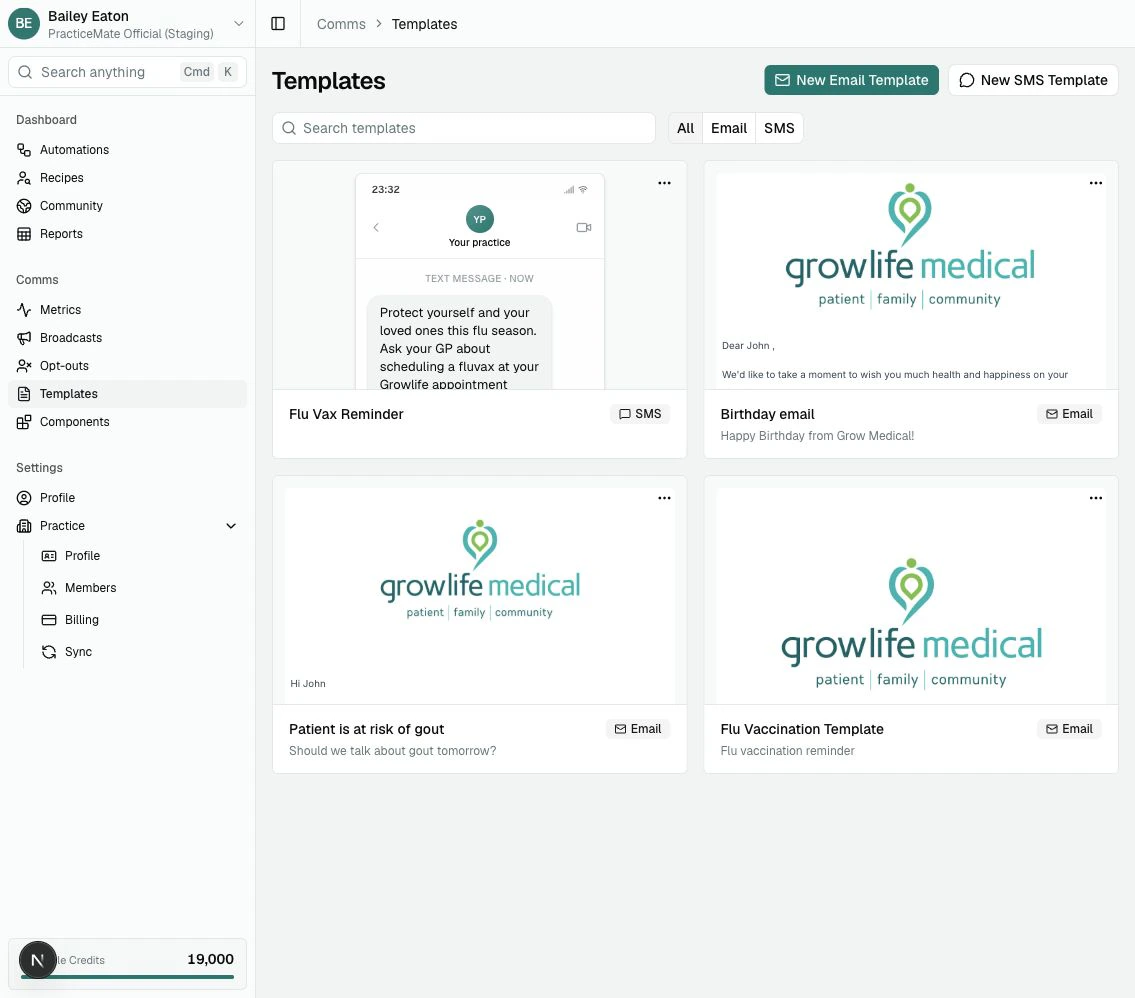
In the sidebar, under Comms, select Templates. The Templates page lets you:- search Templates
- filter by All, Email, or SMS
- open an existing Template
- create a new Email Template
- create a new SMS Template
Template names
The Template name appears at the top of the editor. Select the name to rename the Template. Good names are specific:- Birthday Email
- Flu Vax Reminder SMS
- Appointment Preparation Email
- Skin Check Recall SMS
Save
Save stores the Template so your practice can use it again. Each successful save creates a new Template version. Versions give your team a helpful point to review or restore if wording, layout, or SMS length changes later. The Save button includes a small status dot:- green means the saved version is up to date
- orange means there are unsaved changes
- yellow means PracticeMate is saving
Version history
Open Templates, then use the … menu on a Template card and choose Version history. Version history lets you preview earlier saved versions of an Email or SMS Template. Select a version to review it, then choose Restore version if your practice wants to make that wording current again.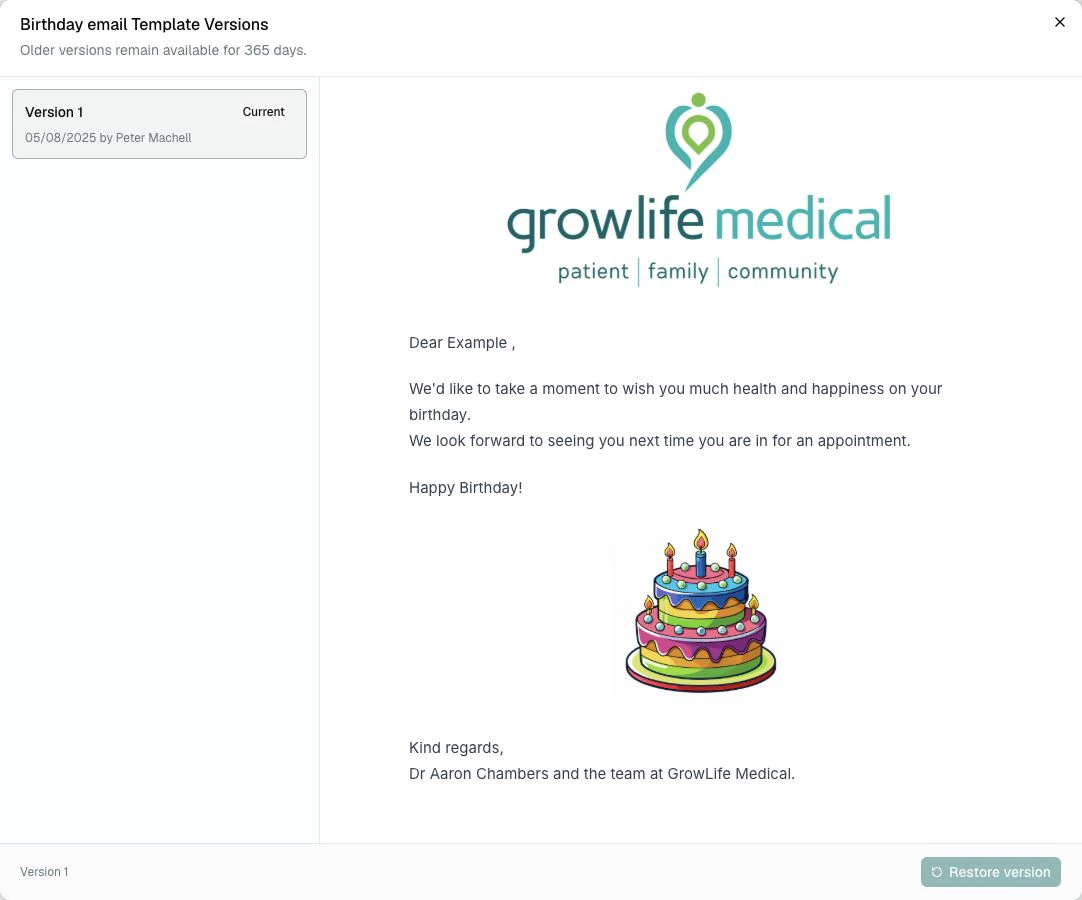
Version history is there to help your team review and restore recent saved
work. It is not intended to be a permanent record of every change. Older
versions remain available for 365 days.
Test
Test sends the current draft to an Email address or mobile number you choose. Test sends are useful because they let your team check the message before it is sent to patients. Test sends use sample Template Variable values. Credits used depend on the channel:- Email tests use 1 Credit.
- SMS tests use 10 Credits per segment.
Template Variables
Template Variables are placeholders that PracticeMate fills when a Communication is sent. Type @ in the Email body or SMS body to open the Template Variable menu.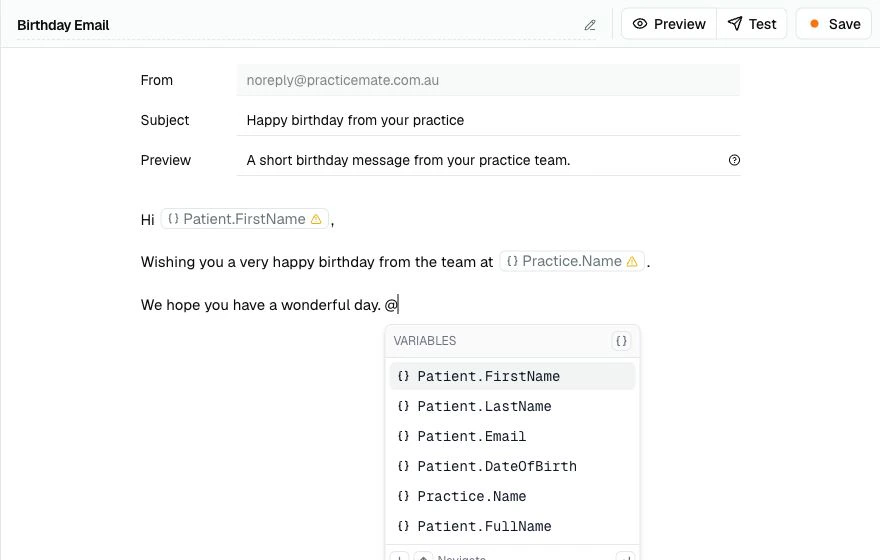
- Patient.FirstName
- Patient.PreferredName
- Patient.LastName
- Patient.FullName
- Patient.Email
- Patient.DateOfBirth
- Practice.Name
Fallback values
Some Patient fields can be blank. A fallback value is backup text PracticeMate can use when the variable has no value. For example, if Patient.FirstName is blank, a fallback such as there can turn:Hi Patient.FirstName,into:
Hi there,Select a variable pill to add or edit its fallback value.
Email Template editor
Use Email Templates when the message needs more space, formatting, images, buttons, or links.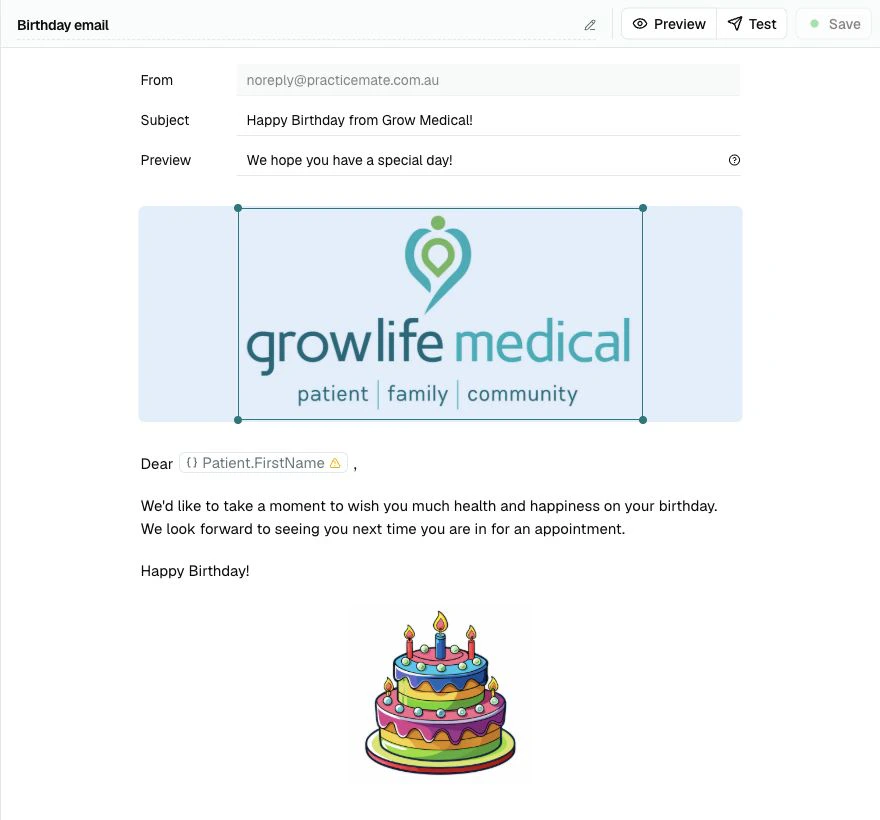
From
The From field uses your Practice Email settings. Change your Practice Email settings if your practice needs to send from a different address.Reply-To
The Reply-To field also uses your Practice Email settings by default. It is only used when your practice sends from an active BYO Email Domain. If it is blank, replies go to the From address.Subject
The Subject is the inbox line patients see first. Keep it short and clear:- Happy birthday from your practice
- Flu vaccination reminder
- Preparing for your appointment
Preview
The Preview field is the short snippet many inboxes show near the subject. Good preview text adds context without repeating the subject:- A short message from your practice team.
- Please read this before your upcoming appointment.
- Ask your GP about vaccination at your next visit.
Body
The body is where you write the Email content patients receive. You can type normally, paste text, insert Template Variables with @, and add richer blocks with /.Slash menu
Type / on a blank line to open the block menu. The Email slash menu includes:- Text: plain paragraph text
- Heading 1, Heading 2, Heading 3: headings of different sizes
- Bullet List and Numbered List: simple lists
- Image: full-width image
- Inline Image: image inside the body flow
- Columns: side-by-side layout
- Section: grouped content with layout controls
- Divider: horizontal divider
- Spacer: vertical space between blocks
- Button: call-to-action button
- Link Card: linked card-style block
- Hard Break: line break
- Blockquote: quoted or highlighted text
- Footer: footer text
- Clear Line: remove the current block prompt
- Components: reusable Template Components saved by your practice
Text toolbar
When you select text in the Email body, a small toolbar appears. Use it to:- make text bold, italic, underlined, or struck through
- apply inline code styling
- align text
- turn text into a bullet or numbered list
- add or remove a link
- change text colour
Block controls
Email blocks have controls that appear when the block is selected. Depending on the block, you can adjust:- alignment
- links
- colours
- corner rounding
- spacing around the block
- image source and image size
- button label, button style, button size, and button link
- column count, column width, column spacing, and vertical alignment
Images
Images can help with branding or recognition, but use them carefully. When an image is selected, you can adjust the image source, link, alignment, size, shape, and corner rounding. For clinical or operational messages, make sure the Email still makes sense if an inbox blocks images.Buttons and links
Buttons are useful when there is a clear action, such as booking online or visiting a page. Use one clear button where possible. Too many links can make a message harder to understand.Template Components
Template Components are reusable content blocks. If your practice has saved Template Components, they appear in the Email slash menu under Components. Use them for content your practice repeats often, such as a letterhead, footer, or standard booking link. Learn how to create and use them in Components.Preview
Preview renders the saved Email Template. Save before previewing if you want the Preview to reflect your latest changes.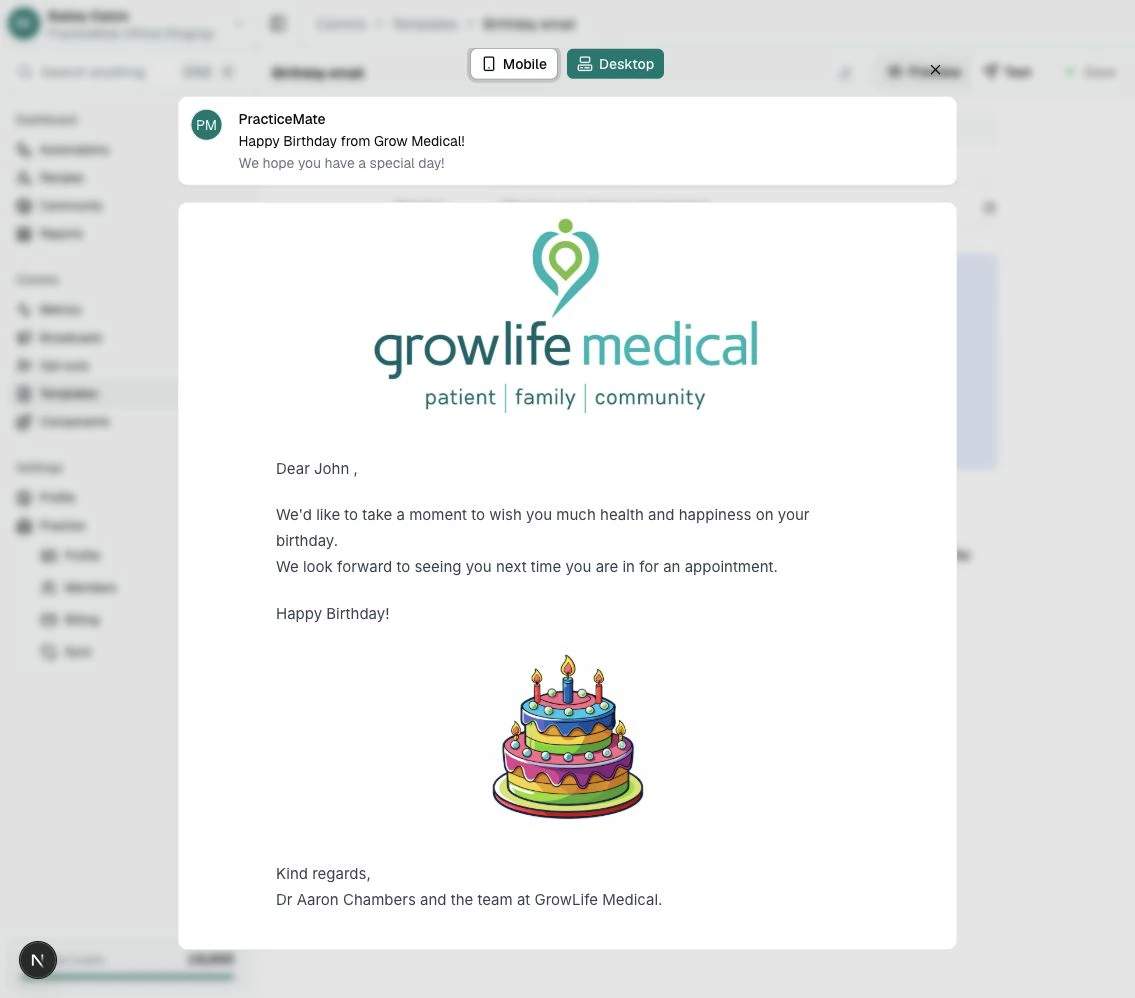
- Mobile and Desktop views
- inbox-style sender, subject, and preview text
- the rendered Email body
SMS Template editor
Use SMS Templates when the message should be short, timely, and easy to read on a phone.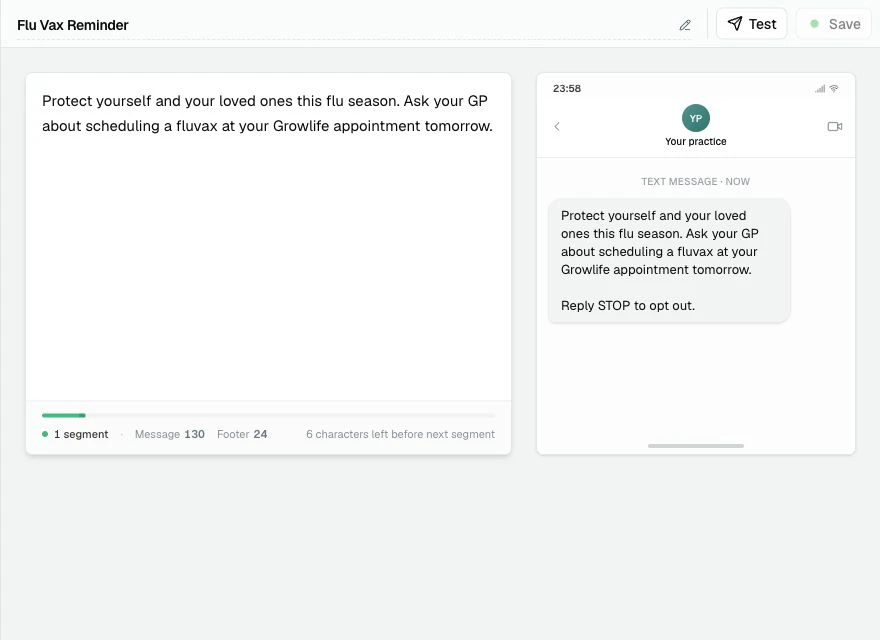
Message composer
The SMS composer is the main text box for the message. Type normally, or type @ to insert Template Variables. SMS Templates do not have a subject line or preview text. The message body is what patients receive.Phone preview
The phone preview updates as you type. It shows the message with the opt-out footer appended, so you can check the final shape before saving or testing.Opt-out footer
PracticeMate automatically adds an opt-out footer to SMS Communications. Do not type the opt-out line into the Template yourself. The opt-out footer counts toward the SMS length and segment count.Segment counter
The segment counter sits under the SMS composer. It shows:- the number of SMS segments
- the message character count
- the opt-out footer character count
- how many characters remain before the next segment
SMS length limit
PracticeMate stops you from writing past the maximum SMS length, and it reserves room for the automatic opt-out footer as you type. If the message is too long, shorten it before sending a test or using it with patients.Test dialogs
Email and SMS Templates both have a Test button. Email tests ask for an Email address.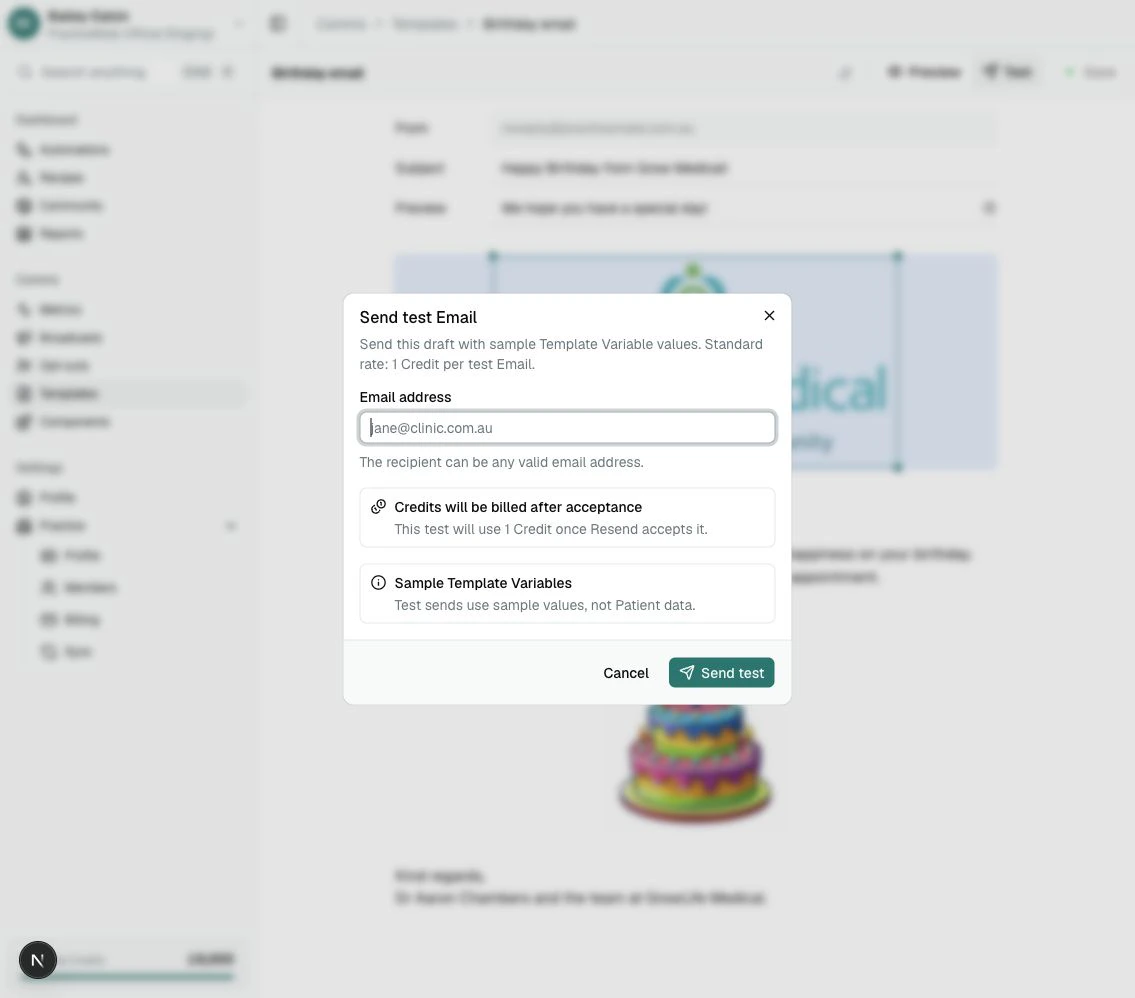
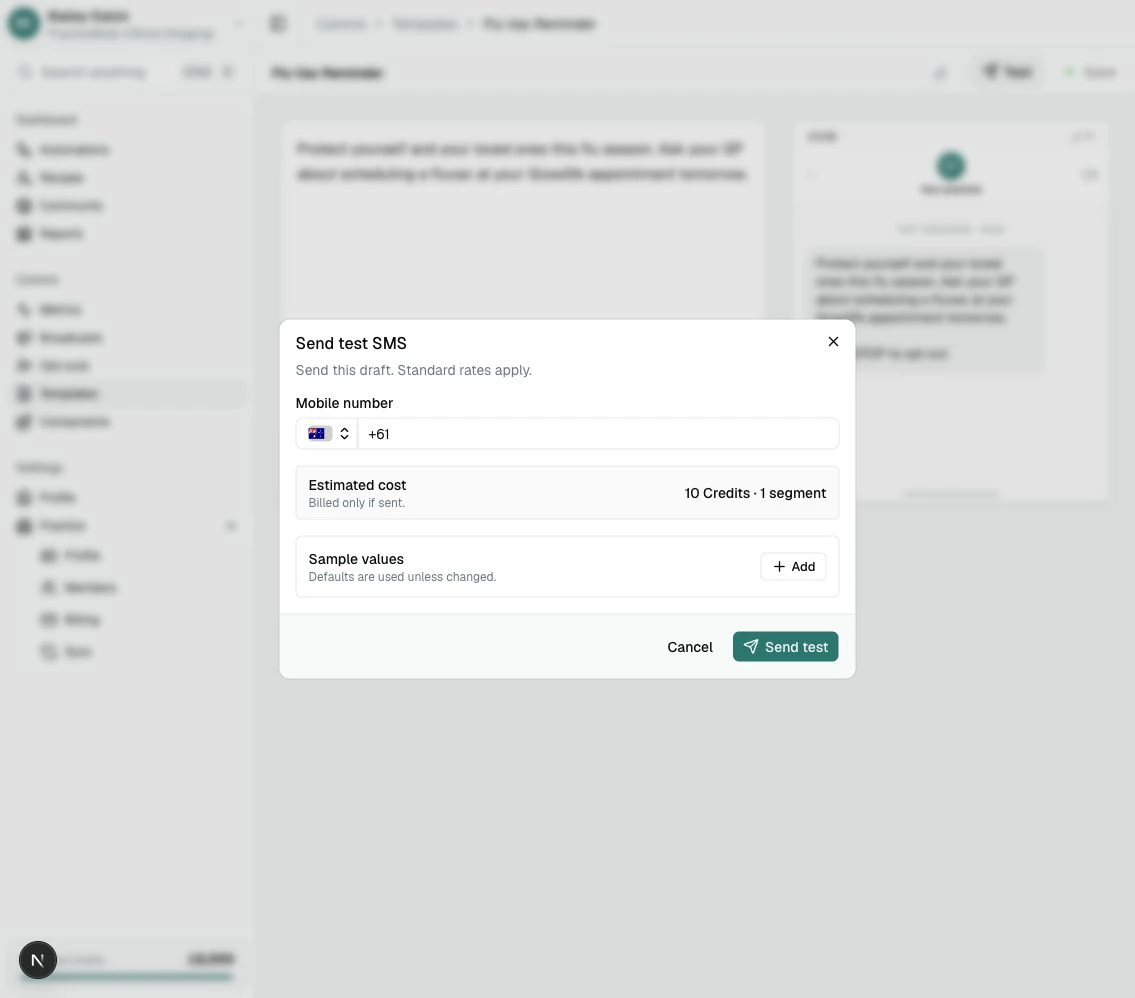
- the recipient address or mobile number is correct
- the Template content is appropriate for testing
- any links are safe to open
- SMS segment count is acceptable
- your practice is comfortable using the required Credits
Common checks before saving
Before saving a Template, check:- The Template name is clear.
- The message has one clear purpose.
- Email subject and preview text are fixed plain text.
- Template Variables are only used where they improve the message.
- Important variables have sensible fallback values.
- SMS Templates do not include a manually typed opt-out footer.
- SMS segment count is acceptable.
- Links and buttons point to the right place.
- Images are helpful, not distracting.
- The Template has been tested by a team member.
- The Template has been saved after important changes, so Version history has a useful point to return to.
A good Template is easy to read aloud. If it sounds like something your
practice would comfortably say to a patient, it is usually on the right track.