
- birthday greetings
- flu vaccination reminders
- appointment preparation
- recall or review invitations
- health check follow-ups
- practice updates
How Templates fit together
Most patient Communication workflows have three simple parts. Recipe: who should receive the Communication. Template: what the Communication says. Broadcast or Automation: when and how PracticeMate sends it. For example:- A Recipe finds active patients who may be due for a flu vaccination.
- An SMS Template explains the flu vaccination reminder in plain language.
- A Broadcast sends that SMS Template to the selected Patient Cohort.
Open Templates
In the sidebar, under Comms, select Templates. From here, you can search existing Templates, filter by Email or SMS, open a Template to edit it, or create a new Template.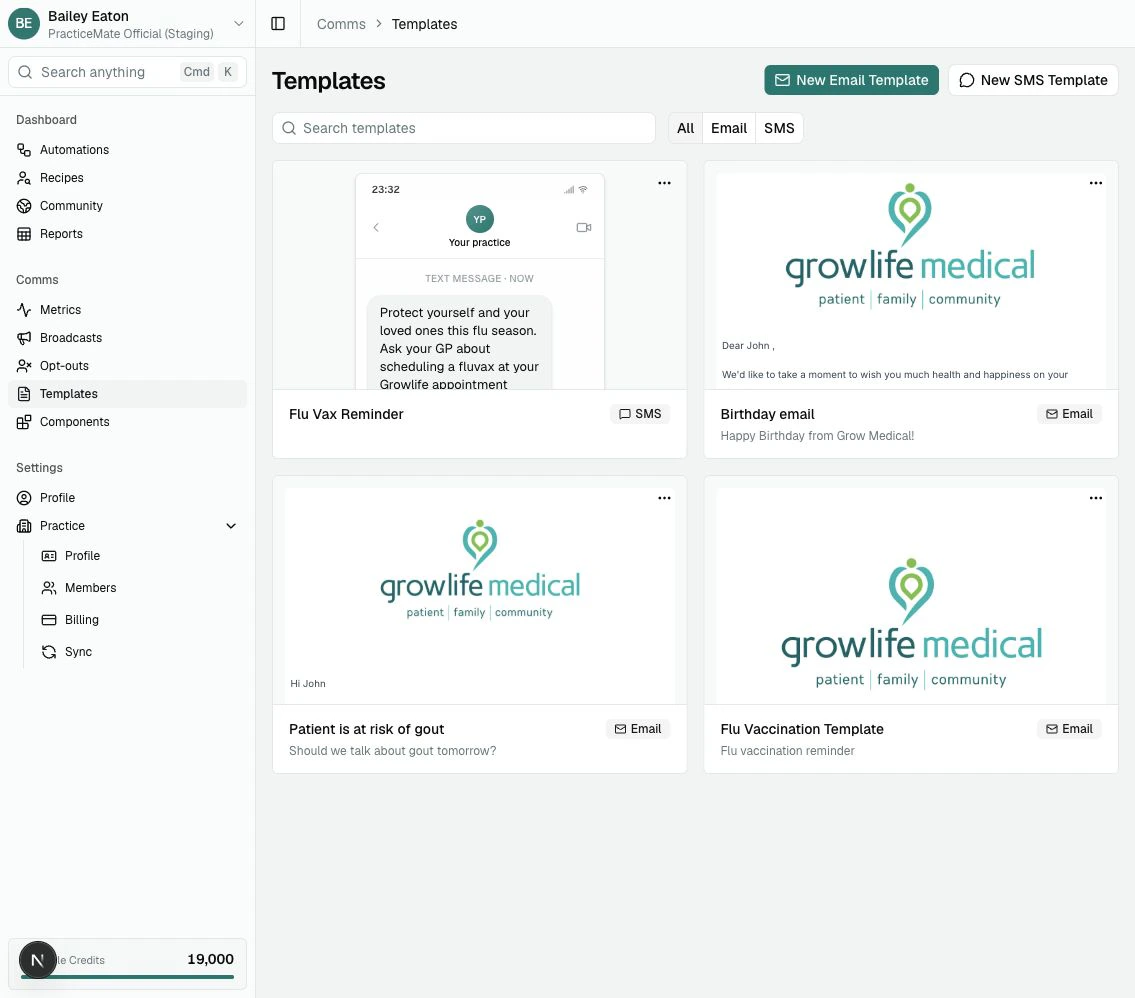
Email or SMS?
Choose Email when the message needs more space, visual structure, links, images, or a warmer letter-style format. Choose SMS when the message should be short, timely, and easy to read at a glance. Both Email and SMS Templates can include Template Variables. These are placeholders such as Patient.FirstName or Practice.Name that PracticeMate fills when the Communication is sent.Version history
Every time you save a Template, PracticeMate keeps that saved version. This gives your team a simple way to look back at earlier wording and restore it if needed. Open Templates, then select the … menu on a Template card and choose Version history.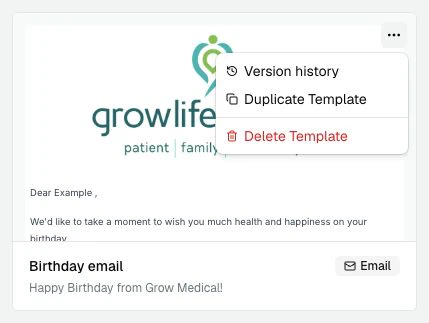
- browse earlier saved versions
- see which version is current
- preview older Email or SMS wording
- restore an older version when your practice wants to go back to it
Broadcasts and Automations use the Template version selected at the time they
are set up. This means later edits to the Template do not quietly change
Communication work your team has already prepared.
Template Variables
Template Variables let one Template work for many patients. For example, instead of writing:Dear John,you can insert Patient.FirstName. When the Communication is sent, PracticeMate fills in the patient’s first name from Practice Data. Common Template Variables include:
- Patient.FirstName
- Patient.PreferredName
- Patient.LastName
- Patient.FullName
- Patient.Email
- Patient.DateOfBirth
- Practice.Name
A reliable way to build
1
Start with the channel
Decide whether the message should be an Email or an SMS before you write the
copy.
2
Write the message in plain language
Use wording your reception team or clinical team would be comfortable
sending.
3
Add Template Variables only where they help
Patient names and your Practice name are useful. Avoid making the message
feel overly personalised if the wording does not need it.
4
Preview or review the message
Email Templates have a Preview button. SMS Templates show a live phone
preview beside the editor.
5
Send a test
Use Test to send a copy to yourself or another team member before using
the Template with patients.
6
Save with a clear name
Use names like Birthday Email or Flu Vax Reminder SMS, so the
Template is easy to find later.
7
Use Version history when wording changes
If the Template changes over time, Version history gives your team a saved
point to review or restore.