
Documentation Index

Fetch the complete documentation index at: https://docs.practicemate.com.au/llms.txt

Use this file to discover all available pages before exploring further.

In this guide, you will create a simple Email Broadcast for: Patients whose birthday is today. The example uses the Patients whose birthday is today Recipe and the Birthday email Template. Your practice can use any Recipe and Template that match the Communication you want to send.
The screenshots use example dashboard data. Before sending a real Broadcast, choose the Patient Cohort and Template your practice has reviewed and is comfortable sending.

Before you start

Make sure you have:
  • a saved Recipe
  • a saved Email or SMS Template
  • enough Credits for the estimated send
  • permission in your practice to send patient Communications
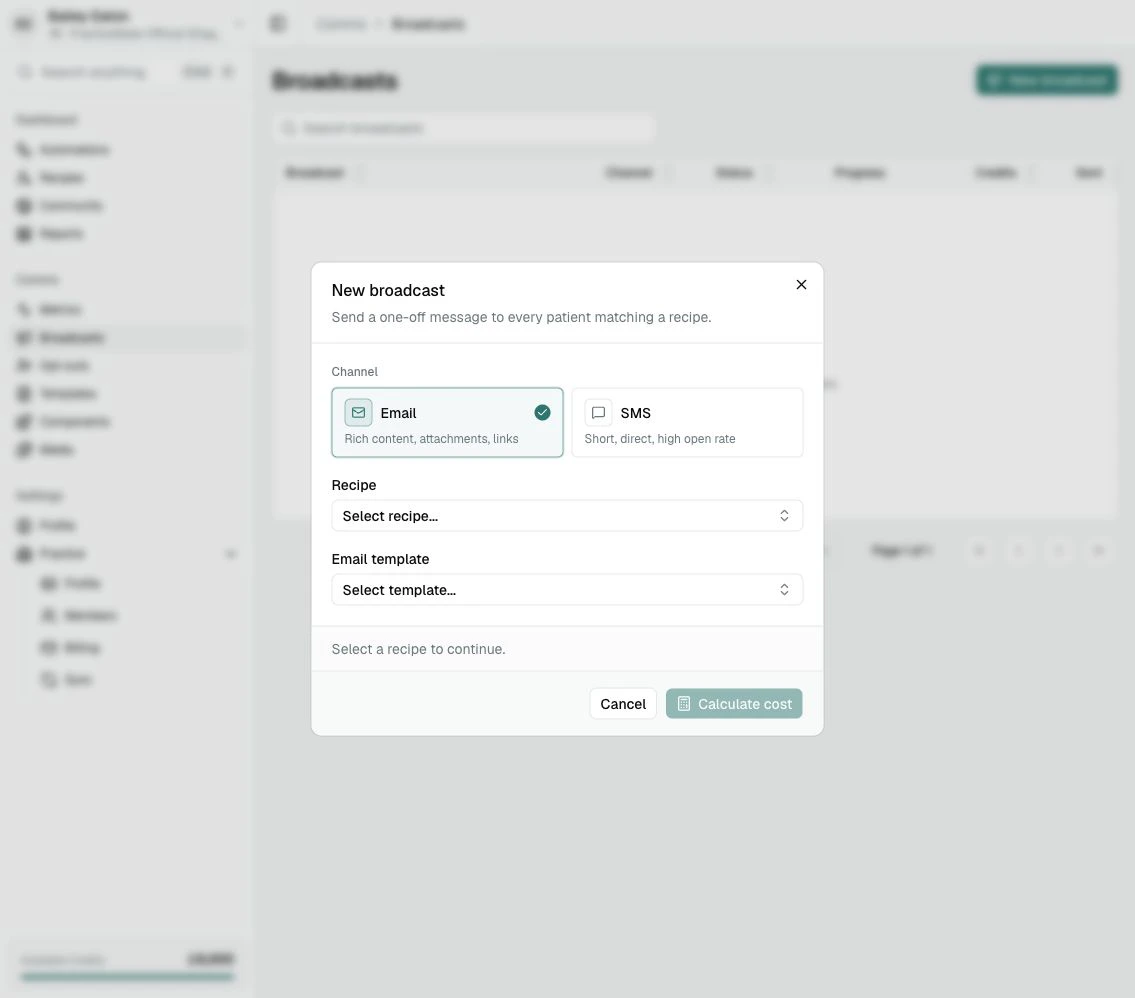
For this guide, in the sidebar, under Comms, select Broadcasts. Select New broadcast. The New broadcast dialog showing Email and SMS channel options, Recipe selector, Email template selector, and disabled Calculate cost button.

Choose the channel

Select Email or SMS. Use Email when the message benefits from a subject line, longer wording, images, buttons, or a letter-style format. Use SMS when the message should be short, direct, and easy to read quickly on a phone. This guide uses Email.

Choose the Recipe

Open the Recipe selector and choose the saved Recipe for the patients you want to contact. The Recipe decides the Patient Cohort. For this guide, choose Patients whose birthday is today. The Recipe selector open inside the New broadcast dialog, showing available saved Recipes.
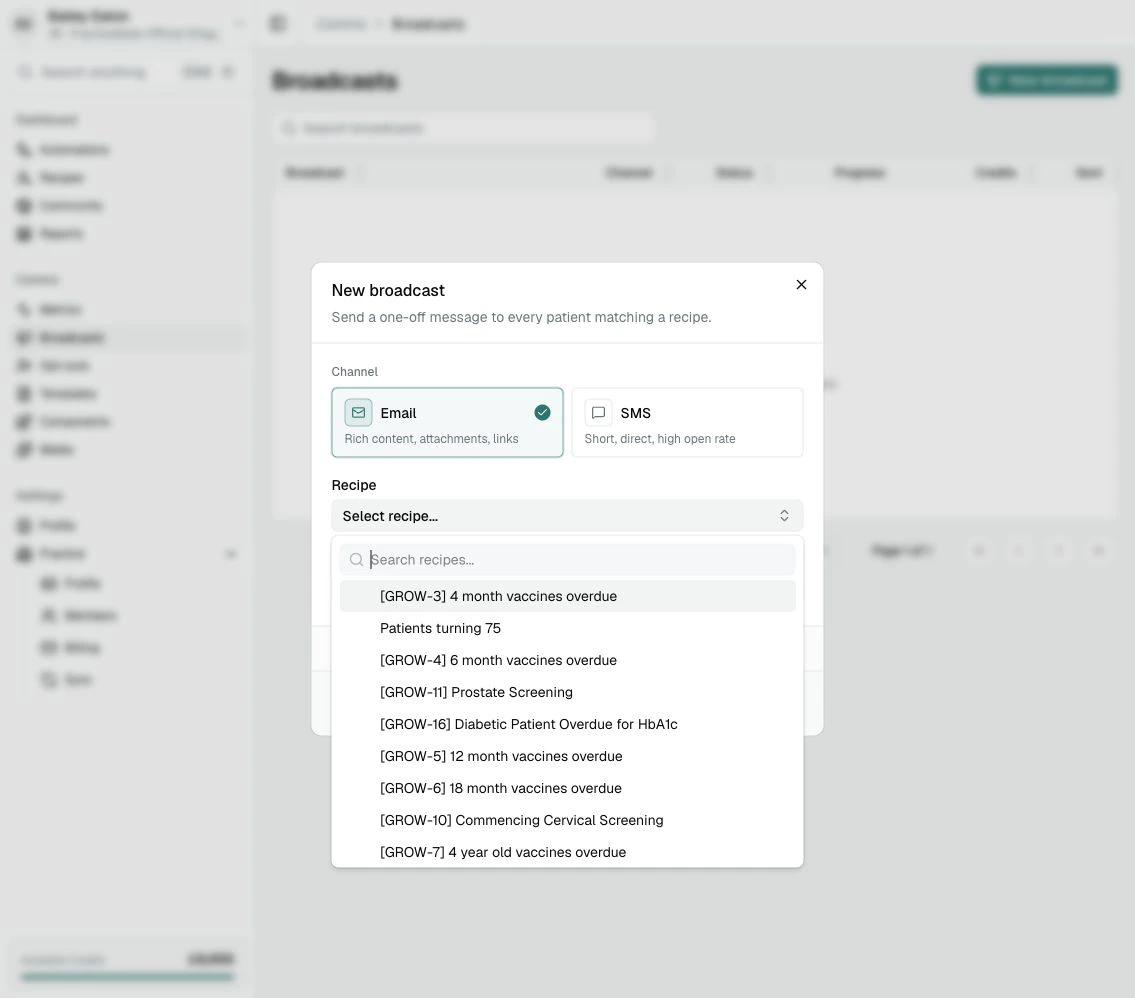
Read the Recipe name back in plain language before continuing. If it sounds too broad, go back to Recipes and review it first.

Choose the Template

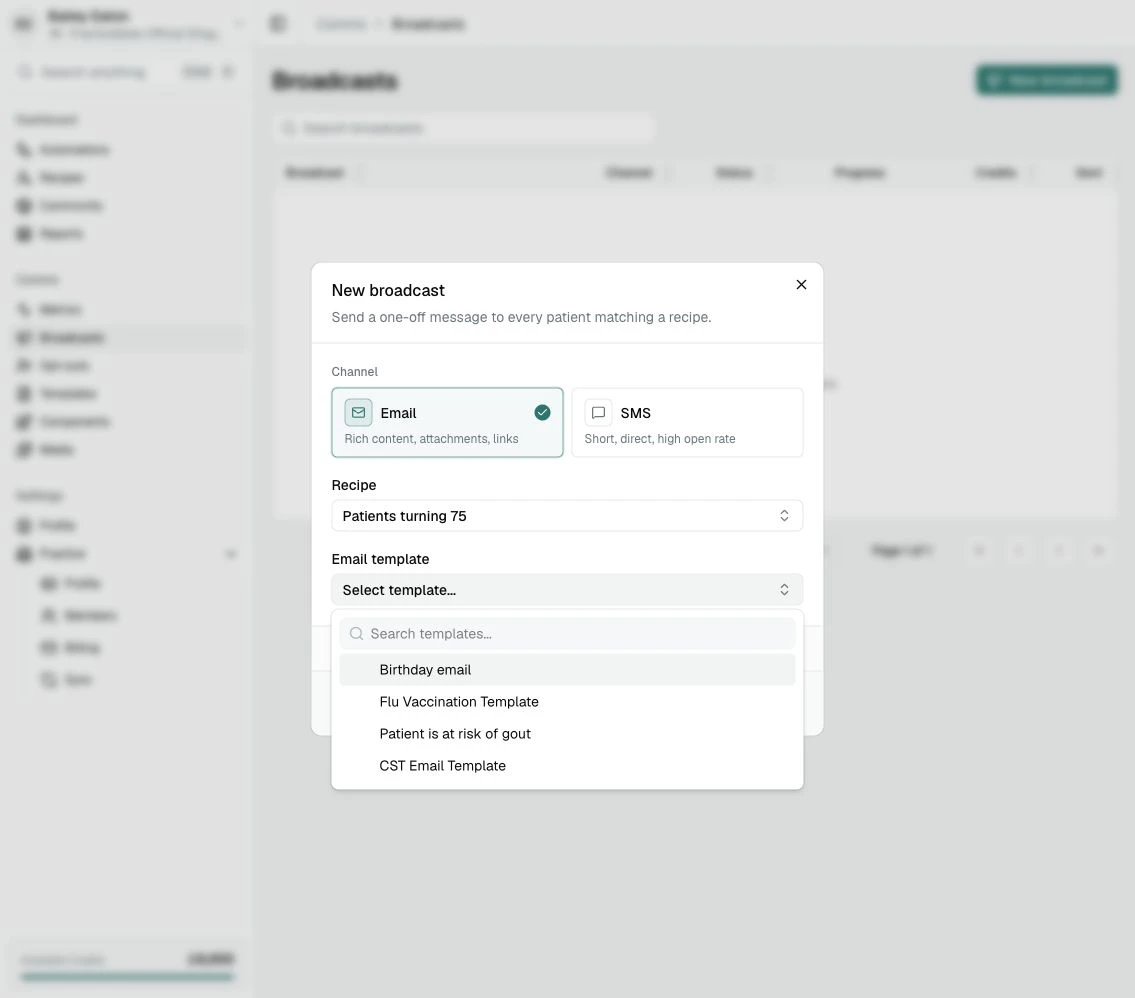
Open the Email template selector and choose the message you want to send. For this guide, choose Birthday email. The Email template selector open inside the New broadcast dialog, showing available Email Templates including Birthday email. PracticeMate uses the Template version selected when the Broadcast is created. If someone edits the Template later, it will not quietly change this Broadcast.
Calculate the cost

Once the Recipe and Template are selected, choose Calculate cost. The New broadcast dialog with Patients whose birthday is today and Birthday email selected, ready to calculate cost. PracticeMate estimates:
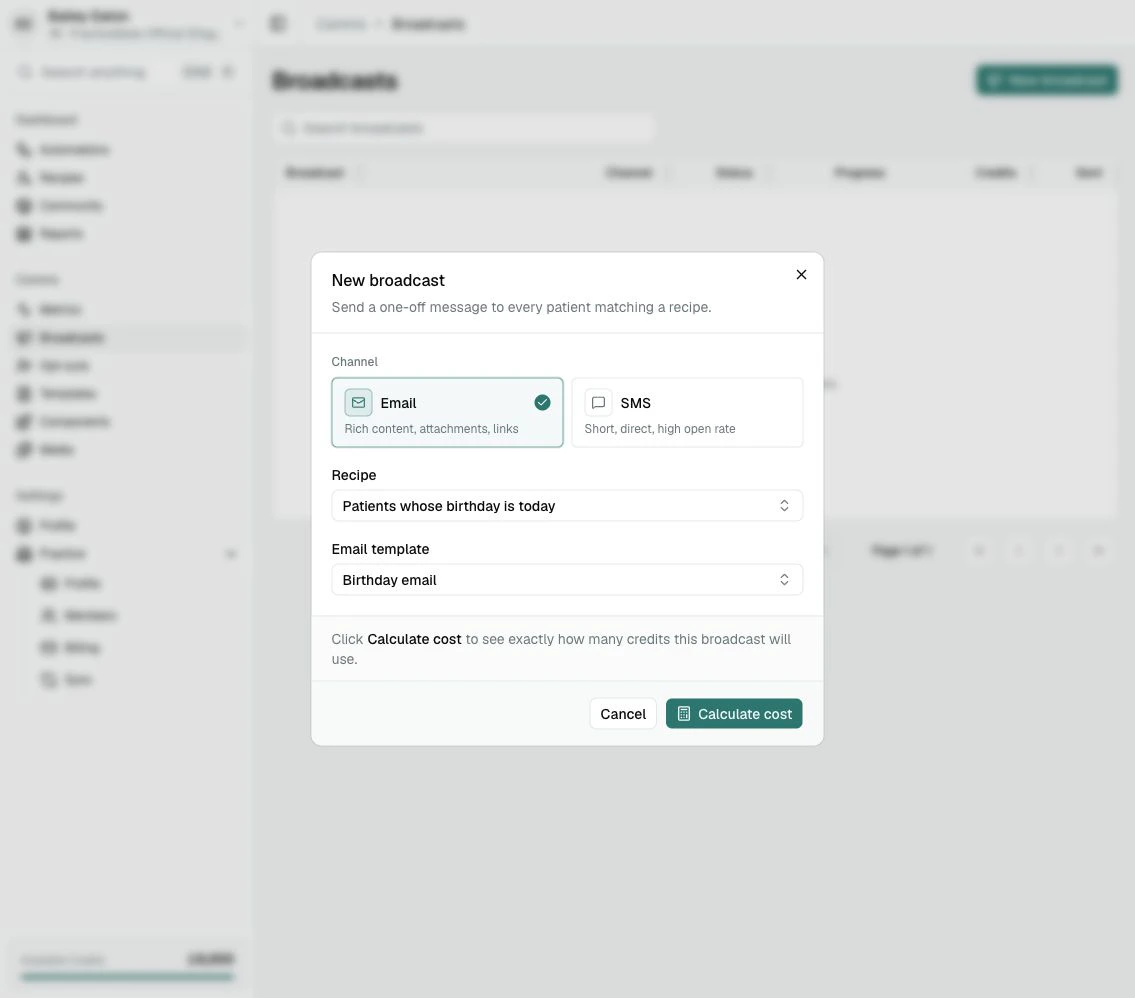
  • how many patients currently match the Recipe
  • how many Credits the Broadcast is expected to use
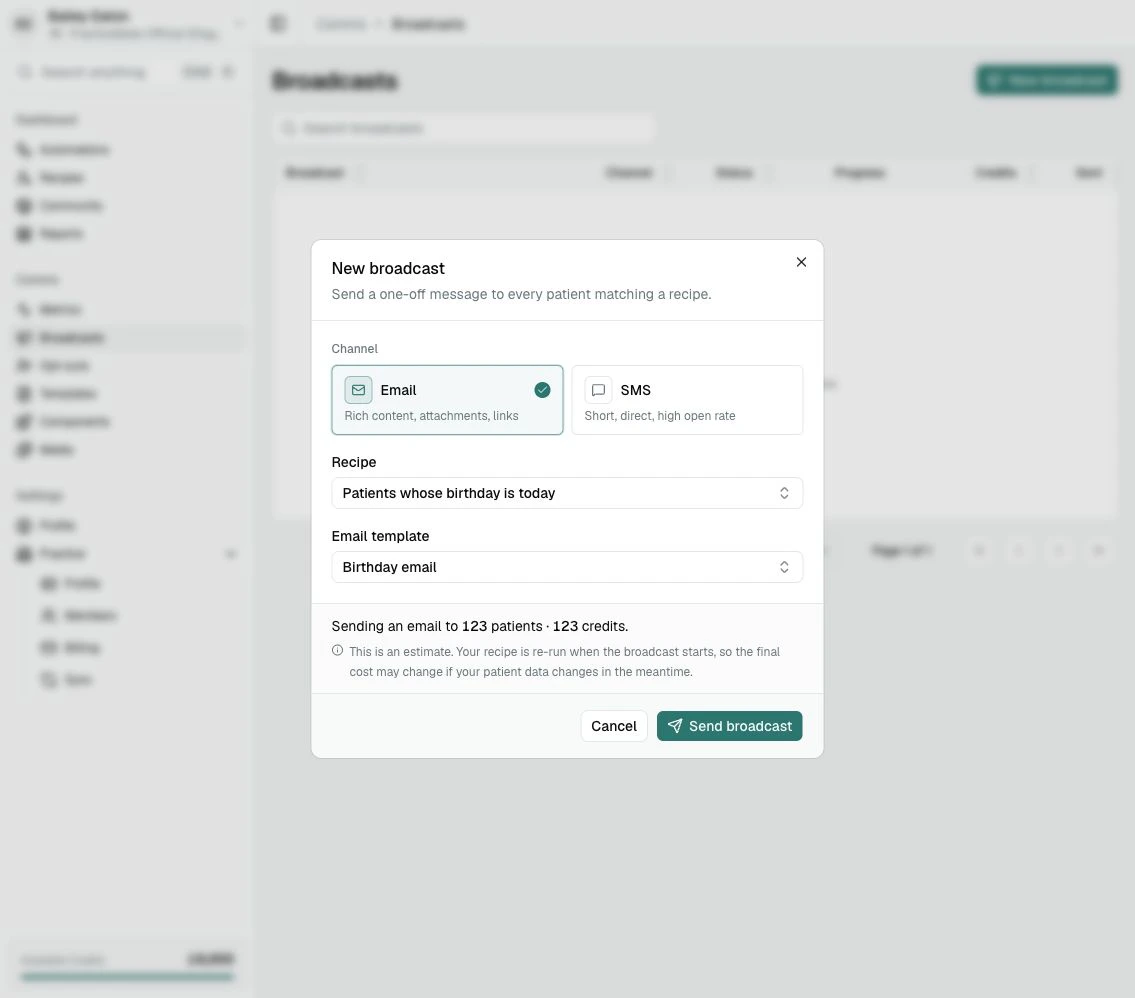
The New broadcast dialog showing an estimated Email Broadcast reach of 123 patients and 123 Credits.
The Recipe is checked again when the Broadcast starts. The final number may change slightly if Practice Data changes after you calculate the cost.

Review the final confirmation

When the estimate looks right, choose Send broadcast. PracticeMate asks you to confirm before anything is sent. The Confirm broadcast dialog showing the estimated patient count, estimated Credits, Cancel button, and Send broadcast button. Read this confirmation carefully. Sending a Broadcast cannot be undone. If anything looks wrong, choose Cancel and review the Recipe or Template. If everything looks right, choose Send broadcast.
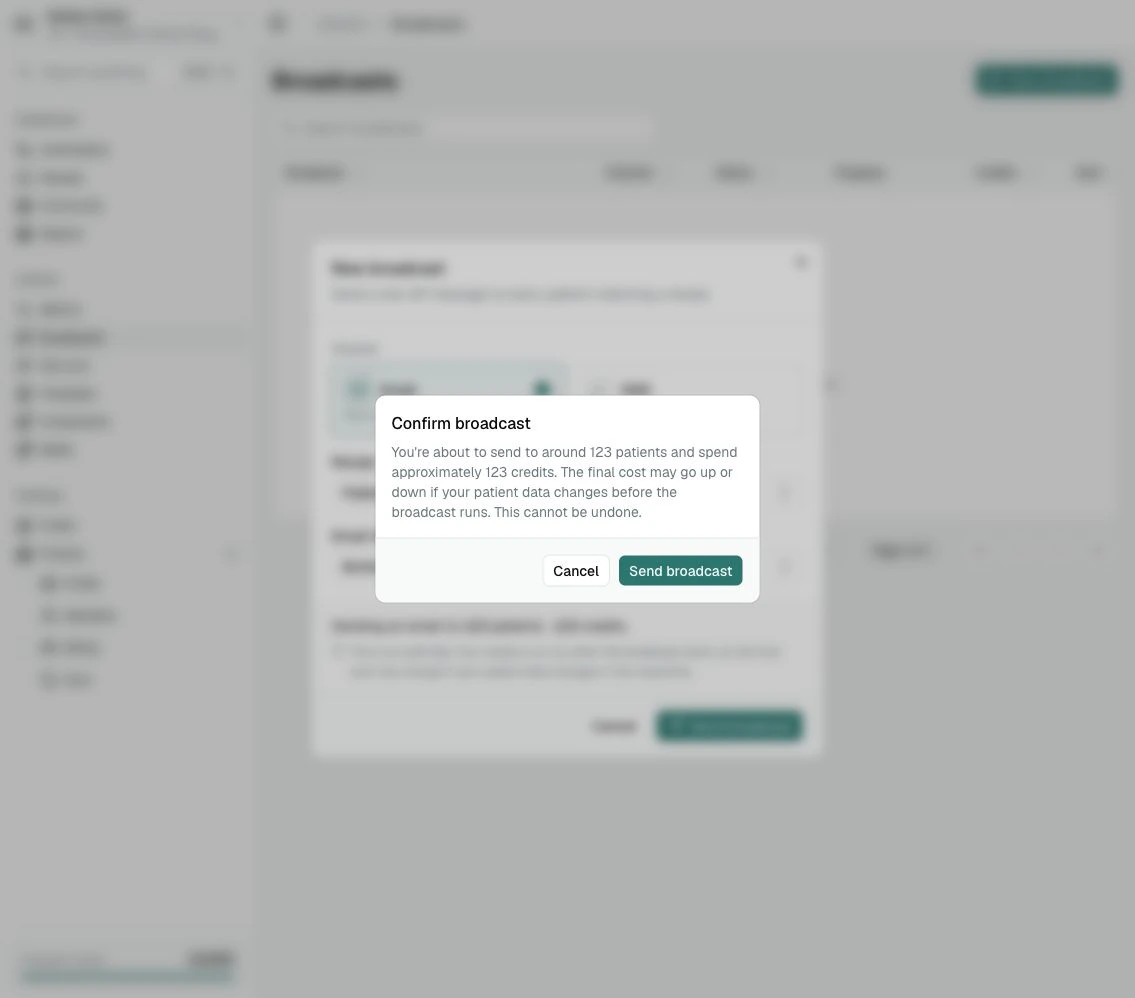
You have created your first PracticeMate Broadcast.

After sending

The Broadcast appears on the Broadcasts page. The table shows:
  • the Recipe and Template used
  • whether it was Email or SMS
  • the Broadcast status
  • progress through the Patient Cohort
  • Credits used
  • when it was sent
Some patients may be skipped if they are missing the contact details needed for the selected channel or have opted out of Communications from your practice.

What you learned

You used:
  • the Broadcasts page
  • New broadcast
  • the Email channel
  • a saved Recipe
  • a saved Email Template
  • Calculate cost
  • the final confirmation before sending
Next, review Templates overview if you want to prepare more Email or SMS wording before your next Broadcast.